Go2 User Manual
© 2023 All rights reserved, Unitree Robotics 14
Use handheld remote control to control Go2 (Optional)
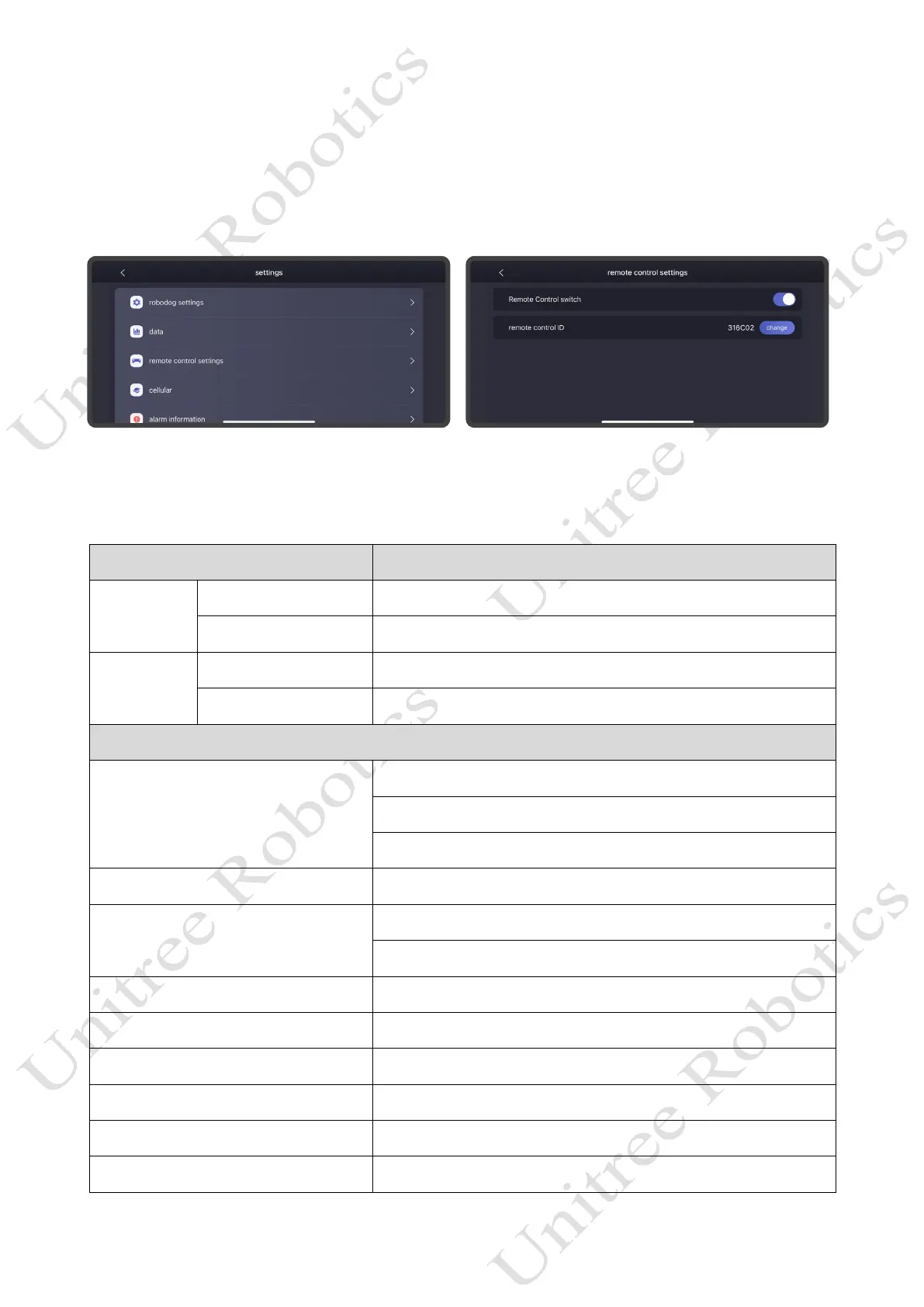
For the first time to use handheld remote control, you need to bind it on Unitree Go App, [Settings] ->
[Remote Control Settings] - turn on the remote control switch, enter the corresponding remote control code,
and then you can bind it with the digital transmission module on the robot dog.
The digital signal lights on the left side of the two-handed remote control are all on, which means that
the connection is successful. Then you can use the remote control to control the robot dog to complete the
corresponding action.
Button Effect
Left Rocker
Push Forward/Backward Move back or forth
Push Left/Right Sideways movement
Right Rocker
Push Fforward/Backward Head up or down
Push Left/Right Left or right turn
Switch Mode
START
Get Unlocked
Walking Mode
Keep Walking Mode(double click)
SELECT Make a pose
L2 (Long Press) + A (Click)
Locking Posture 1: lock joints when standing
Locking Posture 2: Press again to go prone
L2 (Long Press) + B (Click) Damping Mode (soft emergency stop)
L2 (Long Press) + START (Click) Running Mode
L2(Long Press) + START (double Click) Keeping Running Mode
RIGHT (Long Press) + START (Click) Stair Climbing Mode 1: go upstairs forwards and downstairs backwards.
LEFT (Long Press) + START (Click) Stair Climbing Mode 2: go downstairs forwards
L1 (Long Press) + SELECT (Click) Endurance Mode


 To Next Page