Need help?
Do you have a question about the Unitree A1 and is the answer not in the manual?
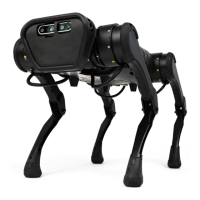
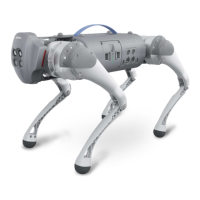
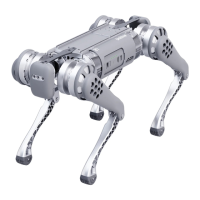
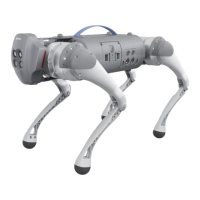
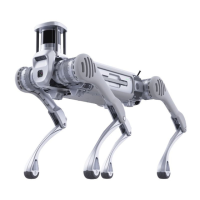
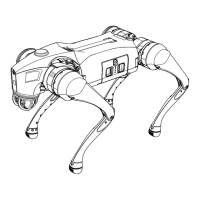
Identifies main robot components like depth camera, interfaces, and motors.
Specifies thigh and calf motors and their associated reducers.
Locates the power switch and battery status indicator on the robot.
Details the function of the main stick for robot attitude and position control.
Explains the purpose of left, right, START, R1/R2, and L1/L2 buttons.
Identifies the power button, charging interface, and Wi-Fi indicator.
Details the machine weight and dimensions of the robot in stand and folded states.
Covers speed, operating time, payload, DOFS, joint torque/speed, RTOS.
Lists protection modes, warning systems, and abundant external interfaces.
Mentions optional lidar, NVIDIA TX2, and their capabilities.
Provides specifications for the remote controller's operating time and battery capacity.
Instructions on how to check the robot's battery status.
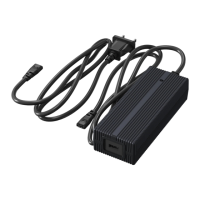
Guidance on charging the robot and its remote controller.
Ensuring the robot is placed on a level surface with proper limb stowage.
Steps to power on devices and launch the Unitree App.
Lists various joystick control methods for different modes like Sport and SLAM.
Details actions that express the robot's performance and require following guidelines.
Highlights actions likely to cause falls or reduce battery life, requiring caution.
Advises on operating environment, avoiding steps, slopes, and specific ground surfaces.
Procedure to initiate Sport mode using controller buttons.
Using the left stick to control vertical body movement (lift or squat).
Using the left stick for horizontal rotation (yaw) of the robot's body.
Using the right stick for forward/backward lean (pitch) and side-to-side tilt (roll).
Using the left button for incremental body lift and squat actions.
Controlling jaw movement and body twist with the left stick.
Using linked sticks for jaw control and forward/backward body movement.
Using the right stick to rotate the robot body clockwise.
Using the right stick to rotate the robot body counterclockwise.
Combining sticks for leaning forward and twisting the body.
Combining sticks for leaning backward and twisting the body.
Performing a 180° roll and semi-squat/standing movements.
Executing a 360° roll and locking joints in a half-squat state.
Locking robot joints in a half-squat state for manual repositioning.
Entering zero torque mode for calibration of joint zero point and IMU.
Using the START button to switch between stepping and stationary states.
Using left/right buttons to correct IMU drift during stepping.
Using the left stick for controlled forward and backward locomotion.
Using the left stick for in-situ rotation and stepping (clockwise/counterclockwise).
Using the right stick for side-to-side lateral movement.
Using the left stick to control forward arc and circular walking.
Using the left stick for backward arc and circular walking.
Using L1 and left button to adjust robot leg height for different terrains.
Procedure to activate fast running state using controller buttons.
Using the left stick for controlled forward/backward movement and in-place jumping.
Using the left stick for rapid in-situ rotation and stepping.
Using the right stick for rapid side-to-side lateral movement.
Using the left stick for forward arc and circular running.
Using the left stick for backward arc and circular running.
Sequence of button presses to enter SLAM mode from Sport mode.
Using the A button to toggle climbing mode for terrain following.
Lift/squat actions in Sport/SLAM mode are not recommended.
Creeping forward/backward with specific stick inputs is not recommended.
Creeping left/right with specific stick inputs is not recommended.
Creeping rotation (counterclockwise/clockwise) is not recommended.
Arc walking with specific stick inputs is not recommended.
Arc creeping with specific stick inputs in W/Sport mode is not recommended.
Introduction to the UnitreeRobotics APP for Android and iOS platforms.
Explains the elements and sections of the APP's home screen.
Accessing user manuals and establishing a connection with the robot.
Details image mode, depth mode, and body recognition for robot vision.
Enabling character tracking for the robot to follow a selected person.
Using the simulator to learn handle keys and functions without connecting to the robot.
Entering SLAM mode for navigation and mapping.
Selecting points on the map for autonomous navigation and obstacle avoidance.
Important notes for setting target points, waiting for posture, and handling dynamic obstacles.
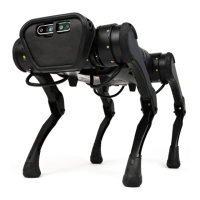
The Unitree A1 is a quadruped robot designed for a variety of applications, emphasizing both performance and ease of use. Its optimal joint design contributes to a reduced cost while significantly enhancing its motion capabilities and service life.
The A1 robot excels in motion performance, particularly in "Sport mode," where it can achieve a maximum joint speed of 21 rad/s, allowing it to accelerate up to 3.3 m/s almost instantly. This mode also highlights its excellent balance ability. With a torque of 33.5 NM, the A1 is capable of performing complex maneuvers, including backflips.
A key feature of the A1 is its multi-eye depth camera, which enables intelligent applications such as real-time image transmission, offering 720P quality at 30 frames per second. This camera also supports character following, allowing the robot to track and follow a designated person. The robot is designed for secondary development, providing a platform for users to expand its functionalities.
For enhanced capabilities, the A1 supports optional lidar integration. With lidar, the robot can perform advanced functions like dynamic obstacle avoidance, navigation planning, autonomous positioning, and map construction. Furthermore, it can be equipped with an optional NVIDIA TX2 for visual SLAM (Simultaneous Localization and Mapping) and gesture recognition, broadening its scope for intelligent interaction and environmental understanding.
The A1 is versatile in its control methods, supporting both Android and iOS applications, which allows for convenient control via mobile devices.
The A1 can be controlled using a remote controller that offers comprehensive command over the robot's movements and attitude. The joystick on the remote allows for 3-axis attitude and 3-axis position control when the robot is standing. This includes controlling forward and backward movement, left and right side shifts, in-situ turns, and various walking patterns on level ground, such as straight lines, circles, arcs, and rectangles. It can also crawl forward and navigate slopes or steps.
The remote controller connects to mobile phones via Bluetooth, ensuring stable and convenient signal transmission. Its ergonomic design aims to provide a comfortable user experience.
Basic operations in "Sport mode" include:
The remote controller's joystick and buttons facilitate various actions:
Combined and special actions in "Sport mode" include:
"A Mode" offers additional special actions:
"Sport mode" (walking) features:
"Sport mode" (fast-running) features:
"SLAM Mode" features:
The UnitreeRobotics APP provides a user-friendly interface for controlling the A1:
The A1's joints are designed for quick disassembly, making maintenance straightforward. This design choice contributes to the robot's overall service life.
The manual also lists actions not recommended in "Sport" and "SLAM" modes, such as controlling body lift/squat, forward/backward creeping, lateral creeping, and turning while creeping, as these actions are likely to cause falls or reduce battery life.
 General
| Weight | 12 kg |
|---|---|
| Max Speed | 3.3 m/s |
| Payload Capacity | 5 kg |
| Degrees of Freedom | 12 |
| Charging Time | 2 hours |
| IP Rating | IP54 |
| Sensors | Depth camera, Ultrasonic sensors, IMU |
| Control Method | Wireless remote control |
| Dimensions | 500 mm x 300 mm x 400 mm |

 To Next Page