Unitronics’s BACnet Gateway User Guide Page 24 of 28
Unitronics
Diagnostic Capture Appendix A.2.
Once the log in Diagnostic Capture is complete, email it to support@unitronics.com.
The Diagnostic Capture will allow us to rapidly diagnose the problem.
Ensure that FieldServer Toolbox is loaded on the PC that is currently being used, or download FieldServer-
Toolbox.zip at http://www.protocessor.com/tech-support/utilities-and-design-documents.php
Extract the executable file and complete the installation.
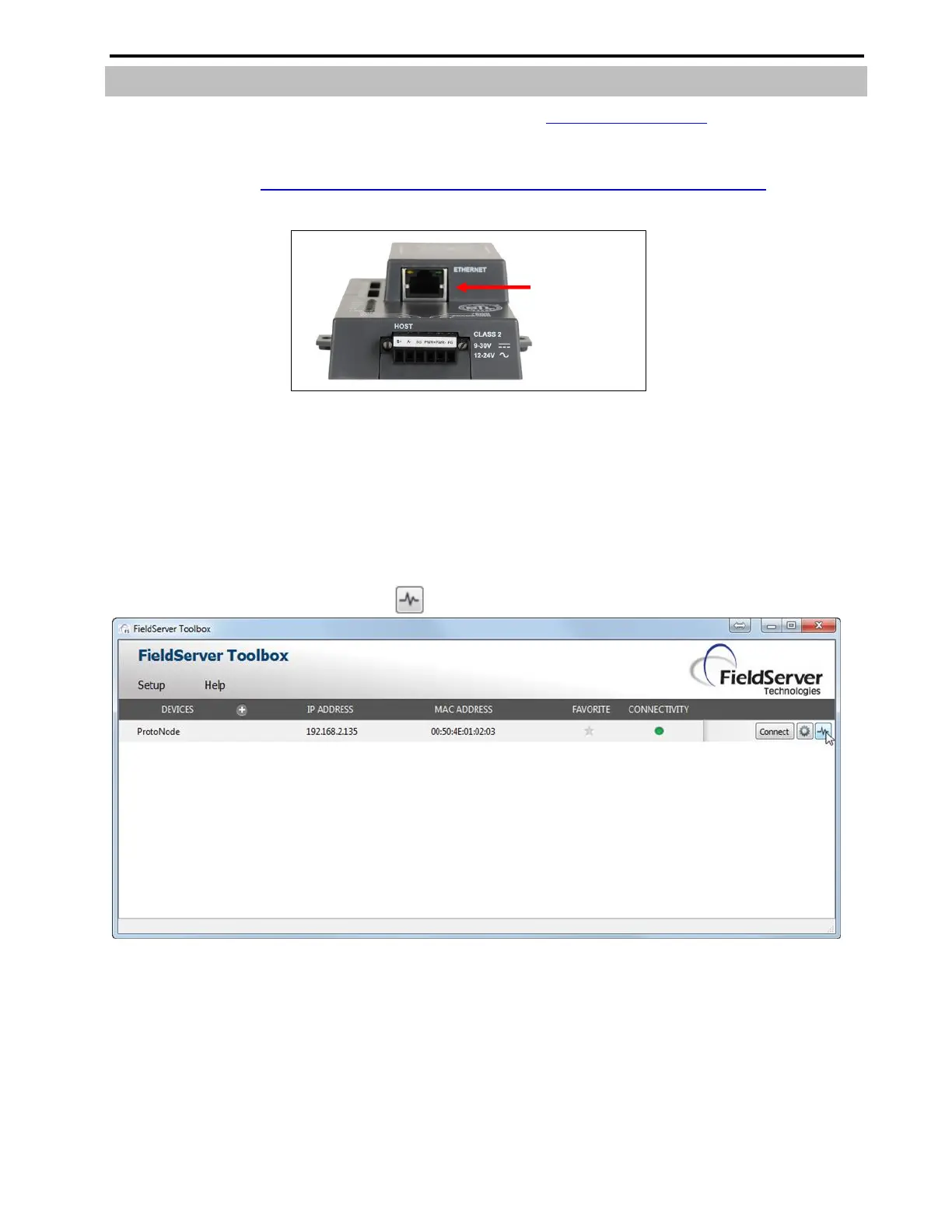
Figure 30: Ethernet Port Location
Disable any wireless Ethernet adapters on the PC/Laptop
Disable firewall and virus protection software if possible
Connect a standard cat5 Ethernet cable between the PC and GW-BAC1
Double click ion the FS toolbox Utility.
Step 1: Take a Log
o Click on the diagnose icon of the desired device.
Figure 31: Diagnostic tool – device selection


 To Next Page