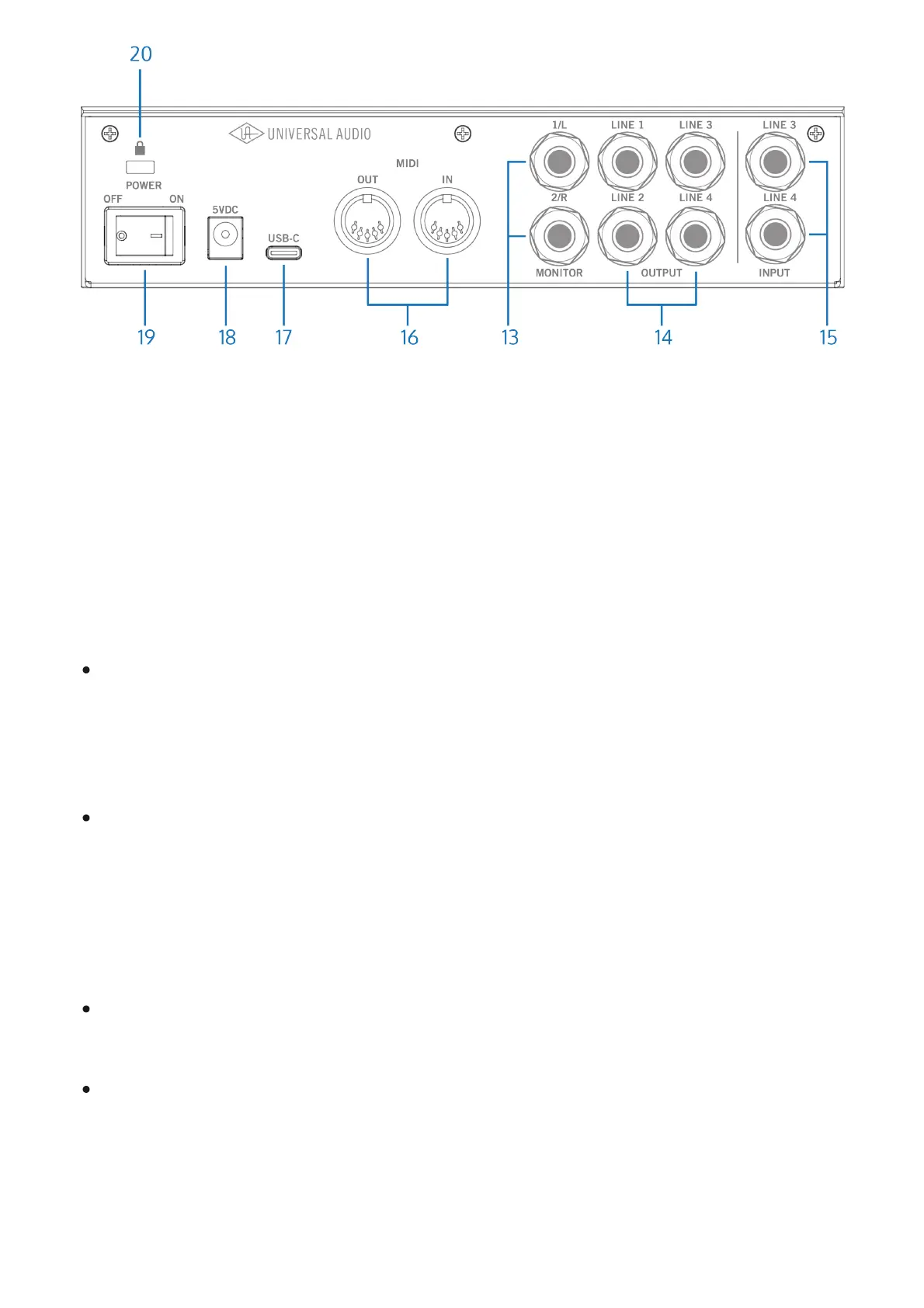
(13) Monitor Outputs
Connect your stereo speaker system to the monitor outputs. Connect the left speaker to
Monitor 1/L and the right speaker to Monitor 2/R. You can use TS (tip-sleeve) or TRS (tip-ring-
sleeve) ¼” (6.35mm) cables.
Monitor notes
The sources that you hear in the monitor and headphone outputs are assigned using the
Monitor Source buttons (11). To hear your computer or software in the monitor speakers
and headphones, Monitor Source OUT 1-2 must be enabled. These outputs are enabled by
default.
When you enable direct inputs with the Monitor Source IN buttons, you will hear those
inputs on the monitor outputs and the headphone outputs, even if no outputs are selected
with the Monitor Source buttons.
Balanced and unbalanced connections
The outputs on Volt are balanced when connected with TRS connectors to balanced
equipment.
Use TRS (balanced) audio cables for the best results with a balanced stereo speaker
system. Balanced equipment uses three conductor wiring to reduce interference and
electrical noise, and to provide better audio quality over longer cable runs. TS connections
may be suitable for shorter output cables, where electrical interference noise may not be an
issue.







 To Next Page