ASSEMBLING THE PLS
Section 4-10
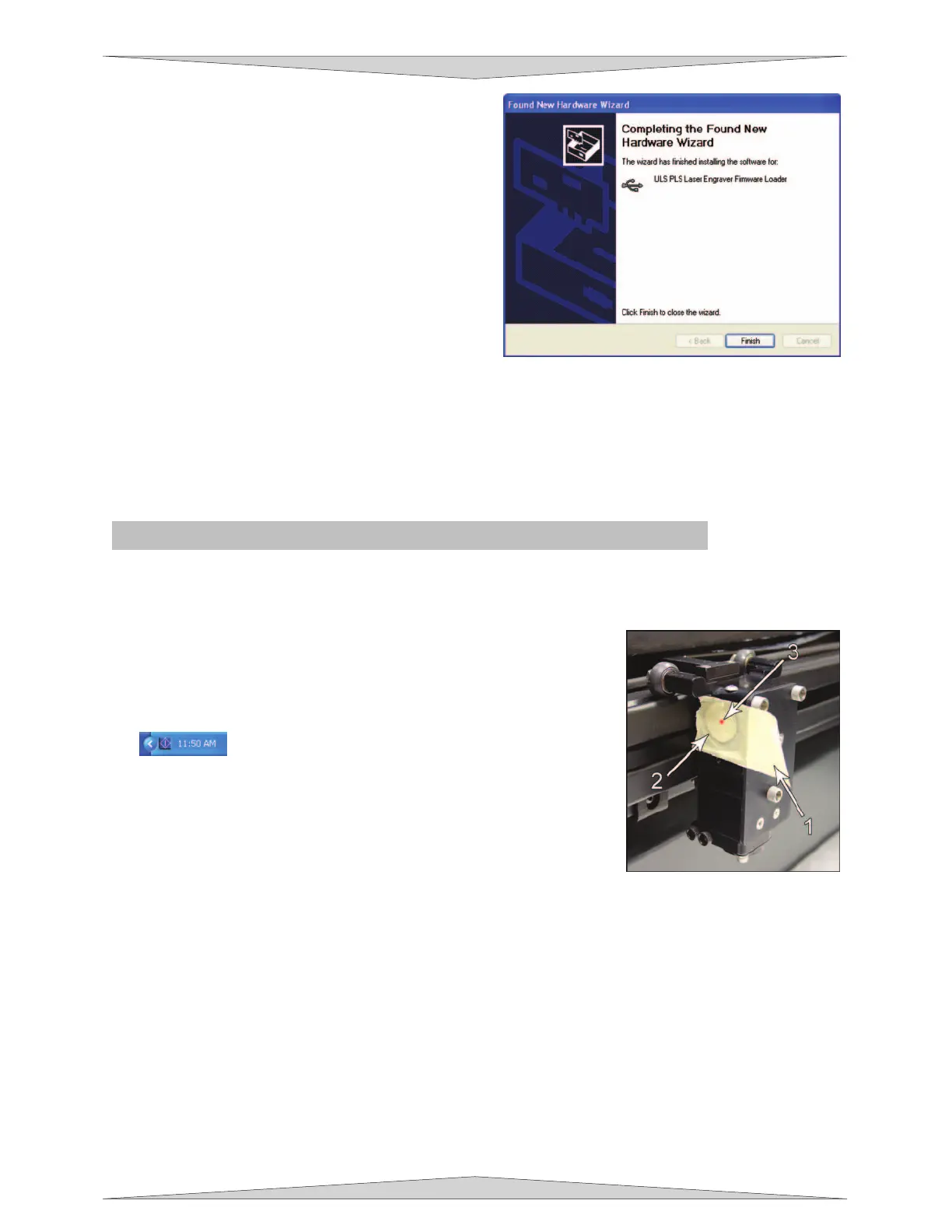
e. The New Hardware Wizard will indicate
when the installation is complete. Click
“Finish” to close the Wizard.
f. You may notice a small pop up appear on the bottom right hand corner of your display screen
saying “Found New Hardware PLS USB Printing Support.”
g. Another set of New Hardware Wizard windows will appear after the initial USB connection.
Follow the same instructions as the ones mentioned above. Once completed your new
hardware is installed and ready to use.
Checking Beam Alignment - All PLS laser systems
Note: You will not engrave anything at this time.
1. Open the top door.
2. Place a small piece of masking tape across the 3/4” hole in the
focus carriage (1). Gently rub the tape around the edge of the hole
so that you can see the outline of the hole through the tape (2) and
then close the top door.
3. Power ON the laser system (switch on the back right-hand side).
4. Power on your computer and verify that the blue shaped icon
is present on the taskbar. If not, activate it by double-
clicking on the ULSEngraver icon on your desktop.
5. After a few seconds have passed a red dot will appear on the
masking tape (3). The red dot should appear centered, or close to
the center of the hole, within 1/8 inch. If not, remove and re-install
the laser cartridge(s) and try again. If the red dot still does not
appear within 1/8” of the center of the hole, please contact our
Technical Support Department.
6. Laser beam alignment is now complete. Power OFF the laser system and remove the masking tape.
Finally, proceed to section 5 to learn how to
make a sample with your newly installed laser
system.



 To Next Page