MSC-400 Reference Manual
Rev 4
62
2A
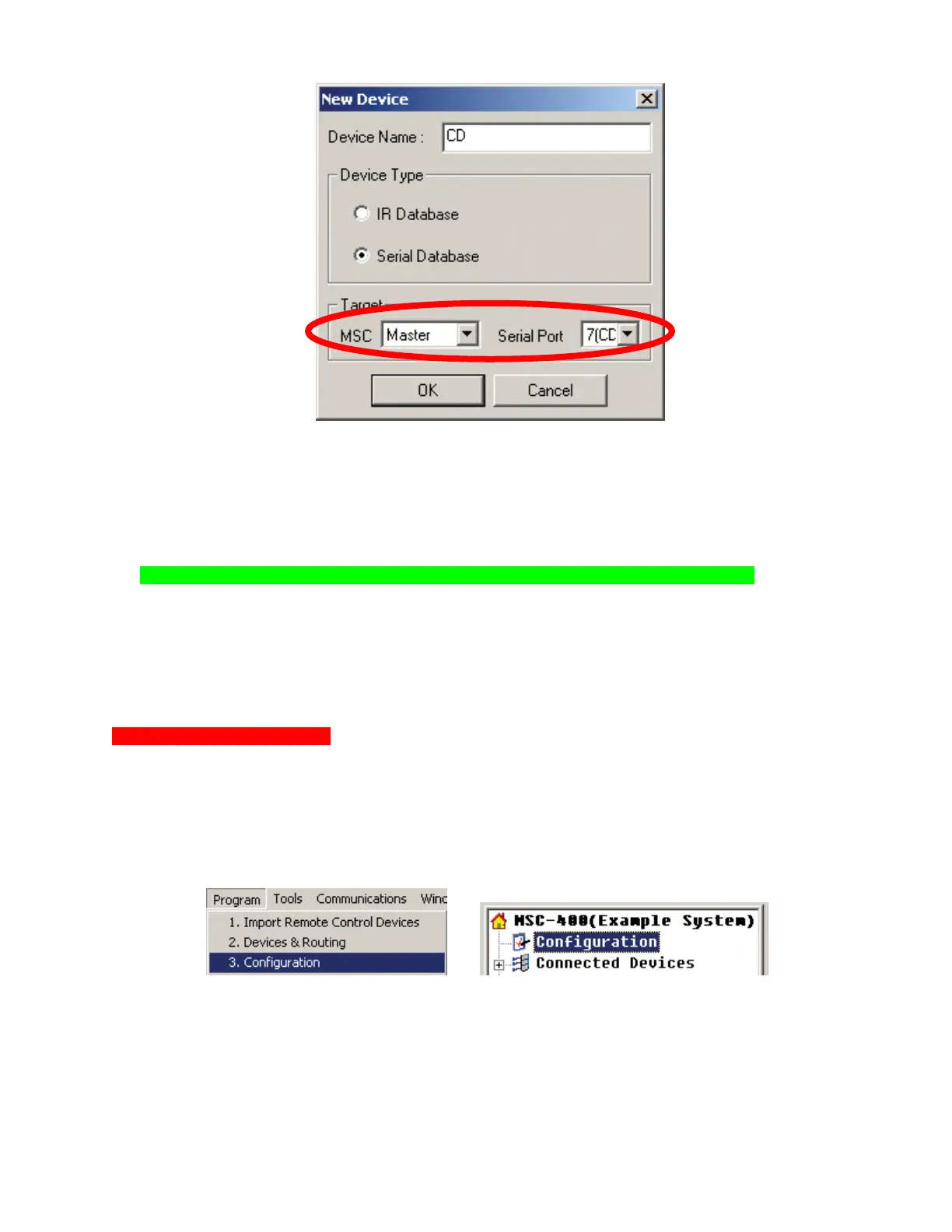
New Device Window
11. In the DEVICE NAME BOX type the device name as it is to appear in TREE VIEW/CONNECTED
DEVICES.
12. In the DEVICE TYPE BLOCK, select SERIAL DATABASE.
13. In the Target Block, select MSC MASTER or SLAVE and SERIAL PORT 7-12 as appropriate.
NOTE - In Master/Slave Systems only Ports 7-11 will be available for RS232 control.
14. Click OK. The NEW DEVICE WINDOW will close and the new device will appear at the bottom of the
CONNECTED DEVICES LIST in the DEVICES & ROUTING WINDOW.
15. In the DEVICES & ROUTING WINDOW, click SAVE AND EXIT. Closing the window (X) will NOT
save the new device.
16. The NEW DEVICE (ex. CD) will appear at the BOTTOM of the CONNECTED DEVICE LIST in TREE
VIEW.
Configuration (RS232 Device)
In order for the MSC-400 to be able to properly communicate with a RS232 controlled device, the RS232
Port on the MSC must be properly cond to the device manufacturer’s specification. To set Port
Configuration:
1. To open the CONFIGURATION WINDOW, do either of:
a) In the MSC EDITOR MENU BAR, click PROGRAM then click CONFIGURATION.
b) In MSC EDITOR TREE VIEW, double click CONFIGURATION.
The CONFIGURATION WINDOW will appear.
1A
1B
3
4
5
6



 To Next Page