MSC-400 Reference Manual
Rev 4
65
II. Select a FUNCTION from the list.
III. Select MASTER or SLAVE Controller as appropriate.
IV. Select the PORT NUMBER.
V. Click TEST.
h) To SAVE the entire COMMAND SET, click SAVE ALL.
3. In MSC EDITOR TREE VIEW, double click the CONNECTED DEVICE ICON (ex. CD). The
CONNECTED DEVICE RS232 COMMAND CONFIGURATION WINDOW will appear with all
available commands as they were saved from the SERIAL DATABASE.
4. If ALL required RS232 Commands are present in the list, proceed to section: CONVERTING RS232
COMMANDS TO A SMART MACRO GROUP.
5. If ADDITIONAL RS232 commands are required, see section: MANUALLY CODING RS232
COMMANDS.
Manually Coding RS232 Commands
Commands for RS232 controlled devices not found in the Preprogrammed Serial Database can be added
to MSC Editor. In order to add the commands, it is necessary to have the RS232 Protocol and command
data for entry into the database. RS232 protocol and commands can typically be found in product
manuals, on the manufacturer’s website or in some cases it may be necessary to contact the
manufacturer’s Tech Support Department.
To Manually Code RS232 Commands:
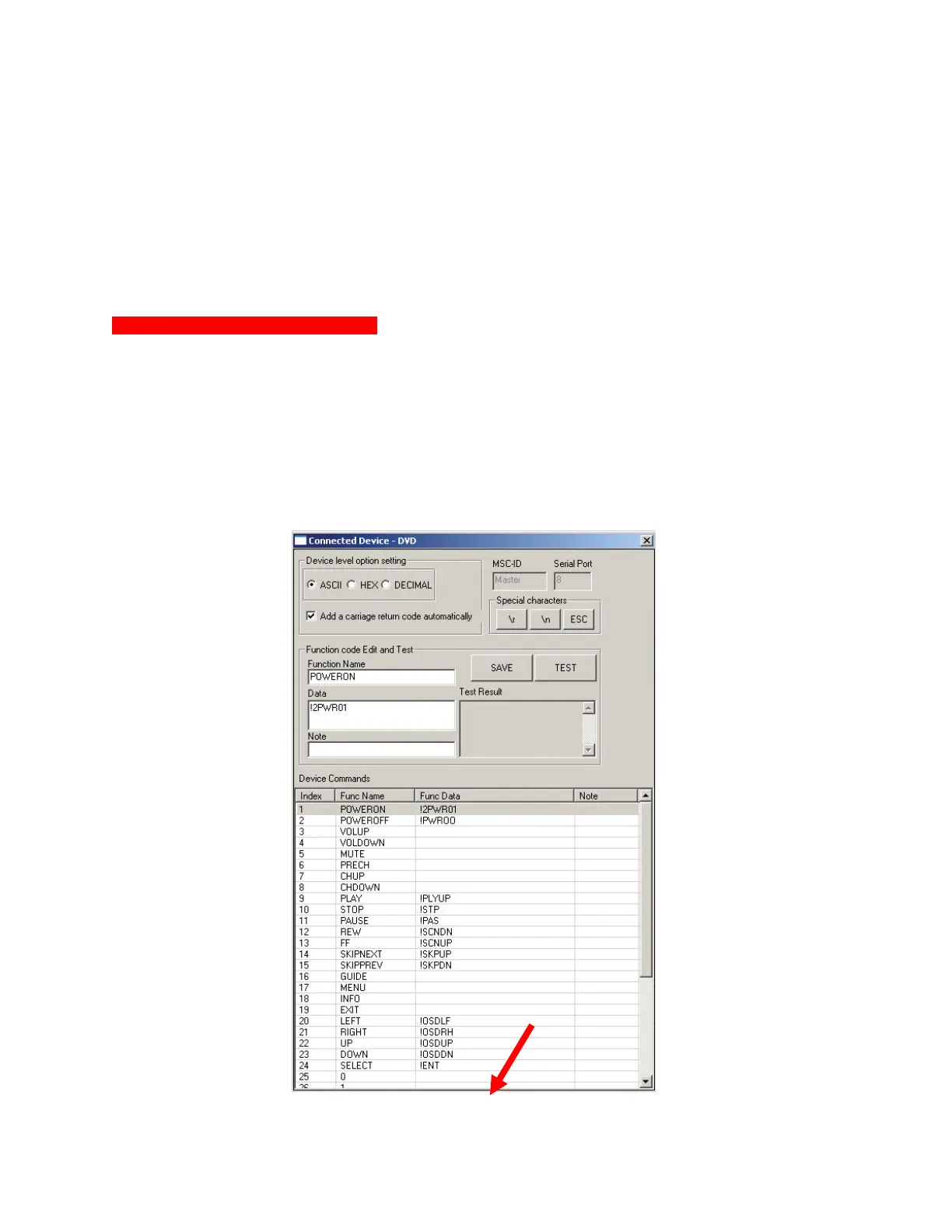
1. In MSC EDITOR TREE VIEW, double click the CONNECTED DEVICE for which RS232 commands
are to be added.
a. The CONNECTED SERIAL DEVICE WINDOW will appear. Manually Coding RS232
Commands
*
Manually Coding RS232 Commands
2
3
4
5
6
7
8
9
11
12



 To Next Page