MSC-400 Reference Manual
Rev 4
80
PC KEYBOARD EMULATION
As a convenience, a MSC-400 compatible remote can be programmed as a PC Keyboard emulator for
alpha search commands when used with a Windows Media Center PC. The user should have a proper
wireless keyboard for use with the PC, but having alpha search capability from the remote allows
additional control capability without having to switch back and forth between the remote and keyboard.
To add this feature, a PC device will need to be created in the remote project and a multi-page ‘zooming
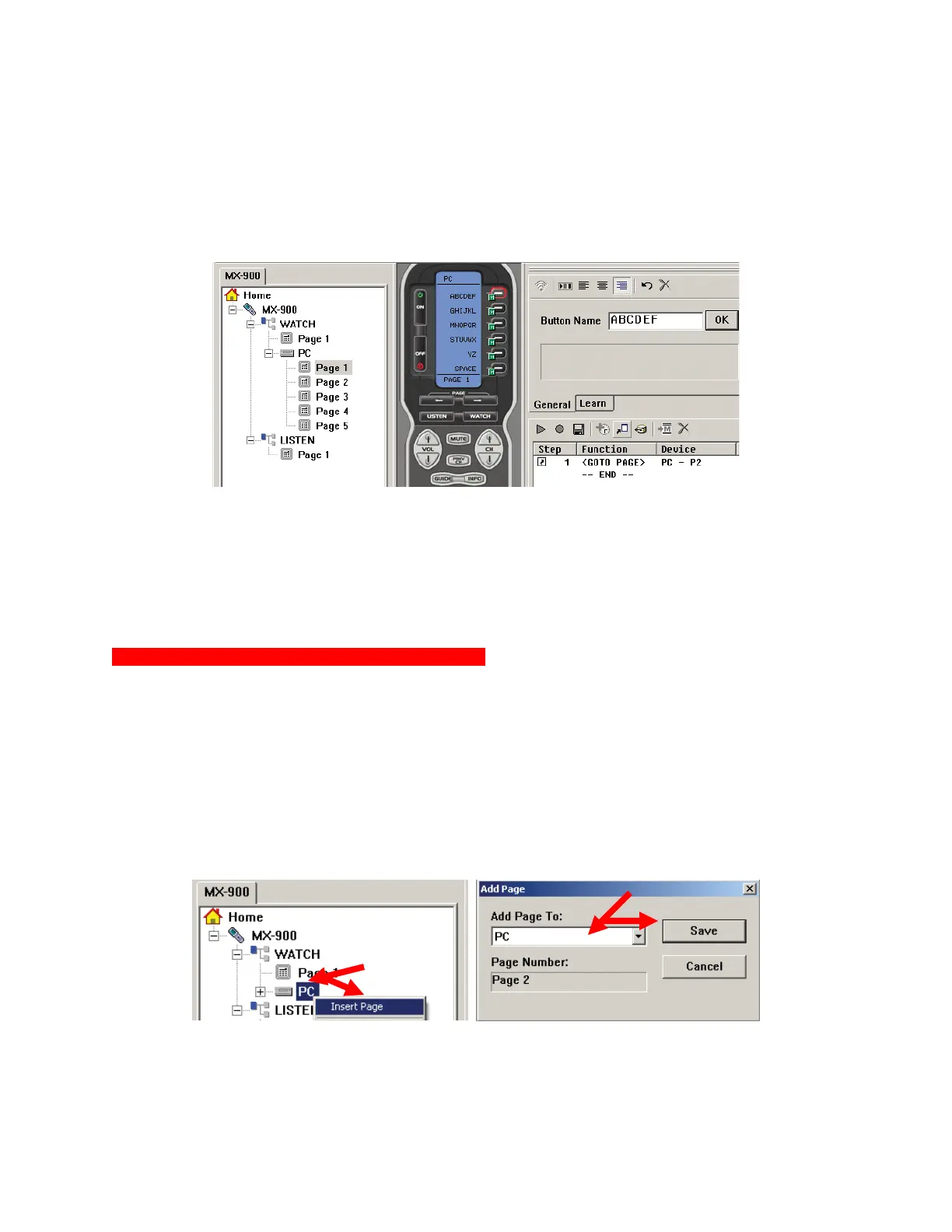
keyboard’ will be created that will provide individual letter buttons using the LCD and Soft Keys. Page 1 of
the PC Device will show the letter buttons available on each page. PC Keyboard Emulator Page 1
PC Keyboard Emulator Page 1
Zooming to one of the pages (via a Goto Page Command) makes the individual letters available for use.
PC Keyboard Emulator A Jump Command can be added to each letter, to return to Page 1 after each
letter is sent to speed up letter navigation, or if the user prefers, the letter pages can be navigated
manually using the Page UP/DOWN Buttons.
To Program a Remote for PC Keyboard Emulation:
1. In the MX/TX EDITOR MENU BAR, click PROGRAM, then click CREATE & NAME DEVICES. Add a
device: PC.
2. In MX/TX EDITOR TREE VIEW, click the ’+’ next to PC to expand the PAGE LIST.
3. Click PAGE 1.
4. Click on Program, then Edit Buttons. Using the BUTTON EDITOR, create a MAIN KEYBOARD
PAGE as shown in PC Keyboard Emulator Page 1 with ABCDEF on BUTTON 1, GHIJKL on
BUTTON 2, MNOPQR on BUTTON 3, STUVWX on BUTTON 4, YZ on BUTTON 5 and SPACE on
BUTTON 6. (With each press of a letter button returning to Page 1, a space can be inserted between
words when necessary, before selecting the next letter page.)
5. In MX/TX EDITOR TREE VIEW, right click the PC ICON and select INSERT PAGE in the POP-UP.
The ADD PAGE WINDOW will appear.
6. In the ADD PAGE TO BOX, select PC using the PULL-DOWN. The PAGE NUMBER will default to
the next highest Page. (Page 2). Click SAVE.
7. Repeat STEPS 5-6 to add PAGES 3-5. (One page for each set of letters.)
8. In TREE VIEW, click the PAGE 2 ICON.
2
3
4
5
6



 To Next Page