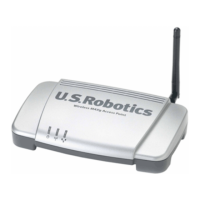
Wireless MAXg Access Point:
User Guide
Basic Troubleshooting Procedure
This basic procedure addresses a number of symptoms that you might experience with
your access point:
1. Verify that the power cord and the Ethernet cable are connected securely at both
ends.
2. Ensure that the power outlet to which the access point is connected is a live outlet.
3. Make sure that the access point is receiving power and that following LEDs are on:
(power, WLAN, and LAN).
4. For connectivity issues, try rebooting the access point by disconnecting and then
reconnecting its power supply.
5. For wireless connections:
❍ Low link quality or range can be caused by environmental interference, such
as lead-based paint and concrete walls, or some electronic items, such as
2.4GHz phones. Try moving the antennas of the access point or repositioning
the wireless client to improve the link quality.
❍ Verify that the device is set to infrastructure mode.
❍ Verify that the following settings on the connected device match those of the
access point.
■ Network name or SSID
file:///G|/CSO/T-Writer%20Repository/Networking/5455%...g%20CR%20AP/Regulatory%20Preview/troubleshooting.html (1 of 3)4/24/2007 5:15:54 PM


 To Next Page