After you restore the access point to its factory default settings, reconfigure the
basic settings of the access point, or, if you made a backup of your settings,
restore the settings by using the backup.
2. Reapply the firmware upgrade.
Solution
The firmware image may have been corrupted during the upgrade procedure. Perform
the following procedure to force the upgrade:
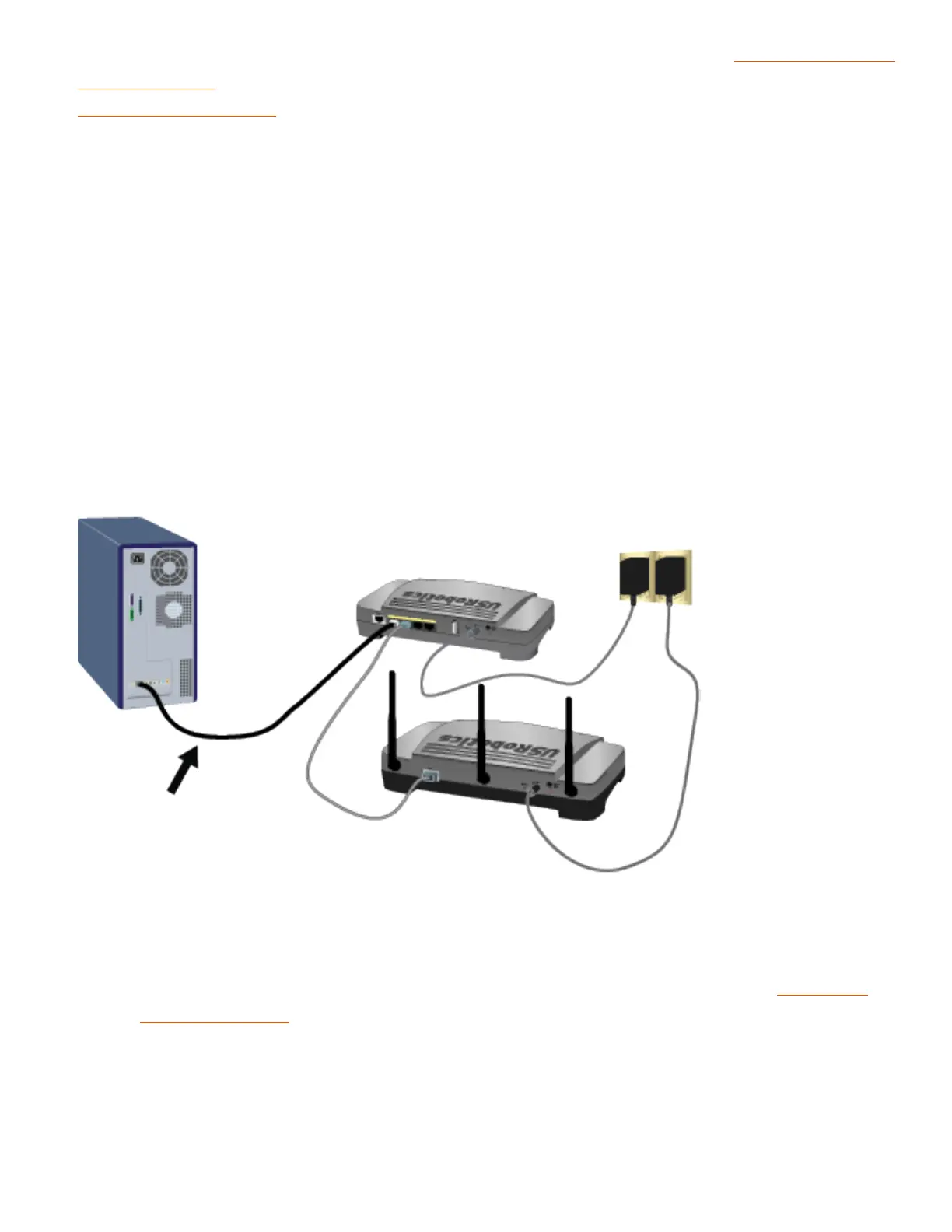
1. Using a networking cable and the same computer that you were using when the
upgrade failed, connect the computer directly to the same networking device as the
access point. Do not try to use a wireless connection for this procedure.
2. Windows users:
A. If you do not know the IP address of the access point, run the
Network
Device Locator to find the IP address.
B. Locate the folder that contains that firmware file that you downloaded.
C. Open a command prompt as follows:
file:///G|/CSO/T-Writer%20Repository/Networking/5455%...g%20CR%20AP/Regulatory%20Preview/trouble_upgrade.html (2 of 4)4/24/2007 5:15:56 PM


 To Next Page