26
7. MANAGING THE CHARGER
FROM THE VELTIUM APP
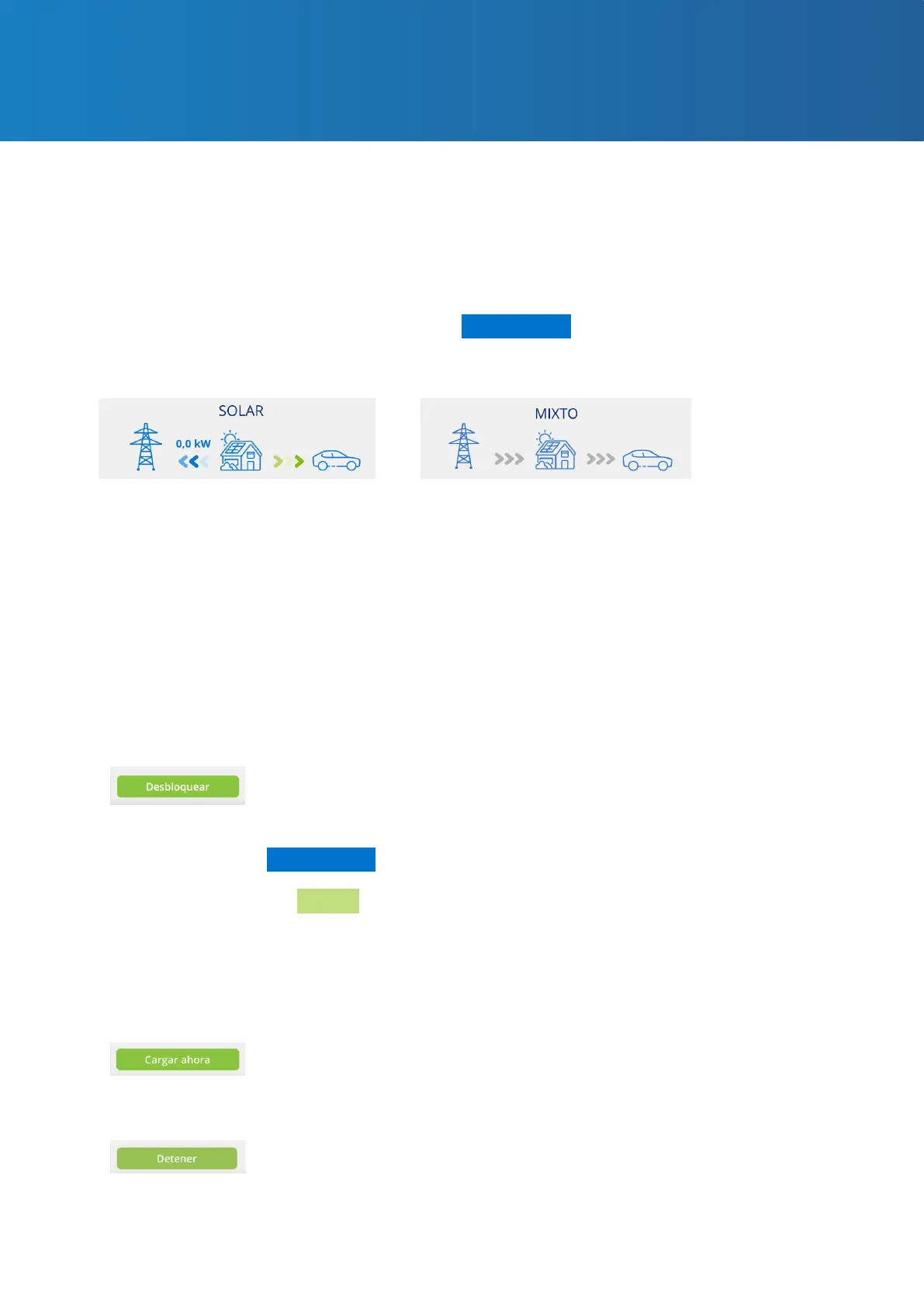
When said control is enabled and the vehicle is charging, you will see moving green arrows. When
it is not enabled, the arrows will be grey.
For more information on this feature, consult the 7.1 SETTINGS section of this USER GUIDE.
This button can be accessed when the charger is locked and Access
Control is in the Manual mode in the charger settings. If the vehicle is
connected at this time, the charger status will change from AVAILABLE
to CONNECTED or CHARGING.
The Unlock button will also be available when the lock control is set at
proximity provided that you are connected remotely to the charger via
the Internet.
For more information on this feature, consult the 7.1 SETTINGS section
of this USER GUIDE.
This button will be accessible when the charger is in the CONNECTED
status and an active schedule exists, but you are not within the
scheduled time you have congured.
This button will be accessible when the charger is in the CHARGING
status. Once the charge has stopped, the charger will remain in the
CONNECTED status until the vehicle is disconnected.
When the function is enabled and the solar panel production is being integrated to the electric
vehicle charge, moving arrows will appear in blue (spillage into the grid) and green (vehicle
charge). When it is not enabled, the arrows will be grey.
For more information on this feature, consult the 7.1 SETTINGS section of this USER GUIDE.
Photovoltaic Generation Mode Indicator
Action buttons
If Photovoltaic generation is enabled in the settings, the following graph will open beneath the
charge control dial.
In this area the following buttons may appear:
Only in LITE Uno and
LITE Kubo chargers
*
Only in LITE Uno and
LITE Kubo chargers
*



 To Next Page