Press # for the transaction list and select ‘pre-authorisation completion’
Enter the pre-authorisation completion amount and press enter
Enter supervisor ID and press enter
Enter supervisor PIN and press enter
Enter the authorisation code** found on the customer’s receipt; this code can-
not contain any special characters (,.-+#*) or blanks
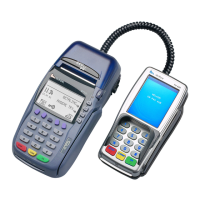
Pass the POS device to the customer who can either insert or swipe his or her card
(this card must be the same card as the original pre-authorisation)
Once the transaction is approved, the POS device will print a customer and
merchant copy of the receipt
The POS device will return to the idle screen
7. Pre-authorisation Completion*
If prompted, the customer must enter his or her PIN followed by enter
Wait for the authorisation response
STEP 9
STEP 10
STEP 7
STEP 1
STEP 2
STEP 3
STEP 4
STEP 5
STEP 6
STEP 8
Note: If the nal amount is 15% higher than the original amount, then a
pre-authorisation completion of the original amount must be done and the dierence
done as a separate transaction
If the nal amount is lower than the pre-authorised amount, complete the nal amount,
and the balance will reverse
*The pre-authorisation completion must be done on the same POS device that was used
to pre-authorise
**Ensure the authorisation code is entered correctly as obtained from the bank; the POS
device cannot check the authorisation code, and if this code is incorrect, the amount will
not be paid into your bank account











 To Next Page