Chapter 8 System upgrades
To update the system, a web user interface is provided. Users can easily access and configure what they need.
Please follow the steps below for more operations. Contact with authorized service, local dealer or distributor for
more support if you have trouble to update.
1. Down load “Bonjour browser” from internet. (Please refer to https://support.apple.com/kb/dl999?locale=zh_TW)
2. Connect a PC to the same network of KVM system.
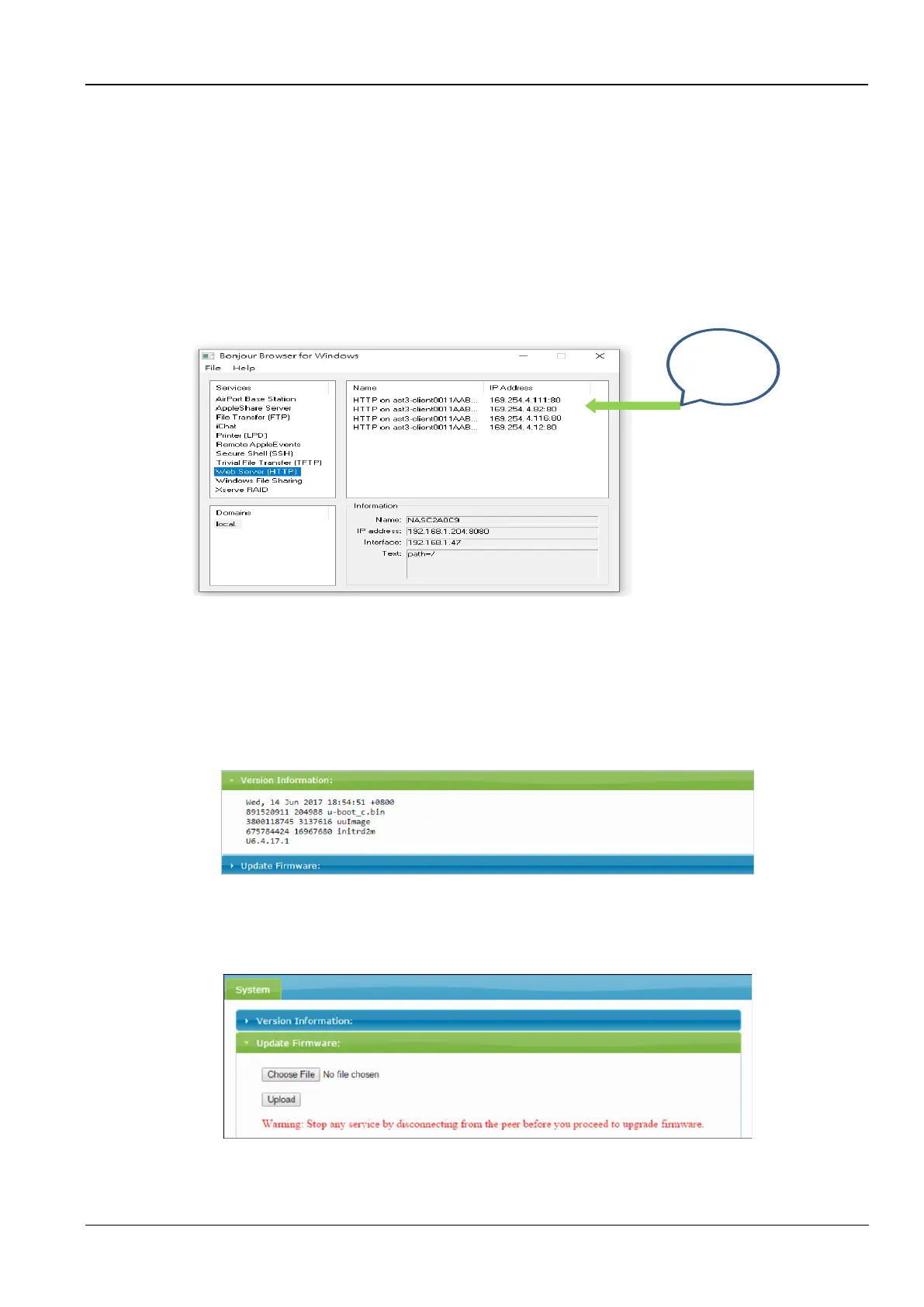
3. Launch Bonjour browser and select Web Server (HTTP) to get IP address list of KVM as below example windows.
Figure 8-1
4. to click an IP address for adding an IE plug in and entering the following WEB page of Updated Firmware.
5. Repeating item 4 upgrade process to the other KVM IP address respectively .
Upgrade
It’s recommended to check the firmware version by clicking the tab of Version Information before updating the
system.
If you have latest firmware, follow the procedures below.
Figure 8-2
1) Click Update Firmware to drop down more options.
2) Click Choose File to select the desired file, and then click Upload.
3) Please repeat the same upgrade procedure to other extender devices.
Figure 8-3 Upgrade



 To Next Page