To open the dialler, select .
Portrait or landscape orientation
The phone automatically orientates to display in either landscape or portrait mode
according to the way in which the phone is being held. When you rotate the phone,
the screen automatically adjusts to suit the orientation.
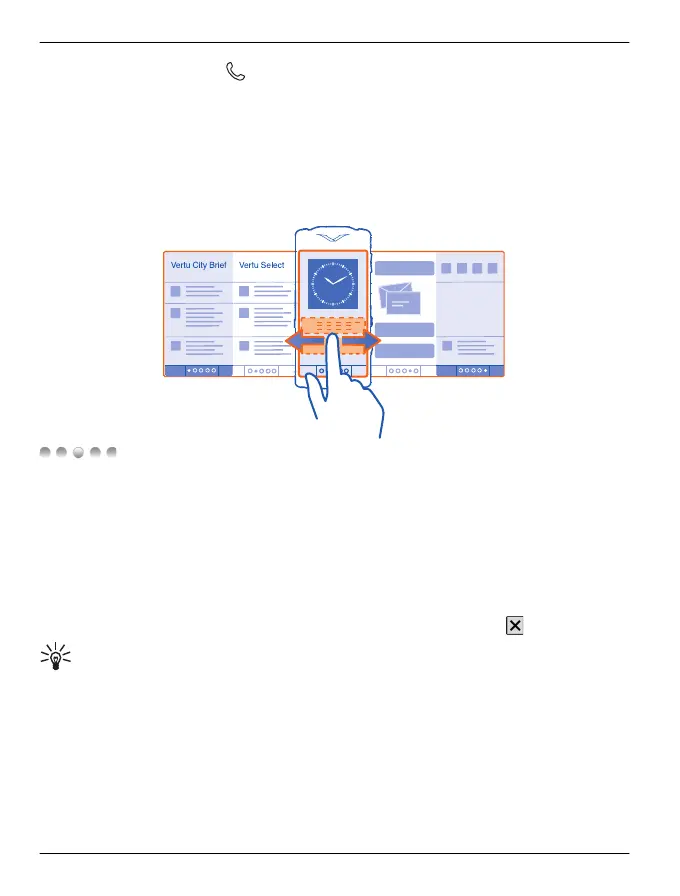
Switch between home screens
Swipe left or right.
indicates your current home screen. Press the dots to return to the default
home screen.
Switch between open applications
You can see which applications and tasks are open in the background, and switch
between them.
Press and hold the menu key to open the task switcher, swipe left or right, and select
the desired application.
Applications running in the background increase the demand on battery power and
use memory. To close an application that you are not using, select
.
Tip: To close all open applications, select and hold the task switcher, and from
the pop-up menu, select Close all.
Notifications
There are a number of means by which your Vertu Constellation notifies you of missed
events.
Status menu — Swipe down from the notification area to open the status menu which
shows events such as available Wi-Fi's, missed calls, and new messages.
28 Home screen
© 2012 Vertu. All rights reserved.















 To Next Page