Wi-Fi
About Wi-Fi connections
Select > Settings and Connectivity > Wi-Fi.
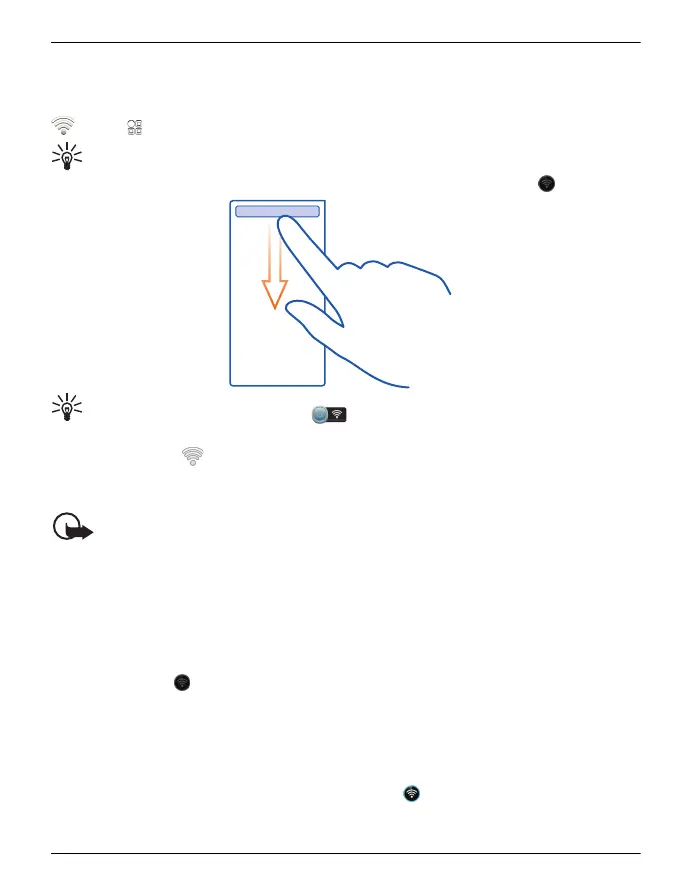
Tip: You can also manage your connections in the status menu. Swipe down from
the notification area, and select Wi-Fi. If Wi-Fi is not displayed, select .
Tip: You can add a Wi-Fi widget to the home screen. To quickly activate or
deactivate the Wi-Fi feature, select the switch in the widget. To open the Wi-Fi
application, select
in the widget. The Wi-Fi feature needs to be activated.
The Wi-Fi application displays a list of available networks and helps you connect to a
Wi-Fi network.
Important: Use encryption to increase the security of your Wi-Fi connection.
Using encryption reduces the risk of others accessing your data.
Connect to a Wi-Fi network at home
To help save data costs, connect to your home Wi-Fi network when you are at home
and want to browse the web on your phone.
1 To open the status menu, swipe down from the notification area. If Wi-Fi is not
shown, select .
2 Select Wi-Fi and your home Wi-Fi network. If your home Wi-Fi is secured, type in
the passcode. If your home Wi-Fi is hidden, select Other (hidden network), then
write the network name (service set identifier, SSID).
Close the Wi-Fi connection
Swipe down from the notification area, then select
.
Connectivity 73
© 2012 Vertu. All rights reserved.















 To Next Page