Last update: 2022/04/01 18:06 slice:qt https://www.vescent.com/manuals/doku.php?id=slice:qt
https://www.vescent.com/manuals/ Printed on 2022/04/05 13:27
to edit (left knob) and value for digit (right knob).
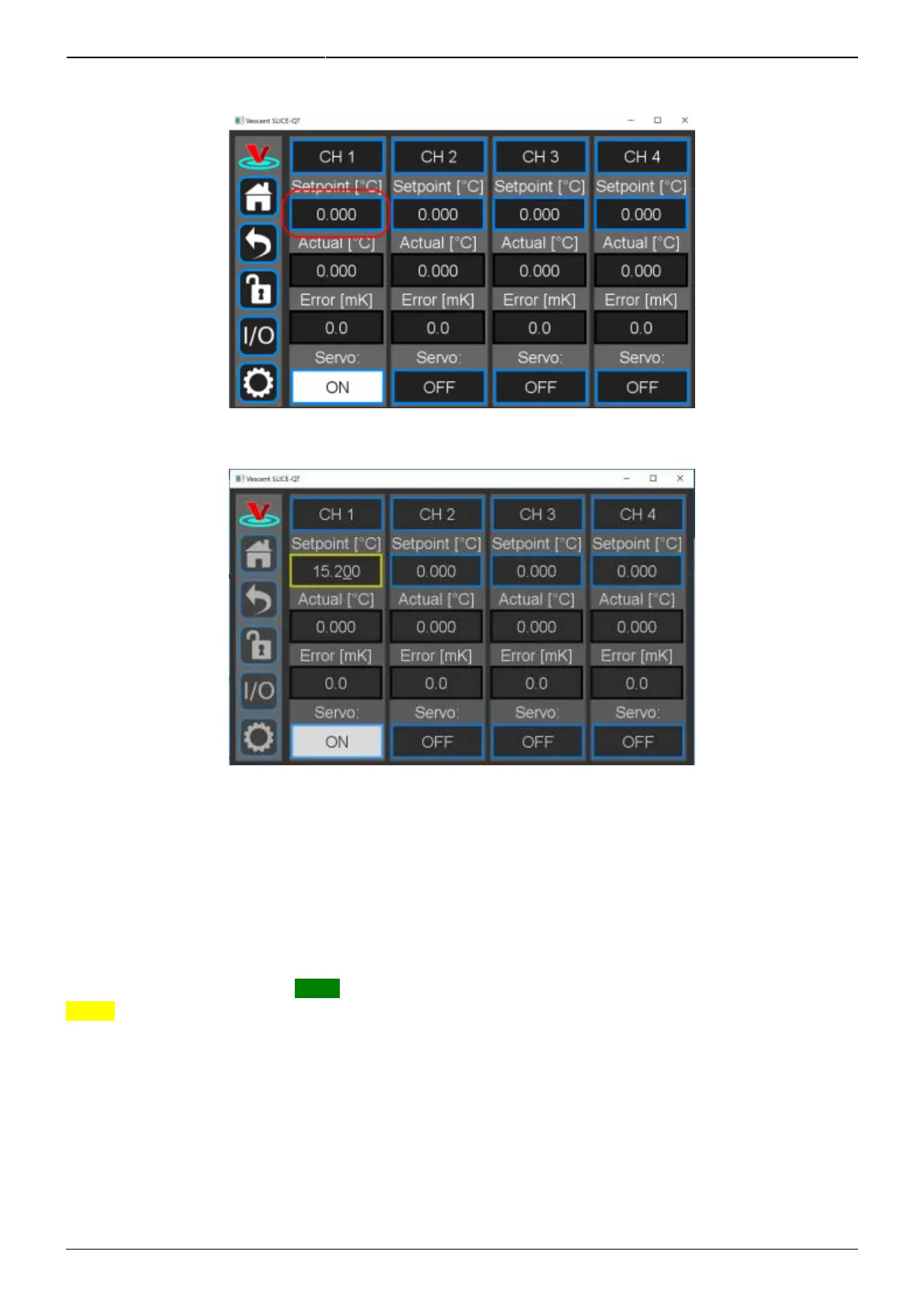
Fig. 17: Select Temperature setpoint for CH 1
Fig. 18: Knob adjustment of Temperature setpoint for CH 1
Enabling Feedback
Touch the OFF button at the bottom of the column for the desired channel. The button will turn white
and read ON to indicate the SLICE-QTC is actively controlling the temperature for that channel. In
figure 17 and figure 18 CH 1 is active and CHs 2-4 are inactive.
When the system is locked (as defined by the user in the CH X > Settings > Limits screen) the Error
window will display ∆T with a green background. As the system approaches lock, it will display ∆T on a
yellow background.
Channel Detail Screen
You can set how individual channels behave in the Channel Detail screen. To enter a Channel Detail
screen from the Home screen, touch the CH button for the appropriate channel (figure 6). figure 19
shows the CH 1 Detail screen. From this screen, you can change T
set
, and initiate temperature control
as from the Home screen. You can also visually monitor the performance of the loop. When the lock is
engaged, the graph in the lower right of the screen displays ∆T (T
act
- T
set
) on a rolling basis. The yellow



 To Next Page