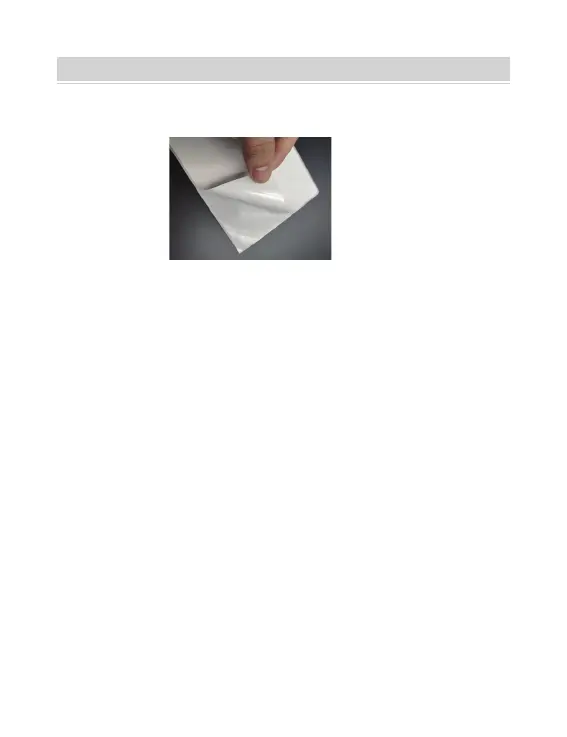
1. When you load the labels, the peeling-off side should face up.
Or it would cause printing blank.
2. Make sure there are no particles on the surface of labels to avoid
damages to the TPH (Thermal Printer Head).
3. For Windows users, please keep using the same USB Port on your
computer to avoid producing unexpected duplicated copies of the
printer on your computer.
4. The label size of the Y486/Y486BT printer is default to 100mm x 150mm.
Each time you change different label sizes,please run the Intelligent Label
Calibration process before printing.
5. In case labels keep coming out unexpectedly, just press the feeder
button to pause the printer, and clear the printing job from your
computer.
6. If there are white spots on printed labels, it indicates that the
printer head needs cleaning. Stop printing,and clean the TPH
(Thermal Printer Head) after cooling to avoid burns.
7. When the label is jammed accidentally, please open the cover and
take out the jammed labels slowly and patiently. The printer will
resume after cleaning.
20
USER TIPS



 To Next Page