CONTROLS
VIDEONICS
VIDEO TITLEMAKER 2000
POWER
IN OUT
EFFECTS
MARK
START
MARK
END
DEMO FONT
STYLEFONT & SIZE
UNDOMOVECOPY
POSITION
COLOR PATTERN
BACKGROUND
COLOR PATTERN COLOR PATTERN
LETTER OUTLINE BORDERS
COLOR STYLE
_
-
(
9
)
0
_
-
+
=
@
2
#
3
$
4
%
5
^
6
&
7
*
8
!
1
{
[
}
]
\
:
;
"
'
<
,
>
.
?
/
][
|
new
line
shift
new
page
page
index
OK
caps lock
tab
shift
delete
command
PLAY
¡
ø
—
~
¨
´ `
^
°
ß
Æ
ç
Œ
™
©
¥
•
®
accent
§
«
¿
»
’
”
£
¢
"
’
WE RT Y U I OPQ
SDFGHJKLA
XCV BNMZ
”
A
A
A
2
9
10
11
12
13
14
15
16
17
18
1
3
4
5
6
7
8
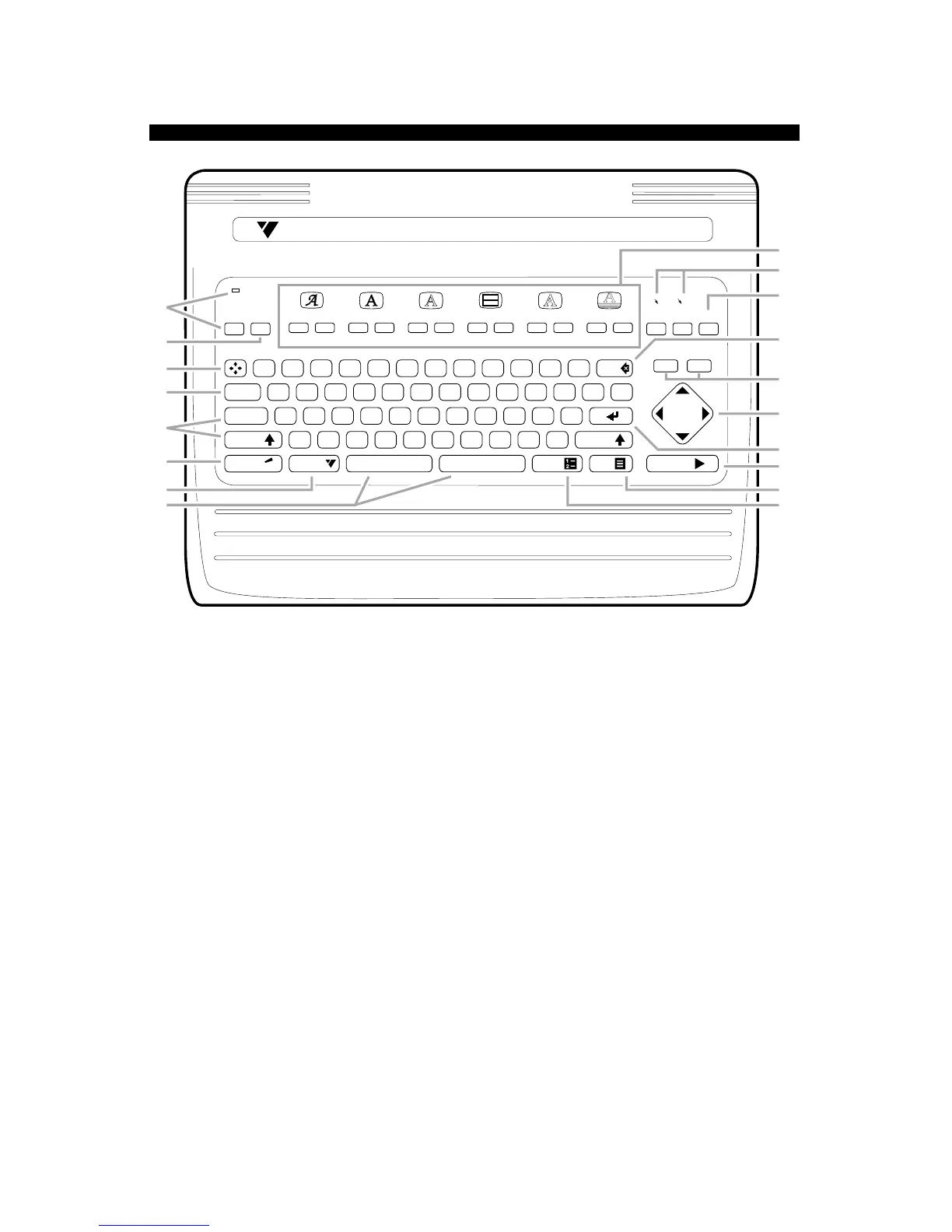
1. POWER key turns unit on. POWER light illuminates when power is on. When unit is off,
video is passed from VIDEO IN to VIDEO OUT as long as power supply is plugged into
live outlet. All titles and settings are saved when unit is off. Note: To guard against loss
of titles, never unplug unit until power light goes out. (Chapter 3)
2. DEMO. Demonstrates features. You can also copy the demo into the editing area, to
modify it or study how its effects were accomplished. (Chapter 5)
3. POSITION. Press and release this, followed by up or down arrow, to position text at the
top, bottom, or center of the page. Press and release this, then left or right arrow, to
position lines at right, left, or center page. (Chapter 10)
4. TAB. “Smart tab” positions cursor to match spaces in previous line of text. (Chapter 6)
5. SHIFT and CAPS LOCK. Hold SHIFT to type capital letters. CAPS LOCK capitalizes all
typing until pressed again. Note that some fonts have only capital letters. SHIFT is also
used to modify the function of other keys. (Chapters 6, Appendix A)
6. ACCENT. Hold ACCENT while typing a letter key to type the special symbols (•, ©, ¢,
etc.) printed in gold. Use with arrow keys to type arrow characters. Use with accent
marks followed by a letter to type accented international characters such as é, ü, å, etc.
(Chapter 6)
7. COMMAND. Modifies function of other keys. (Appendix A)
8. SPACE BARS. Adds space to text. Both halves behave identically.
9. MENU KEYS. Menus change color, font, style, etc. of lines or pages that contain marked
text or cursor. Use MARK START to change sub-menus, arrow keys to highlight the
desired choice, NEW LINE/OK or PLAY to implement changes. Press UNDO to cancel
the menu and leave titles unchanged. (Chapters 11-17)
10. COPY and MOVE. To copy or move text, mark the text using MARK START and MARK
END, move cursor to desired location, then press COPY or MOVE. (Chapters 7-9)
11. UNDO. If you accidentally delete something, press UNDO immediately.


 To Next Page