VIDEONICS TITLEMAKER 2000 PAGE 43
Chapter 11 • How to Use Menus
Fonts, colors, and other characteristics are defined using menus,
which show all the available choices.
Concept
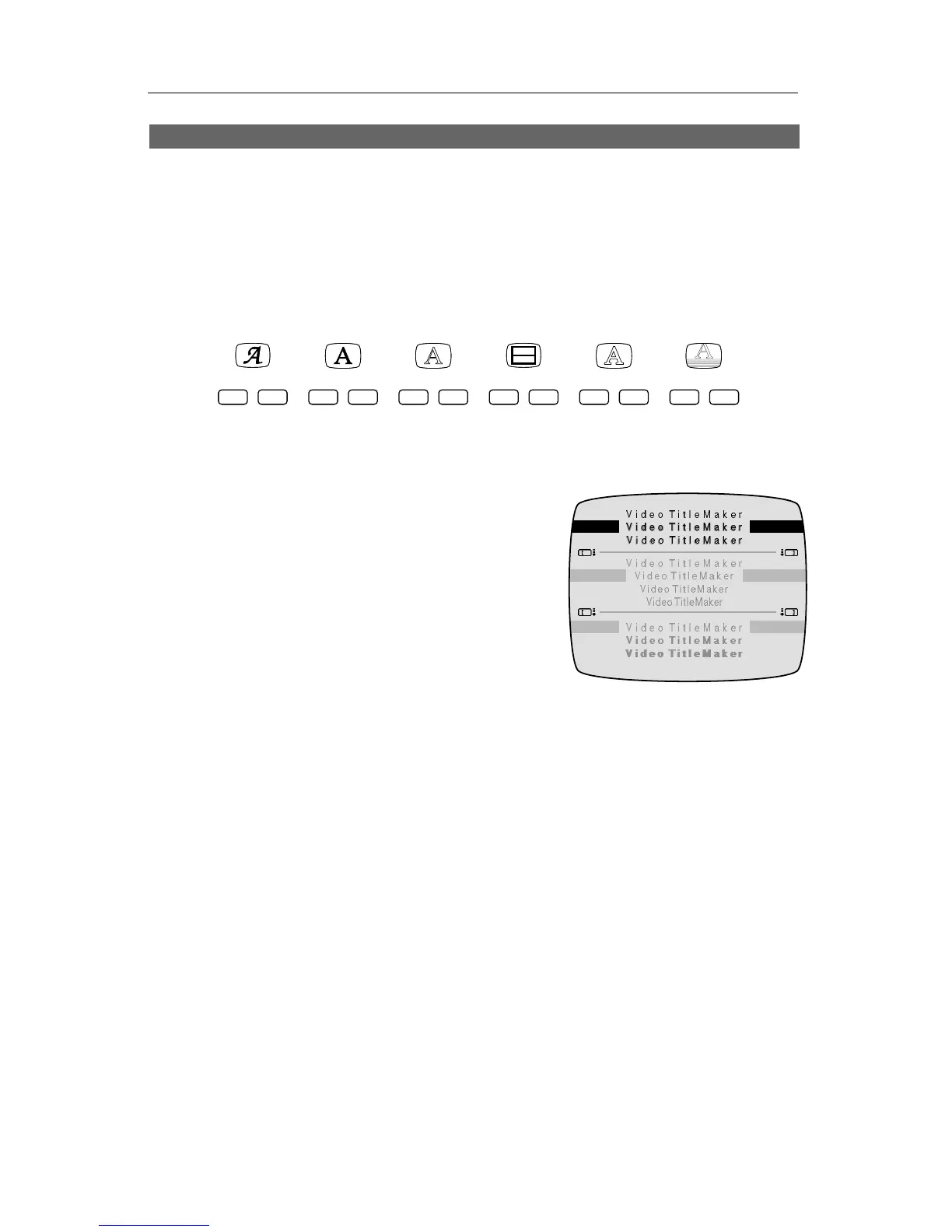
IN OUT
EFFECTSFONT
STYLEFONT & SIZE COLOR PATTERN
BACKGROUND
COLOR PATTERN COLOR PATTERN
LETTER OUTLINE BORDERS
COLOR STYLE
The keys in the top row are called menu keys because when you press one,
you see a menu on the screen. Like the menu in a restaurant, TitleMaker 2000
menus are simply lists of what’s available.
In this menu, for example, you can choose
the style of your titles — shadow, outline, bold,
and letter spacing. Note that you choose from
actual examples of the style, rather than ab-
stract names.
Sub-menus
Menus can contain “sub-menus” which
show additional choices or alternate ways of making a choice. In the menu
shown in the illustration, there are three sub-menus. The top sub-menu is
used to add outlines or shadows to the titles. The middle sub-menu changes
the spacing between letters. The bottom sub-menu is used to make the titles
bold.
The MARK START key is used to determine which sub-menu is active.
The TAB and MARK END keys can also be used. The inactive menus are
dimmed (changed to a subdued gray) to show they’re not in use. In the
example, the top sub-menu is active (the others are grayed).
The color menus are slightly different: the bottom sub-menu (which con-
tains a palette of colors) is not grayed. Instead, the triangle-shaped highlight
arrows tell you which sub-menu is active.
Highlights and Choices
One item in the active sub-menu is highlighted to show the current choice.
The arrow keys are used to move the highlight to make a different choice.


 To Next Page