PAGE 70 VIDEONICS TITLEMAKER 2000
live presentation, you would probably want each page to remain on the
screen as you discuss it, moving on to the next page when you are ready.
You can define a project so that it always plays manually; or you can
temporarily make a project play manually.
Making a Project Always Play Manually
To make a project always play manually, set all pages to infinite duration
using the Effects In menu (Chapter 17).
You can do this as you create the titles — make the first page infinite and
future pages will also be infinite, since new pages inherit the characteristics
of the previous page.
Or you can change all the pages in an existing project to infinite duration
by marking all pages and changing their duration. To do this, use COM-
MAND + MARK START followed by COMMAND + MARK END to mark all
pages, then change the duration to infinity, using the Effects In menu.
Hint: You can mix manual and automatic play. For example, suppose you have a
presentation and at one point, you want a series of titles to play automatically. Set the
whole project to infinite duration but set timed durations for the pages you want to
play automatically.
Notes:
• When you change the duration of all the pages, note that you cannot
change it back by using UNDO.
• Don’t press POSITION or enter any menus while all pages are marked. If
you make any changes, all marked pages will be changed!
Playing Any Project Manually
You can make a project play manually even if it has durations set by using
the arrow keys during PLAY.
Play the project normally using PLAY or COMMAND + PLAY. At any
time, press the RIGHT arrow key to flip forward to the next page. Automatic
play pauses — the page remains on the screen until you are ready to move on.
Any durations that have been set are ignored. Continue to use RIGHT arrow
to play forward manually, a page at a time. Use the LEFT arrow key to flip
back to the previous page.
To resume automatic play, press PLAY twice.
Note the difference between using PLAY or SHIFT + PLAY to skip pages
as compared to using the arrow keys: PLAY and SHIFT + PLAY flip to the
next page and continue automatic play; the arrow keys flip to the next page
and stay there, paused. Arrow keys also skip the out-effect.
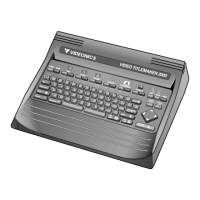
The arrow keys are a very convenient way to rapidly flip through the
pages to find a particular page.
Hint: The DOWN arrow key does exactly the same thing as the RIGHT arrow
key. The UP arrow key does the same thing as the LEFT arrow. If you think of
forward and back as up and down, use the UP and DOWN keys. If you think of them
as right and left, use those keys instead.


 To Next Page