Using FM Mode
Selecting FM Mode
1. Press the SOURCE button repeatedly until FM is displayed.
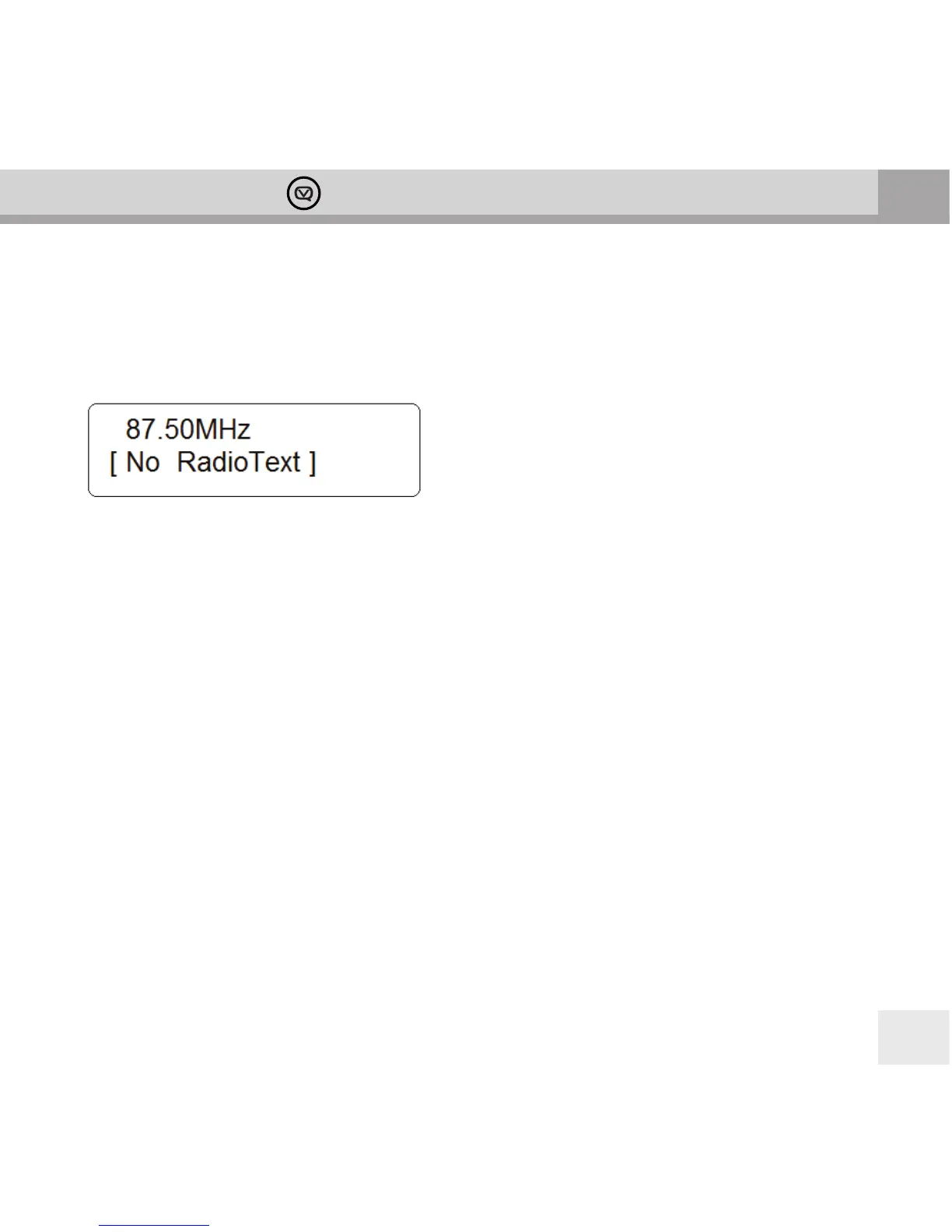
2. On rst use the display will show 87.50MHz, the start of the FM frequency range. Otherwise, the last listened-
to FM station will be selected.
Scanning for FM Stations
1. To manually scan FM stations, while frequency is displayed, turn the –TUNING+ knob clockwise/anticlockwise
to increase/decrease frequency by 0.05MHz per step.
2. To automatically scan, turn the –TUNING+ knob clockwise or anticlockwise and then press the –TUNING+ knob.
Your Bardot will scan forwards or backwards until it reaches the next available station. To scan forwards, turn the
–TUNING+ knob clockwise before pressing it. To scan backwards turn the –TUNING+ knob anticlockwise before
pressing it.
Setting Scan Preferences
By default, FM scans stop at any available station. This may result in tuning to a weak station, resulting in poor
sound quality. Your Bardot helps you avoid weak stations.
1. To change the scan settings to stop only at stations with good signal strength, press the MENU button, turn
the –TUNING+ knob to select Scan Setting, and then press the –TUNING+ knob to conrm.
2. Turn the –TUNING+ knob to select ‘Strong stations only’, and press the –TUNING+ knob to conrm your selection.
Forcing mono for weak stations
By default, all stereo stations are reproduced in stereo. For weak stations, this may result in poor sound quality.
Your Bardot can oset this eect by playing weak stations in mono.
1. To play weak stations in mono, press the MENU button, turn the –TUNING+ knob to select Audio setting, and
then press the –TUNING+ knob to conrm.
2. Turn the –TUNING+ knob to select ‘Forced mono’ and press the –TUNING+ knob to conrm.



 To Next Page