20
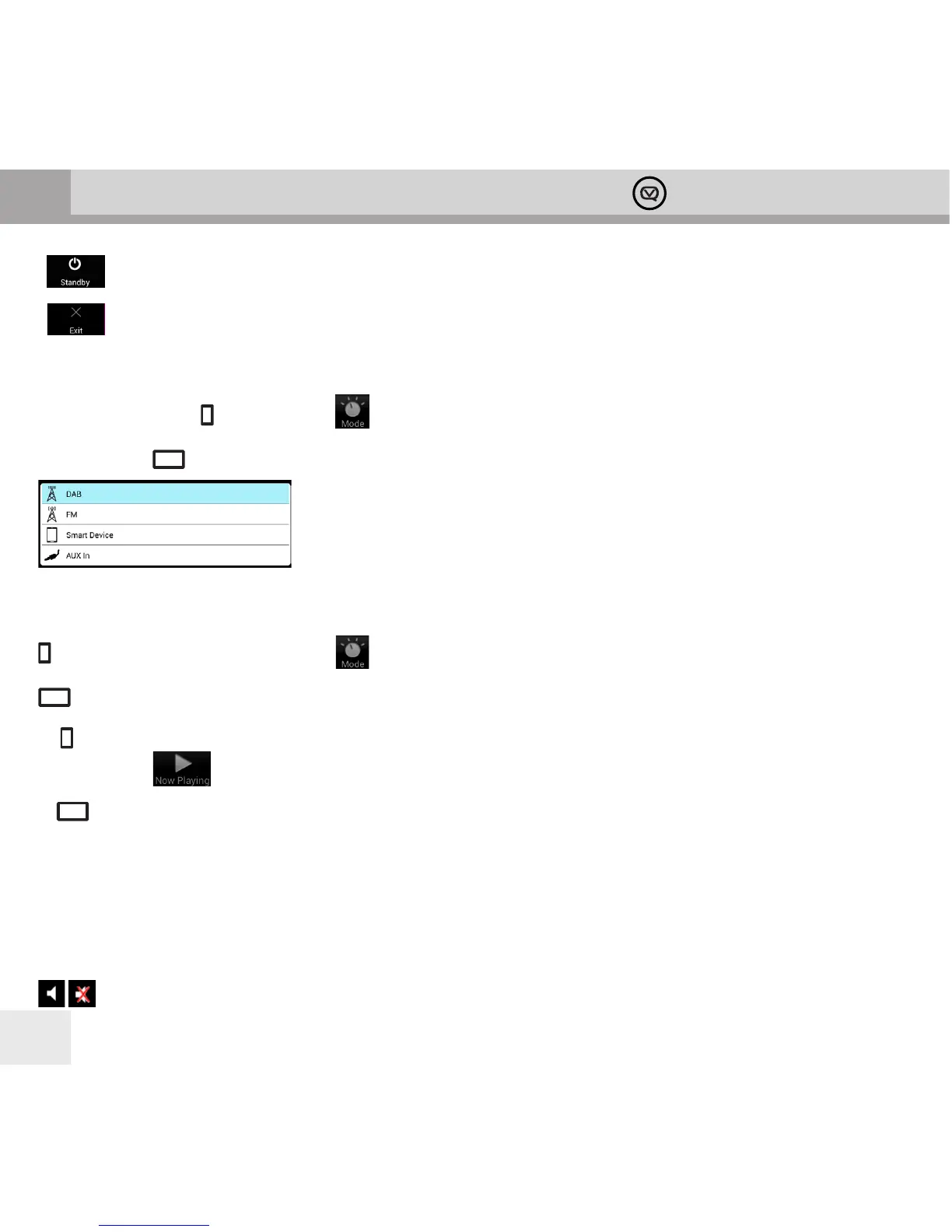
• Standby – puts your Bardot in standby mode, and opens the Settings panel ready for you to enable
power to your Bardot again
• Exit – quits the View Quest App
Getting Started – your Main Menu: Mode
In smartphone mode : tapping Mode brings up the Mode List fullscreen.
In tablet mode : the Mode List is always visible in the Mode panel.
Enjoying DAB/DAB+ with the View Quest App
mode: to select DAB/DAB+ tap Mode then tap DAB.
mode: to select DAB/DAB+ just tap DAB in the Mode Window.
In mode the View Quest App will display the Now Playing panel. You can select it again by tapping the Now
Playing button at the bottom of the display.
In mode all the panels are visible, the Now Playing panel is on the right.
The Now Playing panel in DAB/DAB+ mode
The Now Playing panel displays the last used radio station. If no station has ever been selected the DAB/DAB+
browse screen is shown.
[Note] If RadioVIS is enabled and available for the current station, images available over the internet are presented,
synchronised with the DAB broadcast.
Now Playing options for DAB:
Mute or unmute



 To Next Page