Controlling your Bardot with your phone or tablet remote
Finding your way around the View Quest App
Main Panels
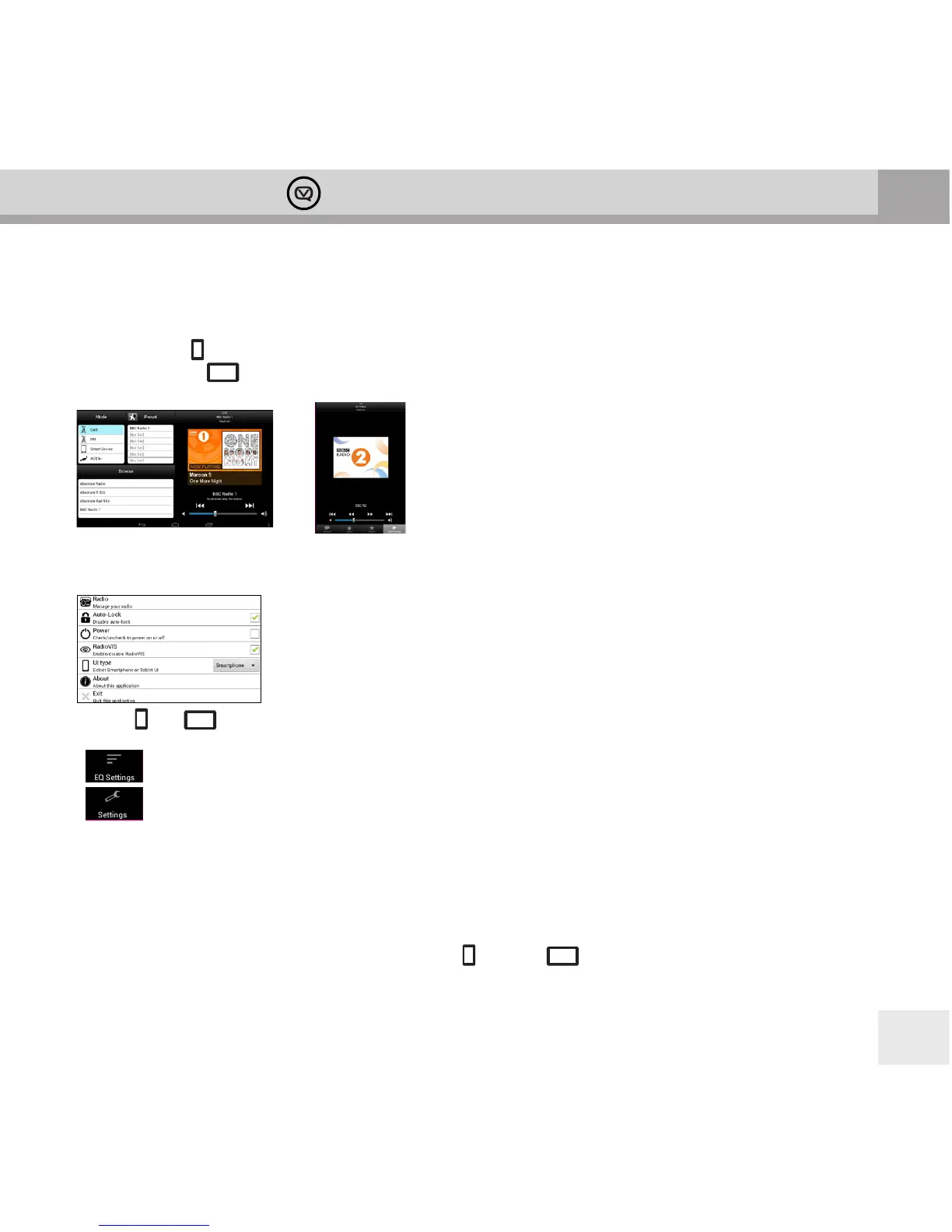
Your View Quest App has 4 major information panels. They are:
In smartphone mode these panels are accessed one at a time using control buttons at the bottom of the
display. In tablet mode they appear onscreen at the same time in separate windows. This makes the best
of available space, whatever the size of your device.
The roles of these panels when listening to dierent sources will be explained in ‘Getting Started’.
Menu Items
In both and mode tapping your device menu while the View Quest App is running reveals icons for
common functions. They are:
• EQ Settings – lets you select pre-dened equalisation settings or congure one of your own.
• Settings – opens a panel where you can change common settings:
Radio – Scans for and lists available radios. Choose your Bardot from this list.
Auto-lock – Disable or enable auto-lock of your phone or tablet.
Power – Power o (standby) or power on your Bardot.
RadioVIS – Disable or enable the display of images and text messages sent by some radio
stations to accompany their programmes. RadioVIS is transmitted over the internet, so requires a
WiFi or 3g connection.
UI type – selects smartphone or tablet user interface.
About – displays App version information.
Exit – quits the View Quest App.


 To Next Page