Using Auxiliary Input Mode
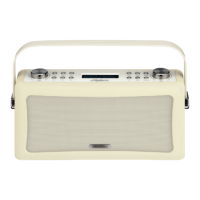
Auxiliary Input allows for a quick and easy connection to an MP3 player or other external audio
source. You need an audio cable with a 3.5mm jack (not supplied) to connect to your Bardot.
1. Before connecting to the mains socket, connect your external audio
device to the AUX IN socket on the rear of your Bardot.
2. Connect the power adapter to the mains socket, press the POWER button to switch your Bardot on.
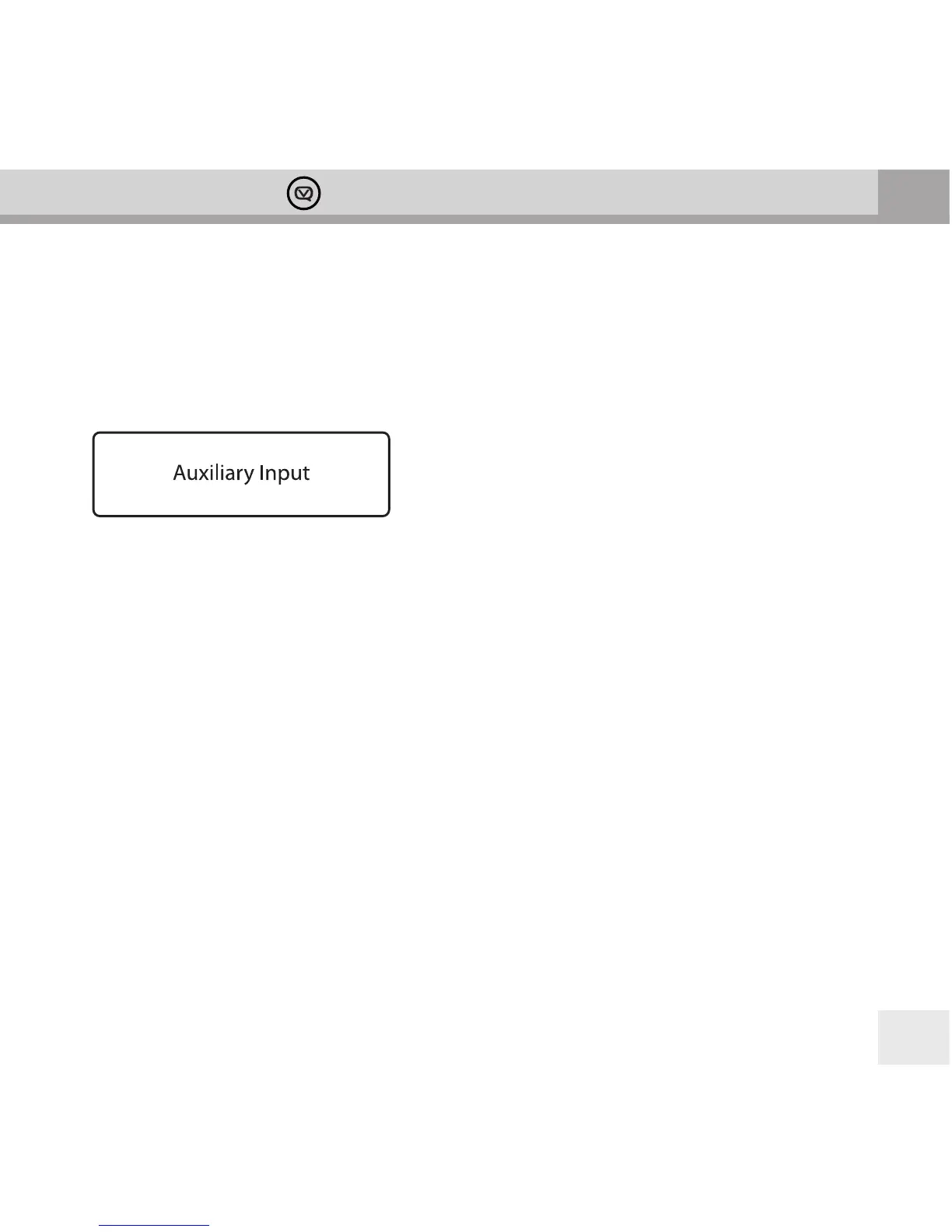
3. Press the SOURCE button repeatedly until Auxiliary Input appears on the display.
In this mode, you control your audio device through its own controls. Volume levels on both the audio device
and your Bardot may need to be adjusted for optimal volume and clarity.
Remotely Controlling your Bardot with an Android or iOS device
You can turn your smartphone or tablet into a remote control for your Bardot with the free View Quest App.
What you can do with the View Quest App
• Sources: switch between Bluetooth, Dab/DAB+, FM and Auxiliary
• DAB/DAB+, FM: adjust volume, channels and presets, display RadioVIS information
• Bluetooth: change tracks and adjust volume
• AUX-IN: adjust the volume
You can also manage equaliser presets and tell your Bardot to standby or wake up, and all of this without
leaving your chair.
What tablet or smartphone do you need for a remote?
For Apple devices, the App is compatible with all iPhones, iPads and iPod Touch devices running iOS 3.1.3 or
later (also iPad and iPad 2 devices in iPhone compatibility mode). For Android devices, Android 2.2 or later is
supported.
Your device needs Bluetooth and you need to be able to install apps from the appropriate app store.
[note] We’ll refer to your Apple or Android device as your “Remote” from now on.



 To Next Page