26 | RD-101 Owner’s manual RD-101 Owner’s manual | 27
Firmware updating Firmware updating
Firmware updating the RD-101
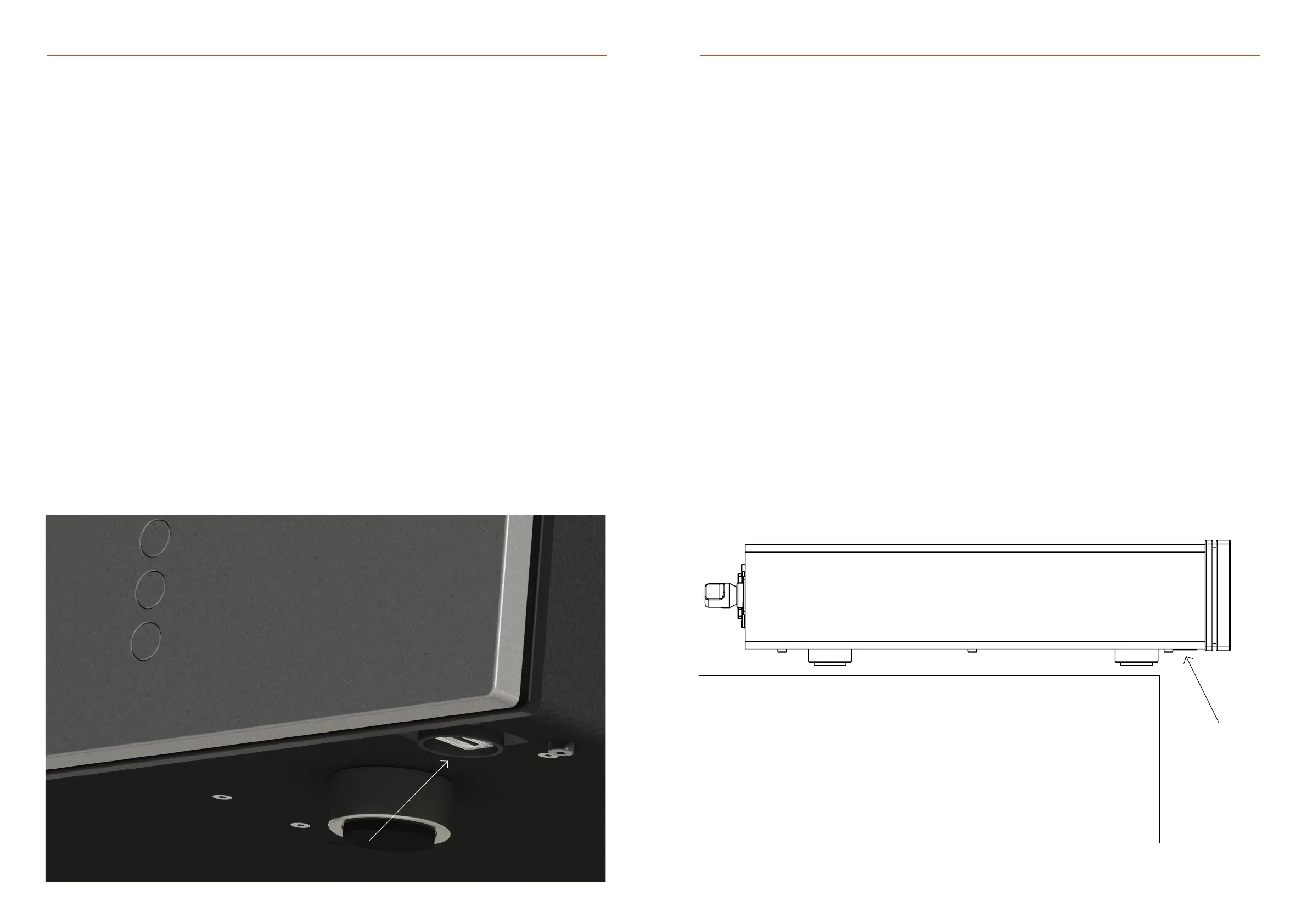
The rmware on the RD-101 can be updated via the USB service
port, located at the bottom right side, towards the front of the
product. See the image below for an overview.
Firmware updates would be rolled out in case of minor bug xes
or when adding extra features to the product.
You can contact your local Vitus Audio dealer if you are uncertain
if your product contains the latest rmware.
Firmware update procedure
1. Copy the .bin le onto an empty USB-Drive.
2. Put the amplier into standby mode and then turn o the product completely, by unplugging
the power chord from the product. Make sure to follow the instructions on page 11 of this manual.
3. Insert the USB-Drive into the service port, located at the bottom toward front left side.
4. Plug the power chord into the RD-101.
5. The display will show “new FT detected” while updating (this takes about 5 seconds).
6. When completed, the display will show “Done update” and the amplier will go into standby mode.
The rmware has now been updated and you may proceed to turn on the amplier in the correct
sequence and use it as normal.
USB drive formatting
Before transferring the rmware (.bin) le onto a USB drive,
make sure that it has been formatted to FAT or FAT32 format.
The USB drive should be empty of other data when the le
is being transferred and the rmware being updated.
USB service port
To access the service port easily on the RD-101, you can slide the product
towards the front edge of the platform the product sits on, as shown in the illustration below.
4. OPERATION AND SERVICE4. OPERATION AND SERVICE
USB service
port



 To Next Page