16
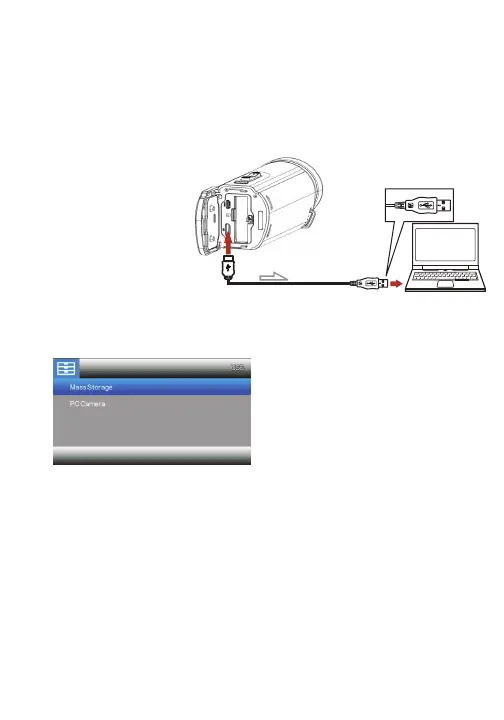
1. Connect one end of the included USB-C cable into the USB
port on your camcorder.
2. Connect the other end to an available USB port on your
computer. Once connected your camcorder’s battery can be
charged or you can transfer files from your camcorder’s memory
card to your computer.
3. Flip the camcorder screen open. Once connected to the
computer, the screen display will look like this:
4. To transfer files, select Mass Storage. The computer will
display the camcorder’s memory card disk and will transfer the
files to the memory card.
5. Your camcorder will now act similarly to a thumb drive or
other mass storage device. In Windows computers, a removable
disk drive will mount in your My Computer or My PC window. You
can click on this drive to access your photos. On computers
running Mac OS an extra drive will mount on your desktop.
Connecting to a Computer


 To Next Page