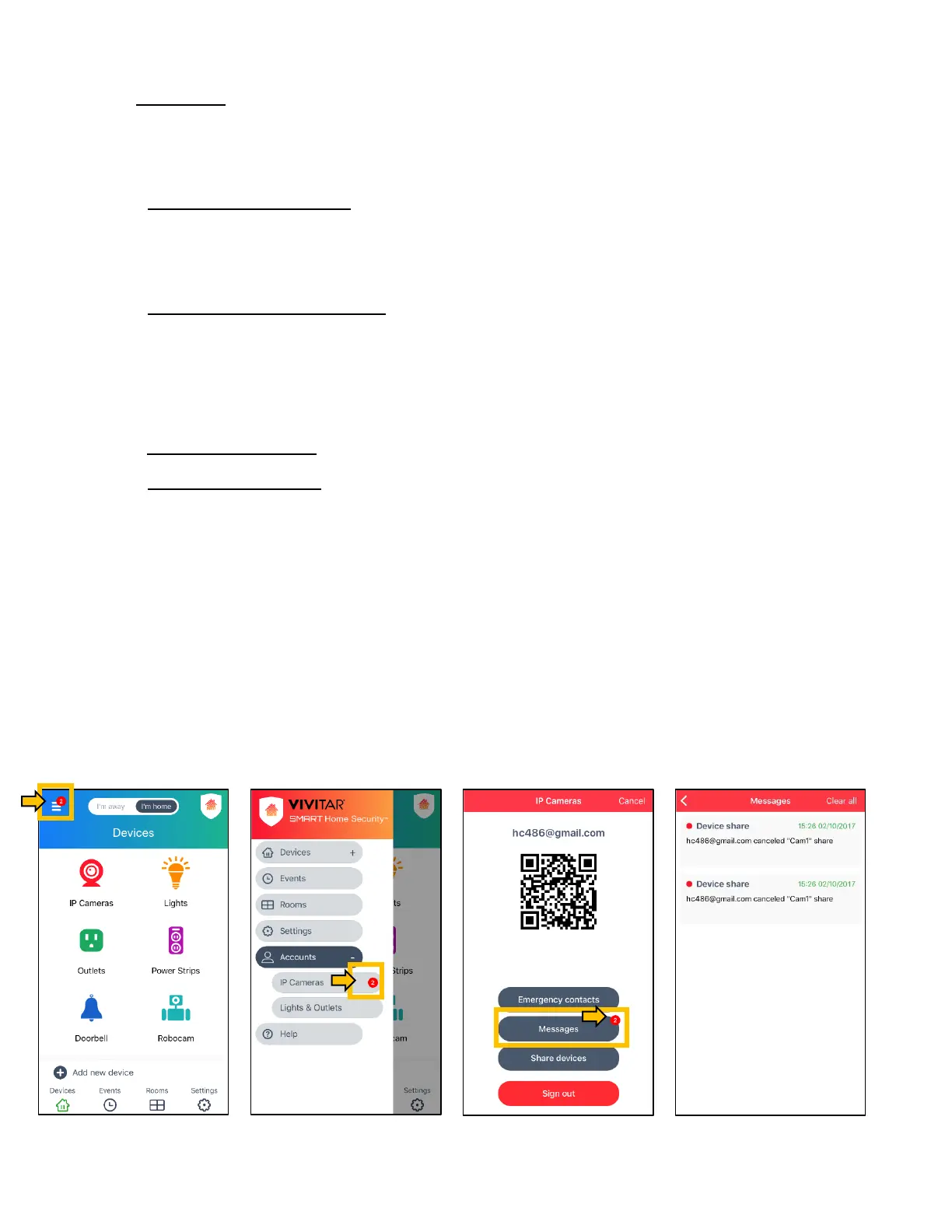
• Messages:
Tap to open the ‘Messages’ window. This displays all messages related to sharing your
IP Camera or Doorbell device and messages related to your Cloud Subscription.
- Shared Device Message: The message type (Device Share) and date/time are shown
at the top of the message. The account name/camera name that is shared with you is
displayed, along with the shared status - either Accepted or Declined.
- Cloud Subscription Message: The message type (Cloud Subscription) and date/time
are shown at the top of the message. Once you have added your Cloud Subscription,
the message appears showing the subscription is confirmed with a brief summary of the
subscription.
- To Delete Messages: If you would like to delete all the messages, tap Clear All.
- Message Notification: When a message is received, a red circle with the number of
messages received appears on the Main Menu. Tap the Main Menu to expand the menu
options. The red circle with the number of messages received is also shown on the
Accounts > IP Cameras menu item. Ta p IP Cameras to enter the ‘IP Cameras’ screen.
The ‘Messages’ option also appears with a red circle and the number of messages
received. Tap on Messages to view the messages(s). The latest unread message(s)
appears with a red circle by the message name. The messages already seen appear
with a black circle by the message name.



 To Next Page