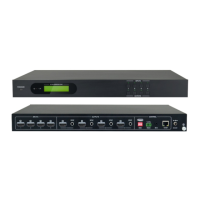
4K 4x4 HDMI2.0 Matrix Switcher
18
7.3 Web-based GUI Control
VLHDMIMAT4X4 provides with built-in GUI for convenient TCP/IP control. GUI allows
users to interact with VLHDMIMAT4X4 through graphical icons and visual indicators.
Access GUI interface through any one of the following methods:
1. Access through web browser: Type the default IP 192.168.0.178 in the browser at
first login. The IP address also can be found via sending “%9964.” on RS232
control software.
2. Access through UPnP: Go to My Network Place in your PC, and click the icon as
below:
PCs running Windows XP system may occur issues in finding UPnP icon, follow
these steps to switch on UPnP protocol:
1) Add UPnP component: go to “Control Panel” -> double-click “Add/ Delete
Programs” -> double-click “Add/ Delete windows component” ->tick “UPnP” ->
click “Next” -> click “OK”
2) Enable Windows Firewall: go to “Control Panel” -> double-click “Windows
Firewall” -> click “Others” -> tick “UPnP framework”
3) Enable UPnP auto-starting: go to “Control Panel” -> double-click
“Administrative Tools ” -> double-click “Services” -> find and click SSDP
Discovery Servic and Universal Plug and Play Device Host -> click “OK”
UPnP will now automatically start when you turn on your computer.
4) Reboot the device.


 To Next Page
 Loading...