Sonic Series
AC EV Charging Station
User Manual
- 29 -
◼ Stop charging: press button again will end the charging, when EV is in charging.
6.3. Configure parameters
Taking the configuration of charging station parameters by laptop as an example, it is introduced as
follows (the method of setting parameters by mobile phone is similar and will not be repeated):
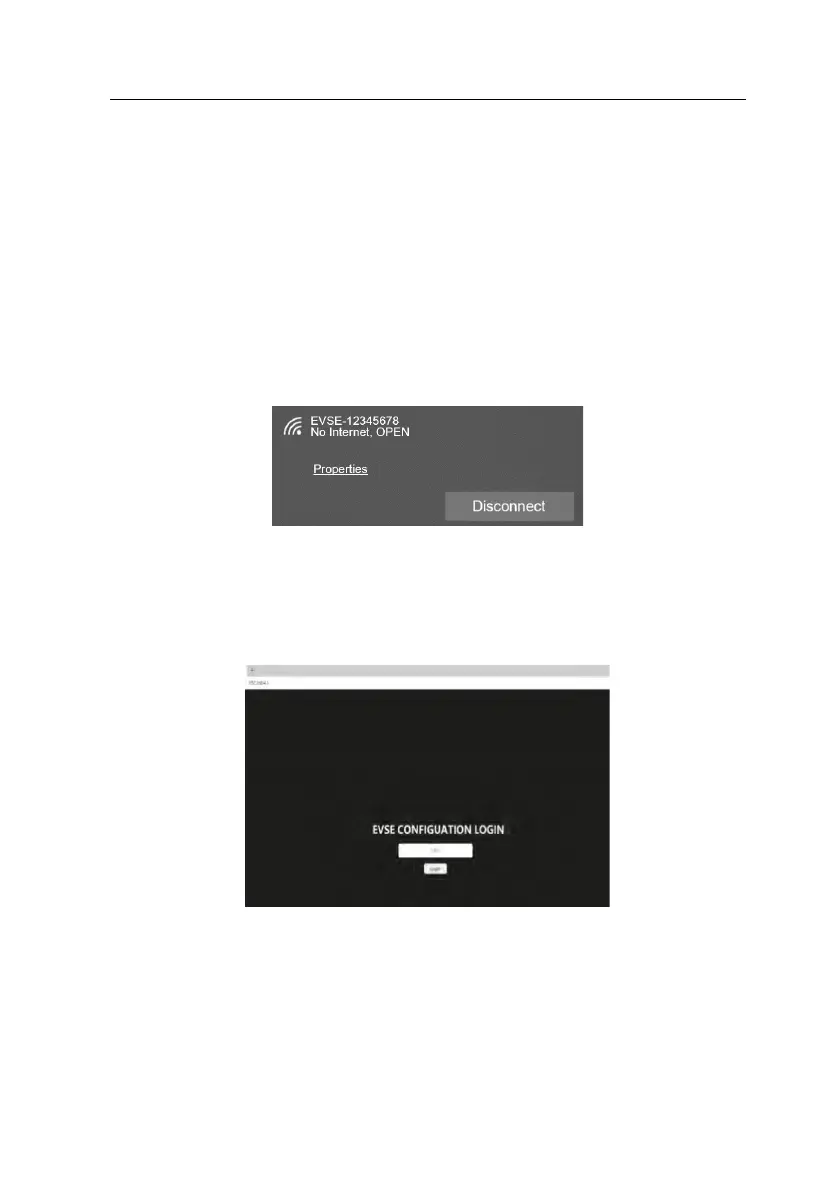
◼ Step 1: connect to WiFi hotspot
Keep your laptop in a state where it can connect to WiFi hotspots. Within two minutes after power
on, the charging station provides a WiFi hotspot as the access entrance for parameter configuration.
Connect a WiFi hotspot with a name is similar to "EVSE-12345678" in the "WiFi network" of the
laptop. It is no password to connect the hotspot.
Fig. 6-3 Connect the WiFi in Windows OS
◼ Step 2: login to setting
Enter 192.168.4.1 in the address bar of Google Chrome or Microsoft Edge, you can access the EVSE
CONFIGURATION shown in Fig. 6-4, and Microsoft IE cannot access this IP address.
Fig. 6-4 Login of EVSE CONFIGURATION
◼ Step 3: Config your EV Charging station
Enter the correct login password to enter the page shown in Fig. 6-5. Please contact the supplier for
the login password and change anew password at the first time. As shown in Fig. 6-8, set the
parameters on this page.



 To Next Page