14
8” MONITOR REAR SEAT VIDEO HEADREST SYSTEM Owner’s Manual
HR8D
of one hundred frequencies then press
the HOME / MENU SELECT button to
enter selection.
4. When a channel/frequency is selected,
the Wireless FM Modulator screen will
display the selected channel/frequency.
NOTE: The WFMM menu is only available
on the “M1” monitor.
Wireless FM Modulator (WFMM)
Channel Select from the Remote
Control:
1. Select “M1” on the Remote Control.
2. Press the SYSTEM MENU or PIX button to
enter SYSTEM MENU.
3. Use the UP and DOWN direction
buttons to select WFMM Wireless FM
Modulator and press the OK button
to enter the Wireless FM Modulator
sub-menu.
4. Use the UP, DOWN, LEFT and RIGHT
direction buttons to select the best
channel/frequency from a ve page
list of one hundred frequencies then
press the OK button to enter selection.
NOTE: When a channel/frequency is
selected, the Wireless FM Modulator
screen will display the selected channel/
frequency.
WIRELESS FM MODULATOR ON/
OFF Direct Access Button on the
Remote Control:
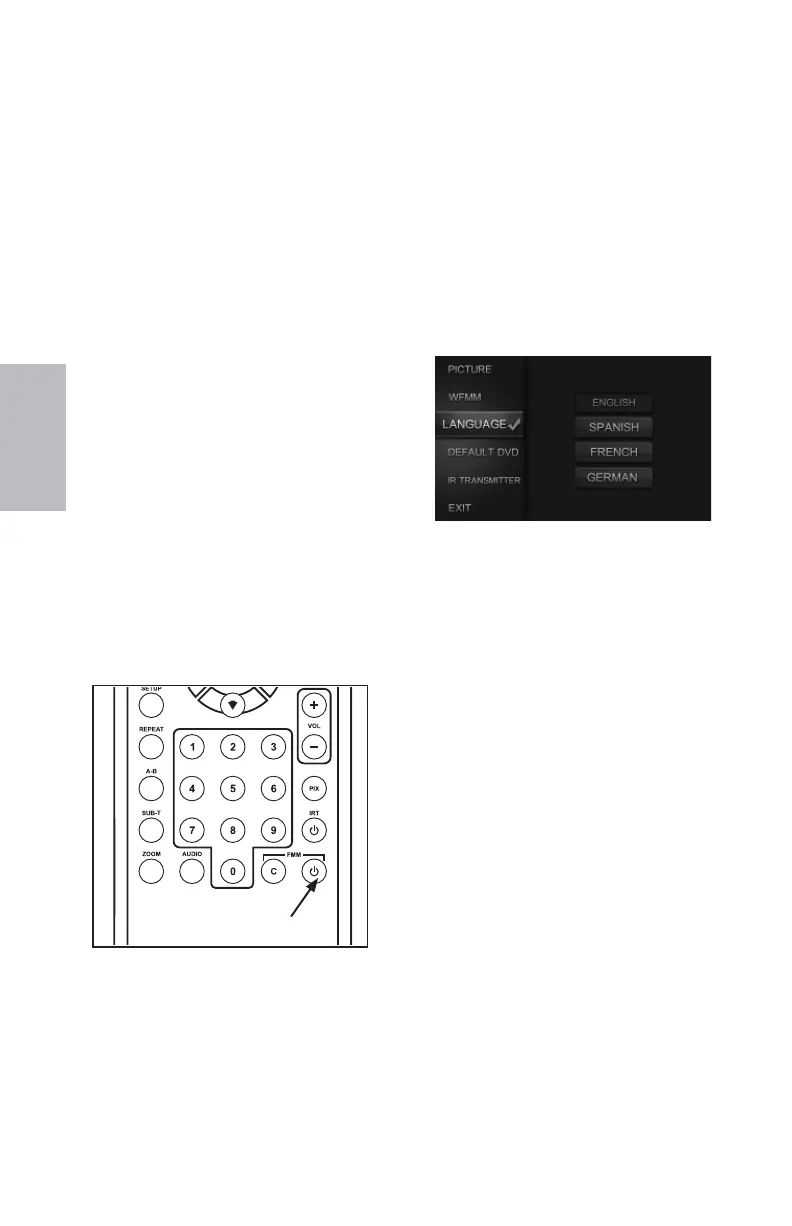
Press the FMM ON or OFF button on
the Remote Control (Figure 18) to turn
the Wireless FM Modulator ON or OFF.
When ON is selected, the channel/frequency
the system is set to will be displayed on the
lower left-side of the main screen. When OFF
is selected, FMM OFF will be displayed on the
lower left-side of the main screen.
LANGUAGE
LANGUAGE from the Front Panel:
1. Press and hold the HOME/ MENU SELECT
button on the front panel of the unit to
show the SYSTEM MENU.
2. Use the UP and DOWN direction buttons
to highlight Language and press the
HOME / MENU SELECT button to enter the
sub-menu. (Figure 19)
3. Use the UP and DOWN direction buttons
to select the desired language then press
the HOME / MENU SELECT button to
save the setting.
LANGUAGE from the Remote Control
1. Select “M1” or “M2” on the Remote
Control.
2. Press the SYSTEM MENU or PIX button to
enter SYSTEM MENU.
3. Use the UP and DOWN direction
buttons to highlight Language and
press the OK button on the Remote
Control to enter the Language
sub-menu.
4. Use the UP and DOWN direction buttons
to select the desired language then press
the OK button on the Remote Control to
save the setting.
HR8D SYSTEM SETUP SUBMENUS (continued)
Figure 19
Language Menu
Figure 18
FMM ON/OFF
BUTTON
128-9406B HR8D, HR8A and HR8AD AUDIOVOX 05-20-2015.indd 514128-9406B HR8D, HR8A and HR8AD AUDIOVOX 05-20-2015.indd 514 5/20/2015 5:03:24 PM5/20/2015 5:03:24 PM


 To Next Page