EasyManua.ls Logo

VTech IS6110 - User Manual

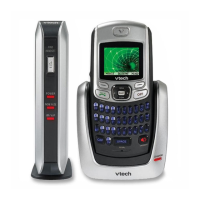
VTech IS6110
114 pages
Print Icon
To Next Page IconTo Next Page
Loading...
Users manual
w w w . v t e c h p h o n e s . c o m
Model: IS6110

Table of Contents

Questions and Answers

  • R
    Robert BryanAug 21, 2025
    Why does my VTech IS6110 Cordless Telephone not ring?
    • W
      Whitney JonesAug 21, 2025
      If your VTech cordless telephone doesn't ring when you receive a call, first ensure that the ringer is turned on. Check that the telephone line cord and power adapter are correctly plugged in. The handset might be too far from the base, so move it closer. Too many extension phones on the line can prevent ringing, so try unplugging some. Interference from other electronic devices like wireless routers, radios, or computers can also be a factor; try moving the telephone away from these devices. If other phones in your home have the same problem, the issue may be with your wiring or local service, and you should contact your telephone company.
  • J
    Juan GambleAug 23, 2025
    How to fix noise or interference on VTech IS6110 Cordless Telephone?
    • A
      Ashley AlvaradoAug 23, 2025
      If you experience noise, interference, or fading calls on your VTech cordless handset, first move closer to the telephone base. Appliances or other cordless phones on the same circuit can cause interference, so try moving the base to a different outlet. Other electronics can also interfere, so keep the telephone away from devices like wireless routers, radios, and computers. Microwave ovens can cause static; avoid installing the phone near one. If using a modem or surge protector, try plugging the phone directly into a different outlet. Repositioning the base, ideally to a higher location, can improve reception. If problems persist, test with a corded phone to rule out wiring or local service issues. If you have DSL service, ensure a DSL filter is installed at each telephone jack.
  • W
    wadejohnAug 26, 2025
    What to do if there is no dial tone on VTech IS6110?
    • D
      Diana JosephAug 26, 2025
      If you are not getting a dial tone on your VTech cordless telephone, try these steps: First, move the cordless handset closer to the telephone base, as it might be out of range. If that doesn't work, the telephone line cord might be faulty, so try installing a new one. If still no dial tone, disconnect the telephone base and connect a different telephone to the same jack. If the other telephone also lacks a dial tone, the problem lies with your wiring or local service; in this case, contact your local telephone company.
  • A
    Angela SchneiderAug 27, 2025
    How to fix low battery on VTech IS6110?
    • D
      Douglas MolinaAug 27, 2025
      If the low battery icon appears on your VTech cordless telephone, place the handset in the charger to recharge it. If the problem persists, remove and reinstall the battery, use the handset normally until the battery is fully discharged, then recharge it for 16 hours. If these steps don't resolve the issue, the battery may need replacement.
  • D
    Duane HenryAug 29, 2025
    Why is my VTech Cordless Telephone beeping?
    • A
      Anthony FoxAug 30, 2025
      If your VTech cordless handset is beeping and not working correctly, ensure the power cord is securely plugged into the telephone base and try a different electrical outlet not controlled by a wall switch. Move the handset closer to the base, as it may be out of range. You can also reset the base by unplugging it for 15 seconds, then plugging it back in, allowing up to one minute for synchronization. Interference from other electronics like wireless routers, radios, or cellular telephones can also cause issues, so try moving the telephone away from these devices.
  • M
    Marvin HansenAug 31, 2025
    Why can't I dial out on my VTech IS6110 Cordless Telephone?
    • J
      Jennifer HobbsSep 1, 2025
      If you cannot dial out on your VTech cordless telephone, first ensure there is a dial tone before dialing and wait an extra second after the dial tone appears before dialing. If other phones in your home have the same problem, the issue is likely with your wiring or local service, and you should contact your telephone company. Also, eliminate any background noise, as it may interfere with dialing; try muting the handset or dialing from a quieter room.
  • B
    Bradley AvilaSep 3, 2025
    What to do if POWER indicator on VTech Cordless Telephone is off?
    • C
      cleonSep 3, 2025
      If the POWER indicator on your VTech telephone base is off, begin by cleaning the charging contacts on the base each month using a pencil eraser or a dry non-abrasive fabric. Ensure that the power adapter and telephone line cords are correctly and securely plugged in. Try unplugging the base for 15 seconds before plugging it back in, and allow up to one minute for the handset and base to reset. If the problem still persists, please refer to the Warranty section of this user’s manual for further instruction.
  • G
    Gina GarciaSep 5, 2025
    Why VTech IS6110 battery does not charge?
    • L
      lisamoralesSep 5, 2025
      If the battery in your VTech cordless handset isn't charging, first ensure the handset is correctly placed in the charger and that the CHARGE light is on. Try removing and re-inserting the battery. If the problem continues, you may need to purchase a new battery. If the problem still persists, please refer to the Warranty section of this user’s manual for further instruction.
  • D
    David SmithSep 7, 2025
    Why is Caller ID not working on my VTech Cordless Telephone?
    • D
      Dr. Gina Beltran MDSep 7, 2025
      If the caller ID features on your VTech cordless telephone are not working correctly, confirm that you have subscribed to caller ID service with your local telephone company. The caller might be calling from an area that does not support caller ID. Also, both your and the caller's telephone companies must use equipment compatible with caller ID service. If you have DSL service, install a DSL filter on the telephone line between the base and the wall jack; contact your DSL provider for filter information.
  • O
    obernardSep 9, 2025
    Why VTech IS6110 does not display caller ID during call waiting?
    • S
      sara52Sep 9, 2025
      If your VTech cordless telephone system isn't displaying caller ID information during call waiting, ensure you've subscribed to caller ID with call waiting services from your local telephone company. The caller may be calling from an area that doesn't support caller ID. Verify that both you and the caller's telephone companies use equipment compatible with caller ID service. If you subscribe to DSL service, install a DSL filter on the telephone line between the telephone base and the telephone line jack; contact your DSL service provider for filter information.

Summary

Getting Started

Minimum Requirements

Specifies the computer system requirements for the software.

Parts Checklist

Lists all items included in the VTech IS6110 telephone package.

Installation

Telephone Base Installation

Step-by-step guide to connect and set up the telephone base.

Handset Charger Installation

Instructions for installing the handset charger unit.

Install Handset Battery

Steps for inserting and charging the handset battery.

Install Messenger Software

Guide to installing MSN Messenger or AOL Instant Messenger.

Install IS6110 Phone Software

Process for installing the main VTech IS6110 phone software.

Software Configuration and Operation

Setting Up the IS6110 Phone Software

How to start and configure the IS6110 software.

Checking for Software Updates

Procedure to check and download software updates.

IS6110 Software Settings

Configuring messenger accounts and software behavior.

Logging On to the IS6110 Phone Software

Steps to log into the messenger service via handset or PC.

Running the IS6110 Phone Software

How to start and manage the running IS6110 software.

Using the Handset and Features

Understanding the IS6110 Components

Identifies telephone base layout, handset controls, and status icons.

Navigation and Text Input

Explains navigation, softkeys, and methods for entering characters.

Character Charts

Provides character mapping for dialing and text entry.

Telephone Settings

Customizing ringers, display, clock, and other phone features.

Messenger and Calling Features

Messenger Overview

Introduction to buddy lists, status, and chat windows.

Sending and Receiving Messages

How to review and send instant messages.

VoIP and Call Handling

Managing incoming/outgoing VoIP calls and Home calls.

Buddy History and Logout

Accessing chat history and logging out of messenger services.

Telephone Operations

Making Calls and Using the Directory

Procedures for dialing, managing contacts, and redialing.

Call Log and Caller ID

Reviewing call history and using Caller ID features.

Handset Screen Display Messages

Explanations for various messages shown on the handset screen.

Troubleshooting and Support

Resolving Common Issues

Basic steps to resolve common telephone operational issues.

Specific Feature Troubleshooting

Troubleshooting for messenger, connectivity, and call quality problems.

Maintenance and Care

Information on how to care for and maintain the telephone.

Safety, Compliance, and Warranty

Important Safety Instructions

Essential safety precautions for using the telephone.

Regulatory Compliance

Details on FCC, ACTA, and IC regulations, and RBRC seal.

Warranty Information

Details about the product's limited warranty coverage and claims.

Technical Specifications

Technical details and performance characteristics of the product.

VTech IS6110 Specifications

General IconGeneral
BrandVTech
ModelIS6110
TypeCordless Telephone
DECT 6.0 TechnologyYes
Frequency1.9 GHz
Caller IDYes
Call WaitingYes
SpeakerphoneYes
Handset SpeakerphoneYes
DisplayLCD
Backlit DisplayYes
Handset LocatorYes
Wall MountableYes
IntercomYes
ExpandableUp to 5 handsets
Answering SystemNo
RangeUp to 1000 feet

Related product manuals