EasyManua.ls Logo

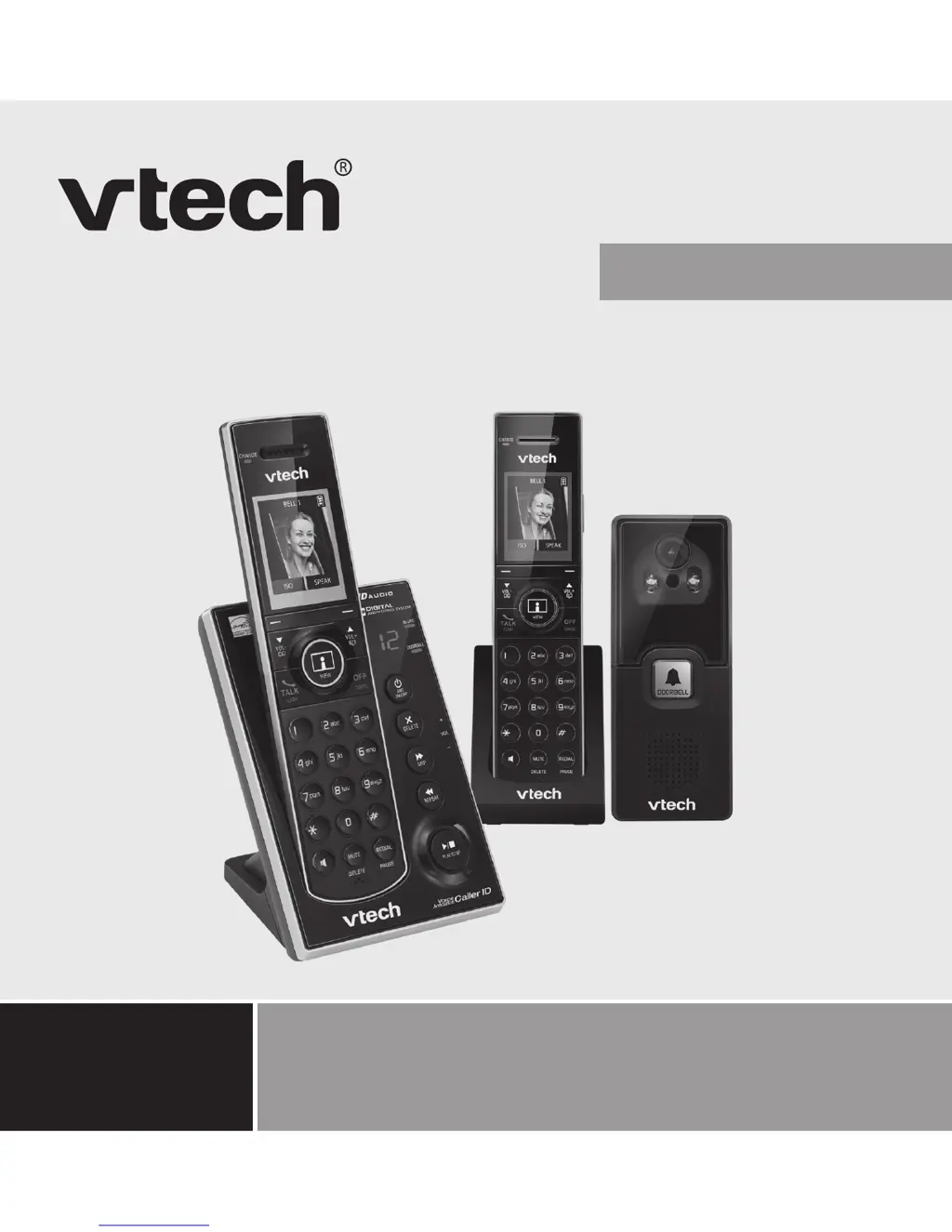
VTech IS7121A - User Manual

VTech IS7121A
81 pages
Print Icon
To Next Page IconTo Next Page
Loading...
http://hkphones.v tech.com
Models: IS7121A
IS7121-2A
User’s Manual

Table of Contents

Questions and Answers

  • R
    Ronnie BlairJul 27, 2025
    Why my VTech Cordless Telephone does not work at all?
    • K
      Kelli DavisJul 27, 2025
      If your VTech Cordless Telephone isn't working, here are some things to check: * Ensure the batteries are correctly installed and charged. For best performance, return the handset to the base after each use. * Verify the power adapter is securely plugged into the outlet. * Confirm the telephone line cord is firmly connected to both the base and the wall jack. * Try unplugging the base, waiting 15 seconds, and plugging it back in. Allow a minute for synchronization. * Remove and re-insert the batteries, or replace them if necessary. * Disconnect the base and plug in a known working phone. If it doesn't work, the issue may be with your wiring or telephone service. Contact your provider.
  • B
    Brittany AustinAug 1, 2025
    How to fix VTech IS7121A Cordless Telephone when batteries do not charge?
    • A
      Adam BakerAug 1, 2025
      If the batteries in your VTech Cordless Telephone aren't charging, here's what you can do: * Ensure the handset is correctly placed in the telephone base. * Remove and reinstall the batteries, then charge the handset for up to 16 hours. * If the issue continues, you may need to purchase new batteries.
  • W
    whitejohnAug 13, 2025
    What to do if low battery shows on VTech IS7121A?
    • S
      Steven ButlerAug 14, 2025
      If you see a low battery indicator on your VTech Cordless Telephone, try the following: * Place the handset in the telephone base to recharge. * Remove and reinstall the batteries, use the handset until the battery is fully depleted, and then recharge it in the base. * If the problem persists, replace the batteries.
  • M
    matthewsmithAug 20, 2025
    What to do if there is no chime from the doorbell when it is pressed on VTech Cordless Telephone?
    • A
      ashley10Aug 20, 2025
      If you're not hearing a chime when the doorbell is pressed on your VTech Cordless Telephone system, check these: * Make sure you install two AA batteries and connect AC power supply to the doorbell. * Check if the doorbell light flashes when pressed; if not, the doorbell battery may be depleted. * Ensure the doorbell is registered to the telephone system. * Verify the handset is in range and functioning properly. * Confirm the handset's chime volume is not set to off. * Note that the handset won't chime during an incoming call. * Video streaming is disabled when three or more handsets are in use. * If you have multiple doorbells, ensure none are currently streaming video. * If issues persist, deregister and re-register all devices to the base.
  • M
    Mr. Duane CummingsNov 7, 2025
    What to do if there is interference during a telephone conversation on VTech IS7121A Cordless Telephone?
    • J
      Jodi PriceNov 7, 2025
      If you're experiencing interference or fading calls on your VTech Cordless Telephone, consider these solutions: * Move the handset closer to the telephone base, as it might be out of range. * If you have DSL internet, ensure a DSL filter is installed between the base and the wall jack. * Move the base or other appliances to a different outlet to avoid circuit interference. * Keep the telephone away from electronic devices like routers, radios, cell phones, computers, and other cordless phones. * Try plugging the telephone (or modem/surge protector) into a different outlet. * Position the base in a central location, away from walls and obstructions. * Test the phone line with a corded phone to rule out wiring or service issues. If other phones in your home have the same probl...

Summary

IMPORTANT SAFETY INSTRUCTIONS

DISPOSAL WARNING

SET UP THE TELEPHONE

Package Contents and Location

Lists package items and provides guidelines for base unit placement.

Connect the Base Station

Instructions for connecting the telephone base to the power and phone line.

Connect the Charger Base

Instructions for connecting the charger base to the power outlet.

Install and Charge Handset Batteries

Steps for installing and charging the handset batteries.

Installation Options

Overview of different installation methods for the telephone base.

Tabletop to Wall Mount Installation

Steps to convert the telephone base from tabletop to wall mount.

Wall Mount to Tabletop Installation

Steps to convert the telephone base from wall mount to tabletop.

Doorbell Battery Installation

Instructions for installing batteries in the doorbell unit.

Locating the Doorbell

Guidance on testing the doorbell location and adjusting the camera angle.

Install Doorbell Wall Mount Cover

Steps for installing the wall mount cover for the doorbell.

Install the Doorbell

Instructions for attaching the doorbell to the wall mount cover.

Remove Doorbell from Mount

Steps for detaching the doorbell from its wall mount cover.

GET TO KNOW YOUR PHONE

Handset Overview

Details and labels of the telephone handset features and buttons.

Base Station Overview

Details and labels of the telephone base station features and buttons.

Doorbell Overview

Details and labels of the doorbell unit features.

LCD Display Icons and Symbols

Explanation of icons and symbols displayed on the handset's LCD screen.

Menu Structure

Overview of the phone's menu hierarchy and navigation.

Text and Digit Entry Table

Guide for entering text and digits using the phone's keypad.

PHONE SETTINGS

Ringer Volume

How to adjust handset and base ringer volumes and tones.

Chime Settings

How to adjust chime volume and select chime tones.

Call Management Settings

Settings for quiet mode, date/time, device renaming, and voice announce caller ID.

Display and Tone Settings

Adjusting LCD brightness, dim mode, wallpaper, voicemail indicators, and key tones.

Call Divert

How to set up call divert for doorbell calls to an external number.

USING THE DOORBELL

Answer a Chime

How to answer doorbell chimes and capture visitor photos.

Video Streaming Session

How to start, extend, and end video streams, and handle incoming calls during streaming.

Manage Captured Photos

How to view and delete captured photos from the doorbell.

Night Vision

Information about the doorbell's night vision capability.

USING THE PHONE

Making and Receiving Calls

Instructions for making, answering, and ending calls, including handsfree and volume control.

Call Features

Using mute, call waiting, ringer silencing, temporary tone dialing, and chain dialing.

Locate Handset and Redial

How to find a handset, review redial numbers, and use the equalizer feature.

Call Transfer and Intercom

How to transfer calls, join calls, and use the intercom feature between handsets.

PHONEBOOK

Create and Review Phonebook Entries

How to add new contacts and view existing entries in the phonebook.

Search and Edit Phonebook Entries

How to perform alphabetical searches and edit existing phonebook entries.

Delete Entries and Speed Dial

How to delete phonebook entries and manage speed dial assignments.

CALL LOG

Caller ID and Call Log History

Information on viewing caller ID and the call log history.

Manage Call Log Entries

How to dial, save, or delete entries from the call log.

Call Log Screen Messages

Explanations for various messages displayed in the call log.

ANSWERING MACHINE

Basic Operation and Outgoing Messages

How to turn the answering system on/off and manage outgoing greeting messages.

Message Playback and Deletion

How to listen to, delete, or play memos and manage all old messages.

Answering Machine Settings

How to configure call screening, number of rings, remote access, message alert tone, and recording time.

System and Voicemail Integration

How to use the answering system with voicemail, manage capacity, and voice prompts.

Remote Access and Commands

How to remotely access and control the answering system using phone commands.

REGISTRATION

Registration Overview

Process of registering new handsets and doorbells to the base unit.

Easy Registration Procedures

Simplified steps for registering additional handsets and doorbells.

Deregister Devices

How to remove registered handsets and doorbells from the system.

DEFAULT SETTINGS

TROUBLESHOOTING

General Operation and Battery Issues

Solutions for when the telephone does not work at all or has battery issues.

Interference and Call Quality Problems

Solutions for interference during calls and fading calls.

Doorbell and Equipment Issues

Solutions for doorbell chime problems and general electronic equipment cures.

TECHNICAL SPECIFICATIONS

CARE AND MAINTENANCE

VTech IS7121A Specifications

General IconGeneral
BrandVTech
ModelIS7121A
TypeCordless Telephone
FrequencyDECT 6.0
Number of Handsets1
Caller IDYes
Call WaitingYes
SpeakerphoneYes
ExpandableYes
DisplayLCD
Handset LocatorYes
Phonebook Capacity50
Talk TimeUp to 10 hours
Standby TimeUp to 5 days
IntercomYes
Answering SystemDigital
Battery TypeNiMH
RangeUp to 1000 feet

Related product manuals