45
Index
Contents
45
Index
Contents
TESTING TOUCH
If you encounter problems with touch, it is a good idea to first check the assigned touch functions or reset
them to their default conditions.
To further test touch:
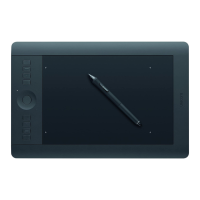
1. Attempt to move the screen cursor by tracking your finger across the tablet surface. Then tap to select
an item. A status LED should brighten when you touch the active area of the tablet. See also testing
your tablet.
2. Open the Wacom Tablet control panel and click on the A
BOUT button. In the dialog box that appears,
click D
IAGNOSE.... The DIAGNOSTICS dialog box shows dynamic information about the tablet, your
Intuos5 tool(s), and appropriate information for touch-sensitive tablets. See also testing the tablet
controls and tools.
3. With the D
IAGNOSTICS dialog box open, touch the tablet surface with first one, then with two fingers.
Each time you touch the tablet surface, a tablet status LED should brighten and the T
OUCH INFO state
should change.
4. When you are done, click the C
LOSE button to exit the dialog box.









 To Next Page