3. Web Access
3.1 Settings
To view your camera in any web browser you’ll need the camera’s IP address and camera’s Port.
If your computer is in the same network, just type the address in browser address bar:
http://IP:PORT for example http://113.116.100.223:80. Users can get these data from the app >
advanced settings > about camera.
If your computer is located outside the network where the camera is installed, users need to input
manually the camera’s IP in the router in the Port Forwarding Section (please consult your router
user guide or search on line) to view the camera.
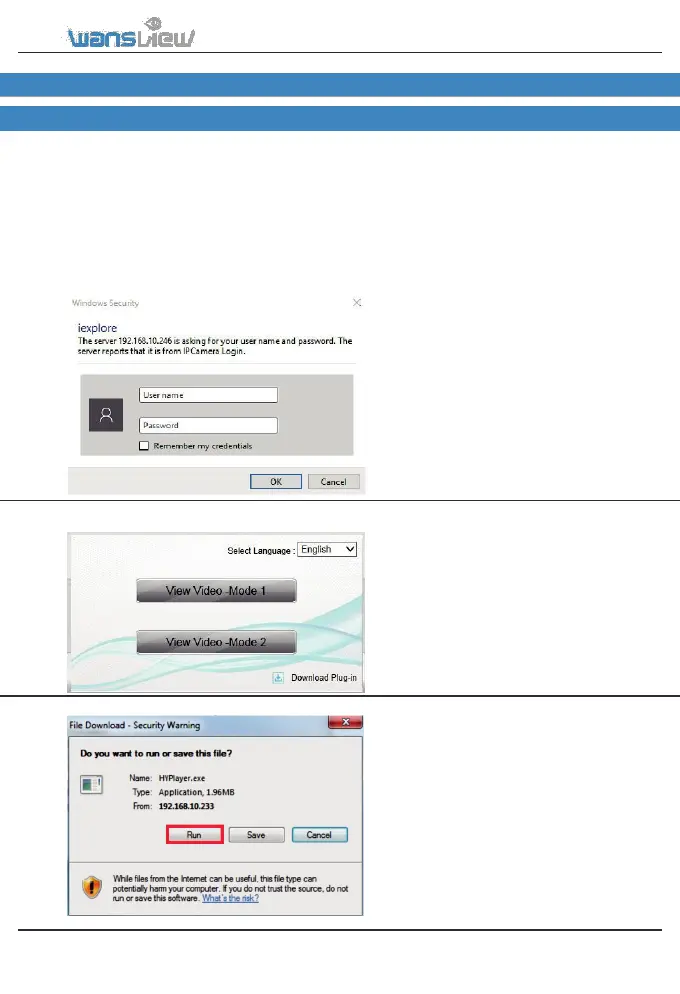
The Login mask will appear:
3.1.1 Plugin installation
The Camera has 2 view mode:
View Mode 1 supported by an OCX
Plugin (HYPlayer.exe)
View Mode 2 supported by an
Adobe Flash Player Plugin
3.1.2 View Video-Mode 1 - Complete Camera Management
Click on Download Plugin to
download and install the OCX Plugin-
HYPlayer plugin.
Note: It’s only available for IE brower. If
user uses Google Chrome or Firefox, they
don’t support Mode 1, please chooose mode 2.
www.wansview.com 21


 To Next Page