5. Wansview Windows Software
5.1. Add Camera
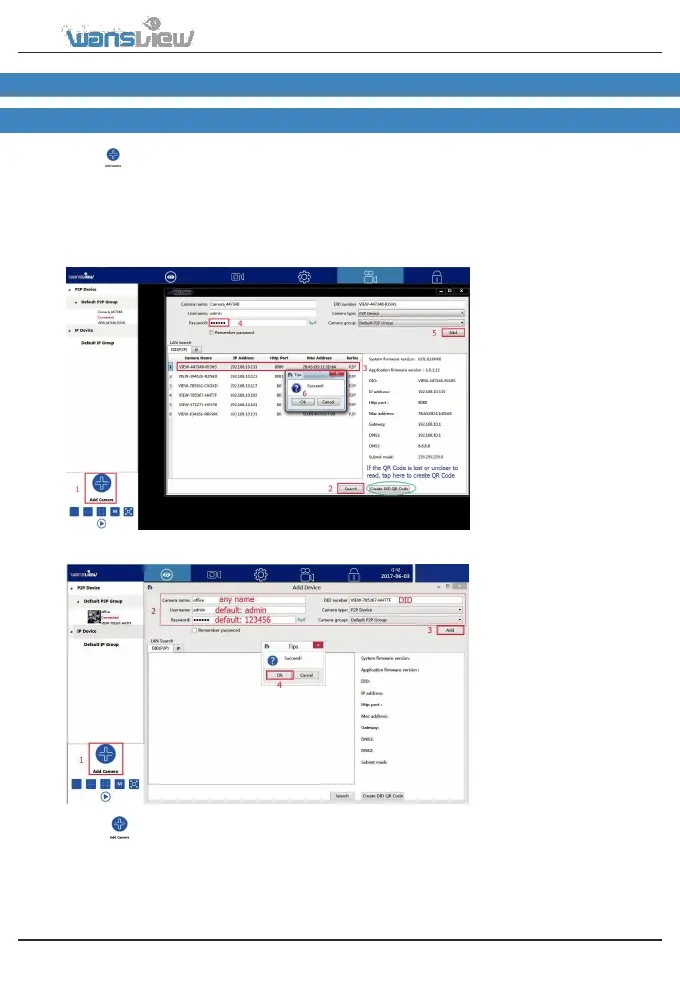
5.1.1 Add camera in Lan
2) Search the camera in Lan, DID number will be searched if use DID(P2P) to search, while Search
IP will get IP Address
3) Double-click the searched camera, and the camera information will be filled automatically.
4) Input the camera’s password (default is 123456).
6) “Save Success” will appear, click “OK” to close the dialog.
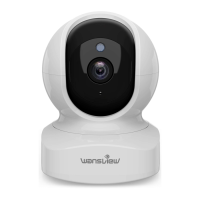
5.1.2 Manually add camera (suitable for outside network)
2) Manually input the camera information.
Tips: DID number can be checked from stickers on the back of the camera. You can check the DID from
Wansview app If you have already added the camera on the mobile phone “wansview” app.
4) “Save Success” will appear, click “OK” to close the dialog.


 To Next Page