
EasyManua.ls Logo

Wavecom FASTRACK M1306B - User Manual

Wavecom FASTRACK M1306B
67 pages
Print Icon
To Next Page IconTo Next Page
Loading...
WM_
Plug and Play Wireless CPU
®
FASTRACK M1306B
User Guide
Revision: 003
Date: Novembe
r 2006

Table of Contents

Questions and Answers

  • N
    Nancy GomezJul 26, 2025
    How to troubleshoot no communication with Wavecom Computer Hardware M1306B through serial link?
    • D
      David HardyJul 26, 2025
      If you're experiencing communication issues with your Wavecom Computer Hardware M1306B via the serial link, several factors could be at play. First, ensure the M1306B is receiving power correctly, with an external power supply providing a voltage between 5.5 V and 32 V. Next, verify that the serial cable is securely connected at both ends. Check the serial cable's pin assignment against the specifications in paragraph 3.2.1.1. Confirm that your communication program's settings match the M1306B's factory settings: Data bits = 8, Parity = none, Stop bits = 1, Baud = 115 200 bps, and Flow control = hardware. Finally, rule out any interference from other programs that might be conflicting with the communication port access by closing them.
  • L
    lowedanielAug 5, 2025
    What to do if Wavecom FASTRACK M1306B is receiving 'NO CARRIER' message?
    • B
      Brian OdonnellAug 5, 2025
      If you are getting a "NO CARRIER" message on your Wavecom Computer Hardware, consider these potential causes: Ensure the received signal strength is adequate (refer to section 5.5). Check if the M1306B is registered on the network (refer to section 5.7). Verify the antenna is properly connected (refer to section 8.2.6.3 for antenna requirements). Confirm that a semicolon (;) is immediately after the phone number in the AT command (e.g., ATD######;). Ensure your SIM card is configured for data/fax calls, consulting your network provider if needed. Check that the selected bearer type is supported by both the called party and the network. If unsuccessful, try setting the bearer selection type using the AT command: AT+CBST=0,0,3.
  • P
    powersronaldAug 14, 2025
    Why is Wavecom Computer Hardware receiving 'ERROR' message?
    • P
      Peter BallardAug 14, 2025
      If your Wavecom Computer Hardware is displaying an "ERROR" message, it could stem from a couple of reasons. First, the AT command syntax might be incorrect, so you should check the command syntax (refer to "AT Commands Interface Guide" [7]). Alternatively, the AT command syntax could be correct but transmitted with wrong parameters. To get a clearer understanding of the error, enter the AT+CMEE=1 command to switch to the verbose error reporting method, which provides error codes. You can also try to enter again the AT command which previously caused the reception of "ERROR" message in order to get the Mobile Equipment error code.

Summary

Document History

Overview

RoHS Directive

Details compliance with RoHS Directive 2002/95/EC regarding restricted hazardous substances.

Disposing of the product

Cautions

Trademarks

Copyright

Web Site Support

References

Reference Documents

Lists documents related to Open AT® Software, AT Software, and other relevant Wavecom documentation.

Open AT Software Documentation

Details guides for getting started, tutorials, and development for the Open AT® platform.

AT Software Documentation

Lists AT command interface guides and release notes for AT software.

Other Documents

Lists other documents, such as firmware upgrade procedures.

Abbreviations

Provides a glossary of abbreviations used throughout the user guide.

Packaging

Contents

Details the items included in the Fastrack M1306B package.

Packaging Box

Describes the dimensions and label information of the product's carton box.

Production Sticker

Explains the information provided on the production sticker located on the M1306B.

General Presentation

Description

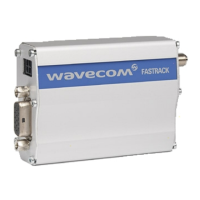
Provides a visual and descriptive overview of the Fastrack M1306B unit and its components.

External Connections

Details the various external connectors for the M1306B, including SMA and Micro FIT.

Power Supply Cable

Describes the specifications and components of the M1306B power supply cable.

Basic Features and Services

Using the M1306 B Wireless CPU

Getting Started

Guides the user through initial setup steps, including mounting and connecting the device.

Truck Power Supply Recommendations

Provides crucial safety warnings and guidelines for connecting power to the M1306B in truck applications.

M1306 B Operational Status

Explains how to interpret the status of the M1306B via its green LED light.

Echo Function

Details how to enable or disable the echo function for AT command communication.

Verify Received Signal Strength

Guides on checking the received signal strength using the AT+CSQ command.

Check PIN Code Status

Explains how to check the SIM card PIN status using the AT+CPIN? command.

Verify Network Registration

Details how to check if the M1306B is registered on the network using AT+CREG?.

Main AT Commands

Lists essential AT commands for starting and operating the Wireless CPU, with responses and comments.

Firmware Upgrade Procedure

Describes the process for updating the firmware embedded in the Fastrack M1306B via RS232.

Troubleshooting

No Serial Communication

Diagnoses and solves issues where the M1306B does not respond to AT commands via the serial link.

Receiving ERROR Message

Explains the causes and solutions for receiving 'ERROR' messages in response to AT commands.

Receiving NO CARRIER Message

Provides troubleshooting steps for the 'NO CARRIER' message when attempting calls or data.

Functional Description

Architecture

Presents a block diagram illustrating the functional architecture of the Fastrack M1306B.

Power Supply

Describes the external DC voltage requirements and internal regulation for the M1306B.

RS232 Serial Link

Explains the RS232 interface, its voltage level adaptation, and ESD protection.

General Purpose Input;Output (GPIO)

Describes the two GPIO lines available for external use and their AT command control.

RESET Signal

Explains the RESET signal for performing emergency resets and external device resets.

Audio Interface

Describes the audio interface for connecting a phone handset, including echo and noise reduction features.

Technical Characteristics

Mechanical Characteristics

Provides dimensions, weight, volume, and housing material specifications for the M1306B.

Electrical Characteristics

Details electrical specifications including power supply, operating ranges, and current consumption.

RF Characteristics

Covers frequency ranges for E-GSM 900 and DCS 1800 bands.

Environmental Characteristics

Specifies operating, transportation, and storage temperature ranges for the M1306B.

Conformity

Lists standards and directives the M1306B complies with, including R&TTE and safety standards.

Protections

Details protection mechanisms against overvoltage and ESD for the M1306B.

Safety Recommendations

General Safety

Outlines general safety regulations, restrictions on use in specific environments, and proximity to medical devices.

Vehicle Safety

Provides guidelines for safe operation in vehicles and warns against interfering with vehicle electronics.

Care and Maintenance

Offers advice on how to treat the Wireless CPU® with care to ensure longevity and avoid damage.

Your Responsibility

Emphasizes user responsibility for care, local regulations, and security features like PIN codes.

Recommended Accessories

Online Support

Wavecom FASTRACK M1306B Specifications

General IconGeneral
BrandWavecom
ModelFASTRACK M1306B
CategoryComputer Hardware
LanguageEnglish