30 CHAPTER 4 INSTALLING CLICK SUPERVISOR
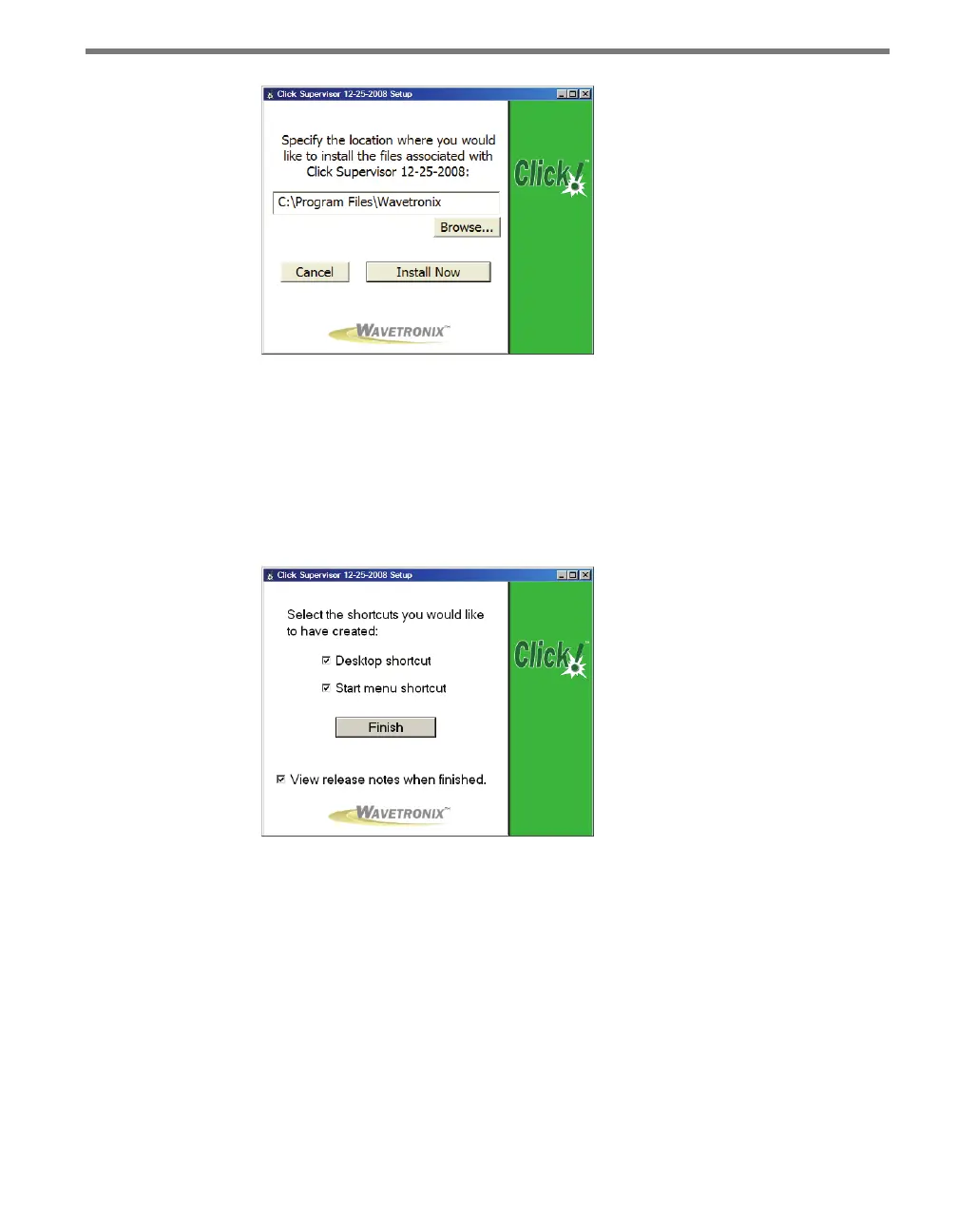
Figure 4.3 – Location to Be Installed
3 Click the Install Now button.
4 Aer Click Supervisor is installed, you can create shortcuts to the soware on the desk-
top and in the start menu using the corresponding checkboxes on the nal screen (see
Figure 4.4). If no shortcuts are desired, uncheck the corresponding boxes. If you are
installing on a Pocket PC at the same time, this screen will not appear until both instal-
lations are complete.
Figure 4.4 – Shortcut Options
5 Click the View release notes when nished checkbox to view the Click Supervisor
release notes. e release notes contain additional information about the current ver-
sion of the Click Supervisor soware. A PDF reader program such as Adobe Acrobat
Reader is required to view the release notes.
6 Click Finish to complete the setup process.
Installing Click Supervisor on a Handheld Computer
Although the soware can be installed on many handheld computers, because of constantly
changing handheld technologies, Wavetronix can only oer technical support on the hand-
held in the kit, which is a Socket Mobile 650.



 To Next Page