CHAPTER 7 CLICK 101 59
Setting Description
Sensor ID
The sensor’s multi-drop communication ID.
Contact Closure
Outputs
Allows you to set the Click 101 output for lanes 1-10 of each sensor.
SmartSensor HD has 10 lanes per sensor; SmartSensor 105 only has 8
lane per sensor. Assignments made for Lanes 9 and 10 of a Smart-
Sensor 105 unit will have no impact. Multiple lanes from one or more
sensors can also be assigned to the same output.
Table 7.5 – Expert Driver Sensor 1 Tab
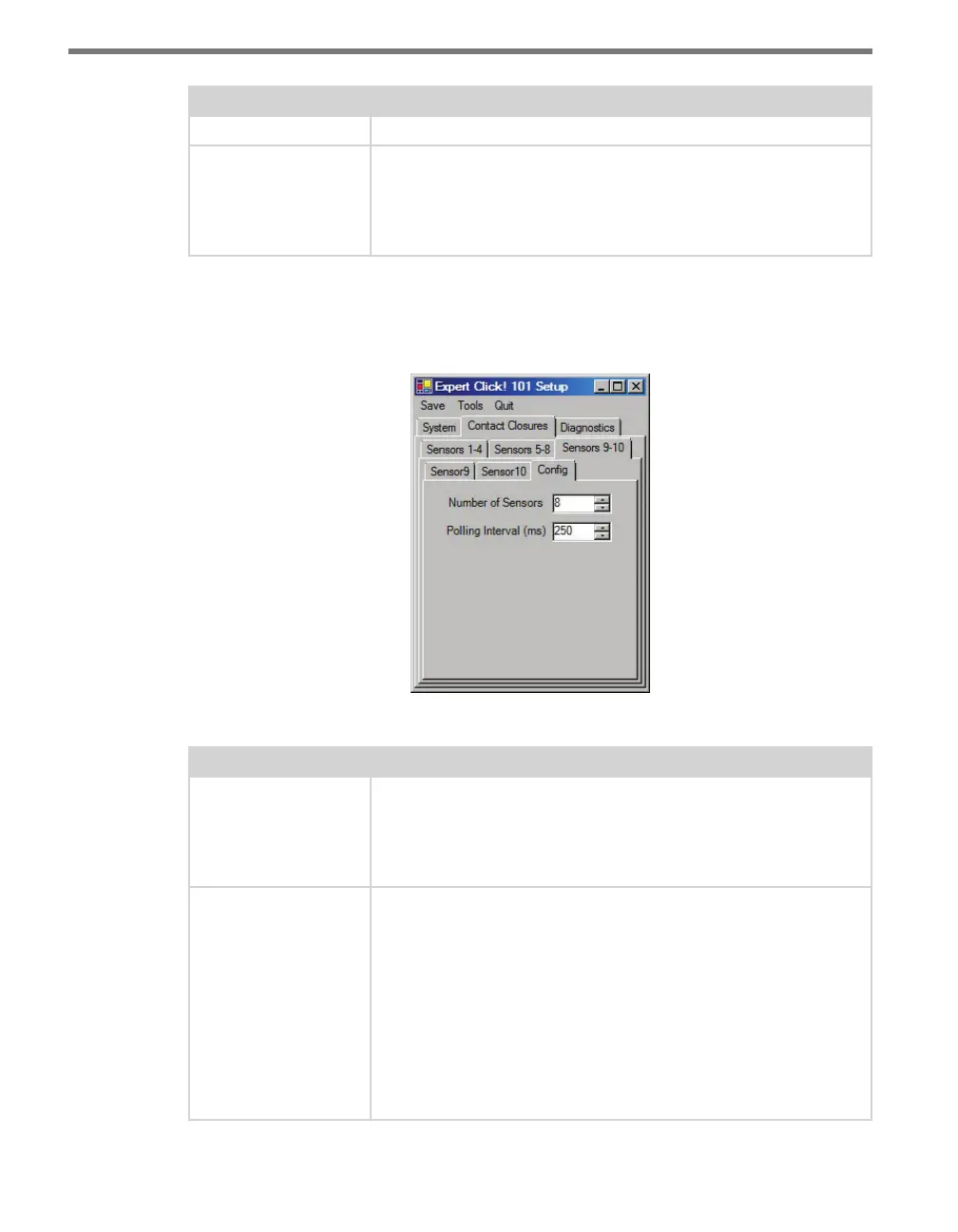
e Contact Closures > Cong tab is located under the Sensors 9-10 tab and allows you
to select the number of sensors and set the polling interval (see Figure 7.9 and Table 7.6).
Figure 7.9 – Expert Driver Config Tab
Setting Description
Number of Sensors This indicates how many of the 10 possible sensors you would like to
include in the current polling list. If you select only 1, then only sensor
1 will be polled for data. If you select 2, then only sensors 1 and 2 will
be polled for data. In other words, sensors 1–X will be polled, where X
is the value entered in this field.
Polling Interval (ms) The amount of time allotted for each sensor in the polling list to re-
spond. If a sensor responds more quickly, the Click 101 will continue to
wait until the full time interval has expired. In other words, if you poll
8 sensors with an interval of 250 ms, you will query each sensor every
2 seconds. This two seconds represents the time required to poll all
sensors on the list. This is defined as the total list poll time. The total
list poll time is variable when sensors are momentarily dropped from
the polling list. Unresponsive sensors are dropped from the poll list
for one minute. For example, if 1 of 8 devices is not responding to
requests, then the total list poll time will be 1.75 seconds (during the
cycles that the unresponsive sensor is dropped from the list).
Table 7.6 – Expert Driver Config Tab



 To Next Page