60 CHAPTER 7 CLICK 101
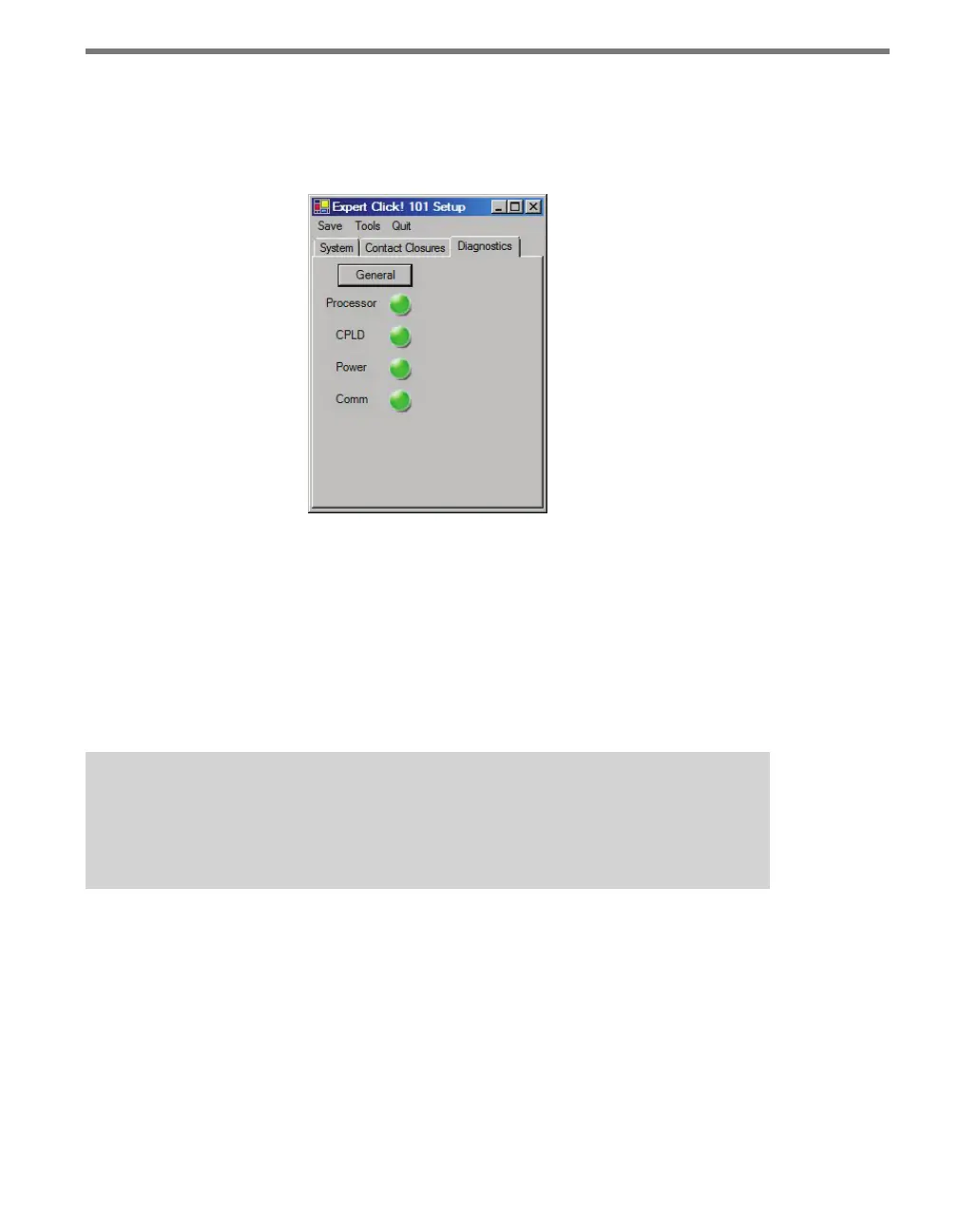
Under the Diagnostics tab, you can run diagnostics on your device (see Figure 7.10). Click
the General button to run diagnostics on the items listed below the button. If a problem is
detected, the program will display a red square next to the item in question. If no problems
are detected, a green circle will appear.
Figure 7.10 – Expert Driver Diagnostics Tab
Once you have nished, use the menu bar at the top of the screen to save your settings,
return to the Select Driver screen, and more.
e Save menu allows you to save your settings. Select Save to File to save your set-
tings to a le. Selecting this will open a directory box, allowing you to name your
settings le. is le will always be saved in the Wavetronix folder created when you
installed Click Supervisor, under Wavetronix > ClickHome > Drivers > 101 > User. You
can also select Save to Device to save your settings to your Click 101.
Note
If you do not save your settings to your Click 101, they will be lost the next time you
power the device down.
e To ol s menu contains ve options for working with your device. Reset > System
power cycles your device, while Reset > Factory Default restores your device to the
settings with which it was shipped. Restore will restore the driver to the settings cur-
rently saved on the Click 101, erasing any unsaved changes. Upgrade can be used to
manually upgrade to the most current rmware for your device. Hex View changes the
view of certain settings in the driver to hexadecimal.
Clicking the Quit menu exits the driver and returns you to the Click Supervisor main
page.



 To Next Page