112 CHAPTER 11 TOOLS
Note
You cannot restore a backup file from a SmartSensor Advance device to a SmartSen-
sor Advance Extended Range device. The converse is also true.
If the restore process completes successfully, the conguration was loaded and saved to
FLASH.
e zone locations described in a conguration le are relative to the stop bar. e stop bar
frame of reference allows zones to be described in terms of their trac-related functions.
However, it is possible for some zone problems to arise if the channel conguration is re-
stored but the sensor position is not.
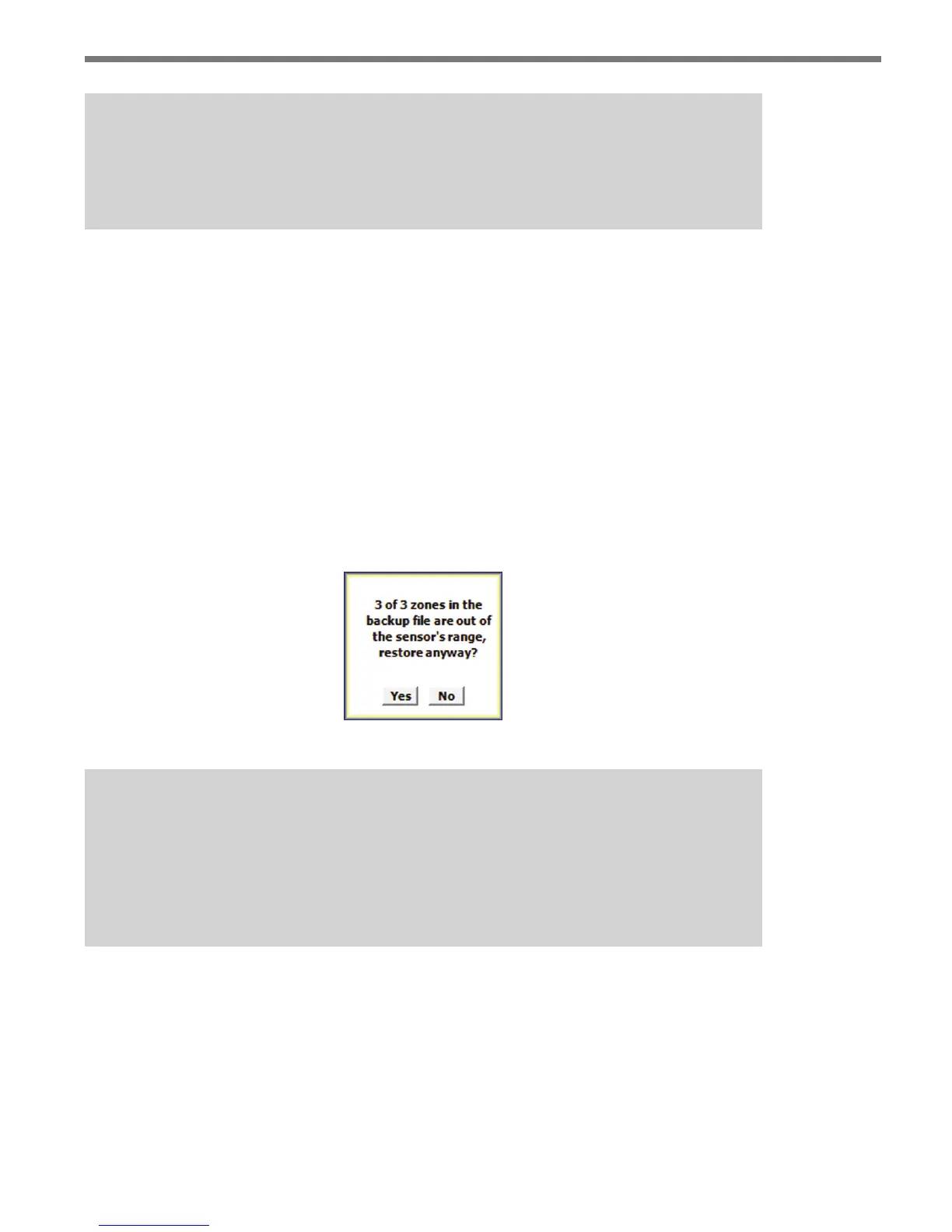
For a given sensor installation, some zones dened in a conguration le may not be en-
tirely within the sensor’s detection range. If this is the case, a message will appear stating
the number of congured zones that are invalid for the sensor’s position relative to the stop
bar and you will be prompted to accept the modied results of the restored conguration
or to cancel the restore altogether (see Figure 11.6).
Figure 11.6 – Out of Sensor’s Range
Note
If the modified template results are accepted, the invalid zones will be deleted from
the channel configuration. It is strongly advised that you manually inspect the chan-
nel configuration and make modifications as required. You should always verify chan-
nel performance before terminating the configuration process.
If necessary, the desired conguration le can be copied and modied in a text editor to
accommodate the sensor’s position; or the channel can be congured using the software.
Restoring to Factory Defaults
To restore the device to its factory defaults, use the Restore Factory Defaults button on
the Backup/Restore page.



 To Next Page