92 CHAPTER 8 VERIFY CHANNELS-ALERTS-ZONES
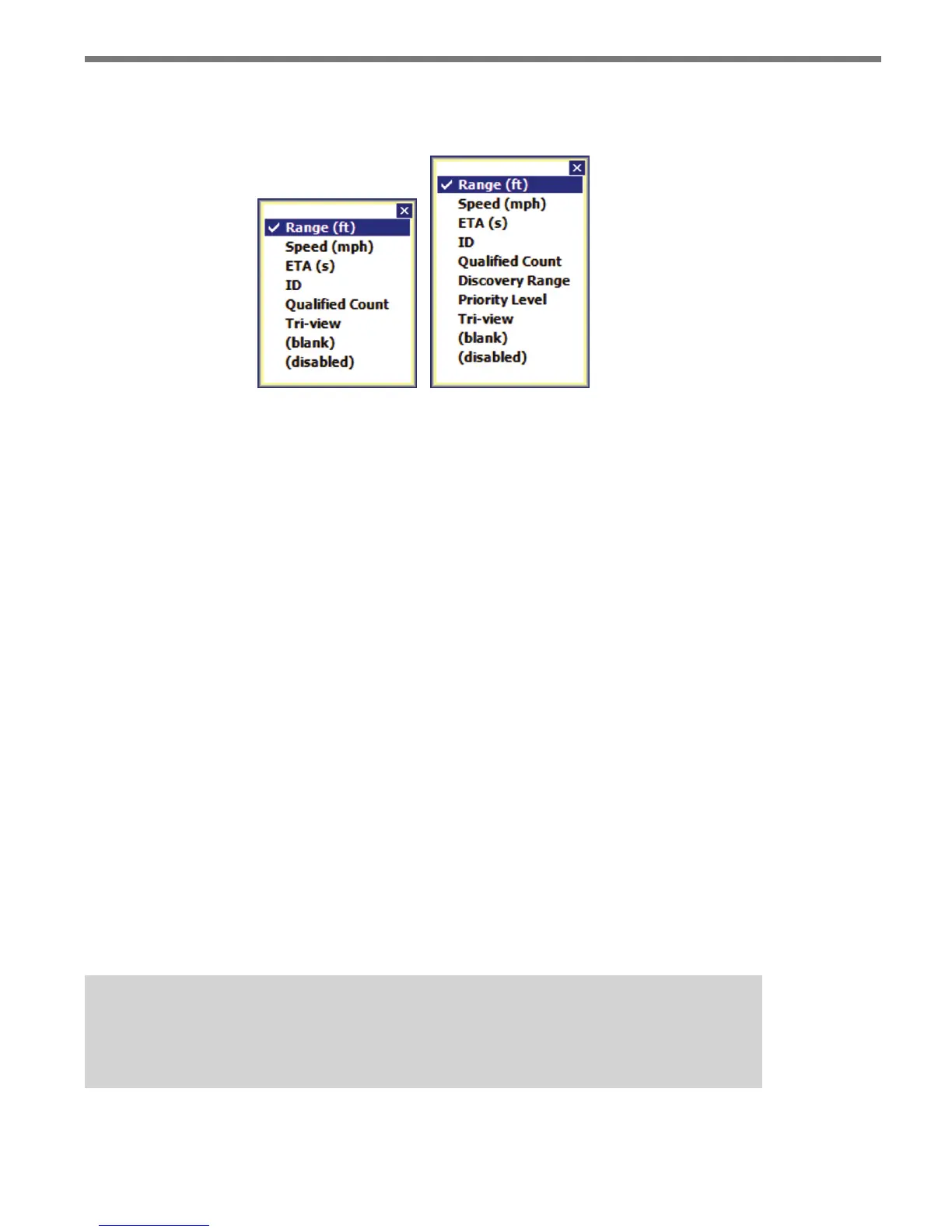
Click and hold on the roadway display selector to access the roadway display mode list (see
Figure 8.13).
Figure 8.13 – Roadway Display Mode List for Advance (left)
and Advance Extended Range (right)
Left-click the roadway display button to cycle forward through the available modes; right-
click to cycle backwards through the list (right-clicking is only available on the PC version
of the SSMA software).
Range (ft) – Displays the range of the associated tracker to the stop bar.
Speed (mph) – Shows the speed of the associated tracker.
ETA (s) – Shows the tracker’s Estimated Time of Arrival (in seconds) to the stop bar.
ID – Displays the ID number of the associated tracker. SSMA assigns a unique ve-
digit identication number (1 to 99999) to each tracker.
Qualified Count – e two types of Qualied Count displays available are Qualied
Count and Dynamic Density. e data displayed on the trackers depends on the type
selected in the Setup CAZ screen.
Discovery Range – Displays the range at which the tracker was rst detected. (Only
available with SmartSensor Advance Extended Range.)
Priority Level – Shows the priority level assigned to a vehicle based upon its discovery
range. Level 1 priority is the highest priority. Level 2 is the highest priority. (Only
available with SmartSensor Advance Extended Range.)
Tri-view – Allows up to three user-specied modes to be displayed on each tracker.
(blank) – Removes all data from the tracker displays.
(disabled) – Disables the trackers on the roadway. However, the LEDs in the right
sidebar will function as normal.
Note
The disabled mode may be useful when communication is slow or unreliable.



 To Next Page