85
January, 2017
IMPORT
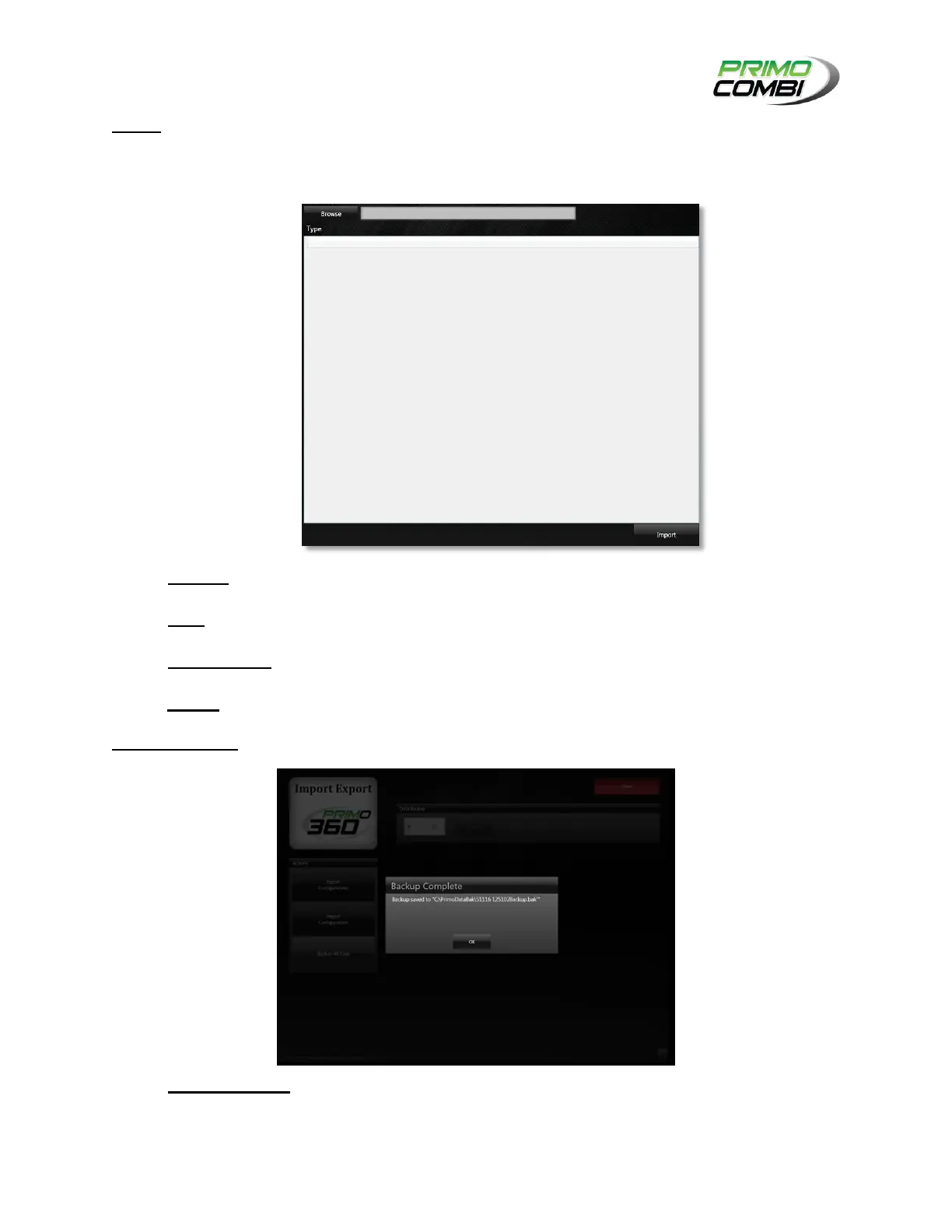
Pressing the Import button under the Actions tab will open the Import Screen, where the operator can
browse files to import database information from an XML file.
BROWSE – Clicking on the Browse button will open the file explorer. From here browse to the
XML file that you wish to import.
TYPE – Once you select an XML file the Type field will display the database table that your data
will be imported into.
CENTRAL GRID – Central Grid will display the data contained in the XML file. Select the data that
you wish to import.
IMPORT – Clicking on the Import button will import the data that you selected in the Central Grid.
BACKUP ALL DATA
DOWNLOAD DATA – This window allows the operator to select a drive and start the backup
process.



 To Next Page