8.2 Keying in cal weight
The display will show “Cal weight ” and the cursor will be blinking. Using the up,
down, and right keys to enter the size of your calibration weight in pounds (i.e. 1, 2, 5,
or 10). Press “Enter” to accept the cal weight, or “Cancel” if you make a mistake.
8.3 Calibration Example
(Entering a 25.00 lb cal weight value.) The blinking cursor is the clue that you can enter
an arbitrary number using the up and down keys. Pressing the up/down keys will scroll
through the list (0 1 2 3 4 5 6 7 8 9 - . ) in turn. When the desired number appears (2),
press the right arrow “Menu / Help” key. The blinking cursor will advance one digit to
the right (2 ), leaving your selected number in place. Continue this sequence until the
desired numeric value is visible on the display (25 ) (25. ) (25.0 ) (25.00). Press the
“Enter” key to accept the value, or the “Cancel” key to abort.
8.4 Establishing a zero
The indicator will display “Cal–zero weight”. Clear the weighing platform of any
foreign objects and once all vibration has died out, press the “Enter” key. Make sure
that the platform is not disturbed during this process. Indicator will display “Zeroing...”
as it takes an average reading of the zero offset weight (about three seconds).
8.5 Accepting a cal weight
The indicator will then display “Cal–add weight”. Add weight to the weighing platform
(the weight should be the same amount as the keyed in cal weight) then touch the “Enter”
key. The indicator will display “Scaling...” for about three seconds as it performs
internal calculations. Finally, the indicator will display “Cal done” for about one second
once the calibration cycle is complete.
9 Scale Parameters
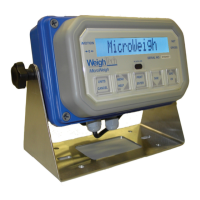
To get to the parameters touch the “Menu/Help” key (indicator will display “Power off
*”). Use the up or down arrows until the indicator displays “Setup Menu”. Touch the
“Print/Enter” key and the indicator will prompt for a password. The password for this
step will be as follows: starting from the left side of the keypad touch each key in turn
from left to right. After entering the password the indicator will display “Parameters *”.
At this point touch the “Print/Enter” key to access the parameters. Use the up and down
arrows to scroll through and view each parameter.
9.1 “Units”
This parameter controls the setup unit of the indicator. Select from pounds (lb), kilo-
grams (kg), grams (g), and ounces (oz). Once set, the indicator capacity, resolution, and
12


 To Next Page