GETTING STARTED
13
WD CLOUD USER MANUAL
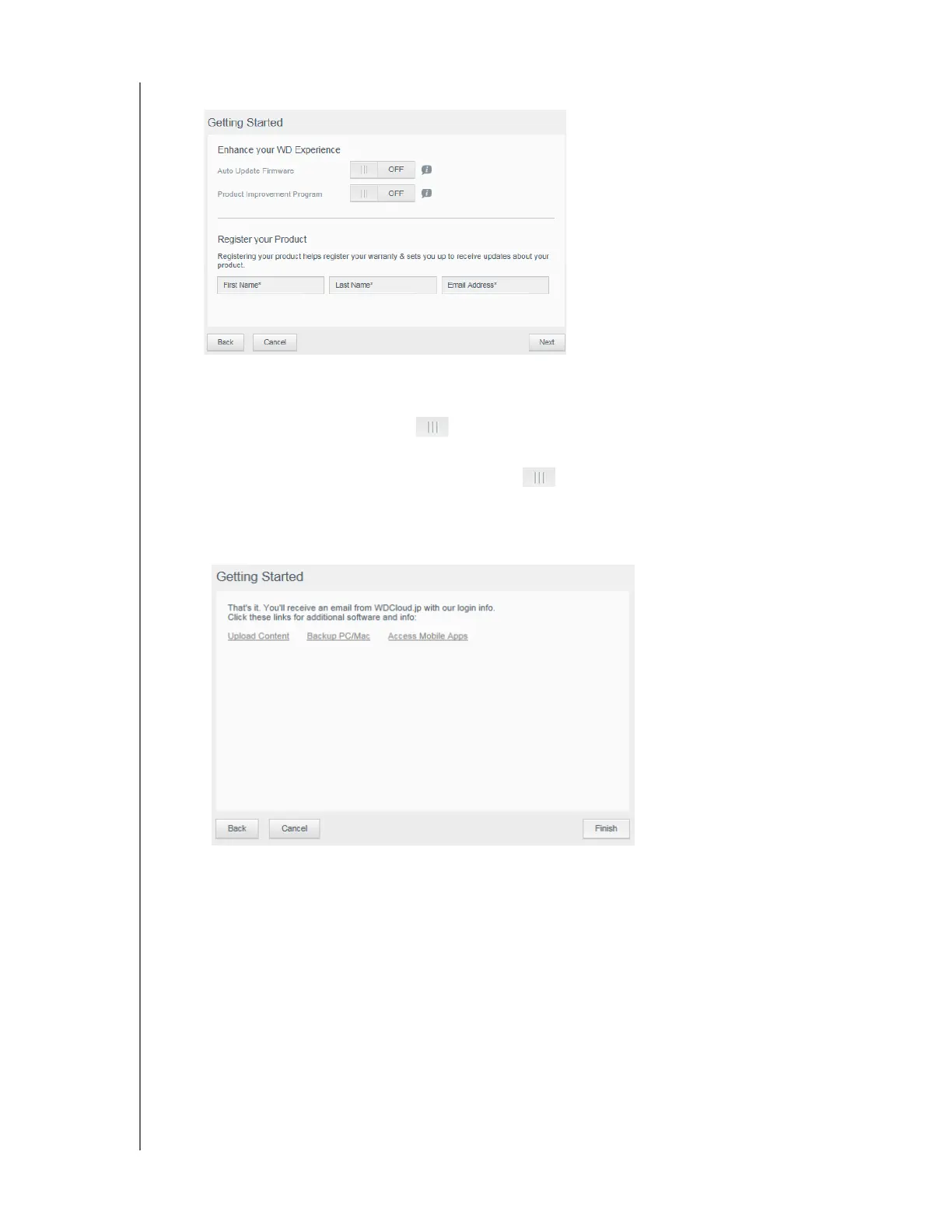
8. Click Next. The following screen appears:
9. This screen provides the following options:
To have your device’s firmware updated automatically, click the Auto Update
Firmware toggle button .
To participate in the product improvement program, click the Product
Improvement Program toggle button .
To Register your Product, enter your name and email address in the appropriate
fields.
10. Click Next to continue.
11. For additional software and information, select a link in this screen.
12. Click Finish to display the WD Cloud dashboard. For instructions on using the
dashboard, see “The Dashboard Home Page” on page 18.
Accessing Content
The WD Cloud device’s Public folder contains Shared Music, Shared Pictures, and Shared
Videos subfolders. The existing content of the subfolders are files that you dragged and
dropped or files that have been backed up from your computer or an attached USB drive.
Note: Any of the folders can hold any file type.




 To Next Page