CONFIGURING SETTINGS
72
WD CLOUD USER MANUAL
If you selected Customize a port forwarding service, complete the following fields:
- Service: Enter a service for your port forwarding.
- Protocol: Select a protocol from the drop-down menu.
- External Port: Enter an external port number for your port forwarding.
- Internal Port: Enter the internal port number for your port forwarding.
- Click Finish.
Modifying Port Forwarding Services
1. Click Details next to the port forwarding service you’d like to modify.
2. Make all necessary changes, and then click Finish.
Deleting Port Forwarding Services
1. Click Details next to the port forwarding service you’d like to delete.
2. Click Delete. Your Port Forwarding service is deleted and removed from the Port
Forwarding list.
Media
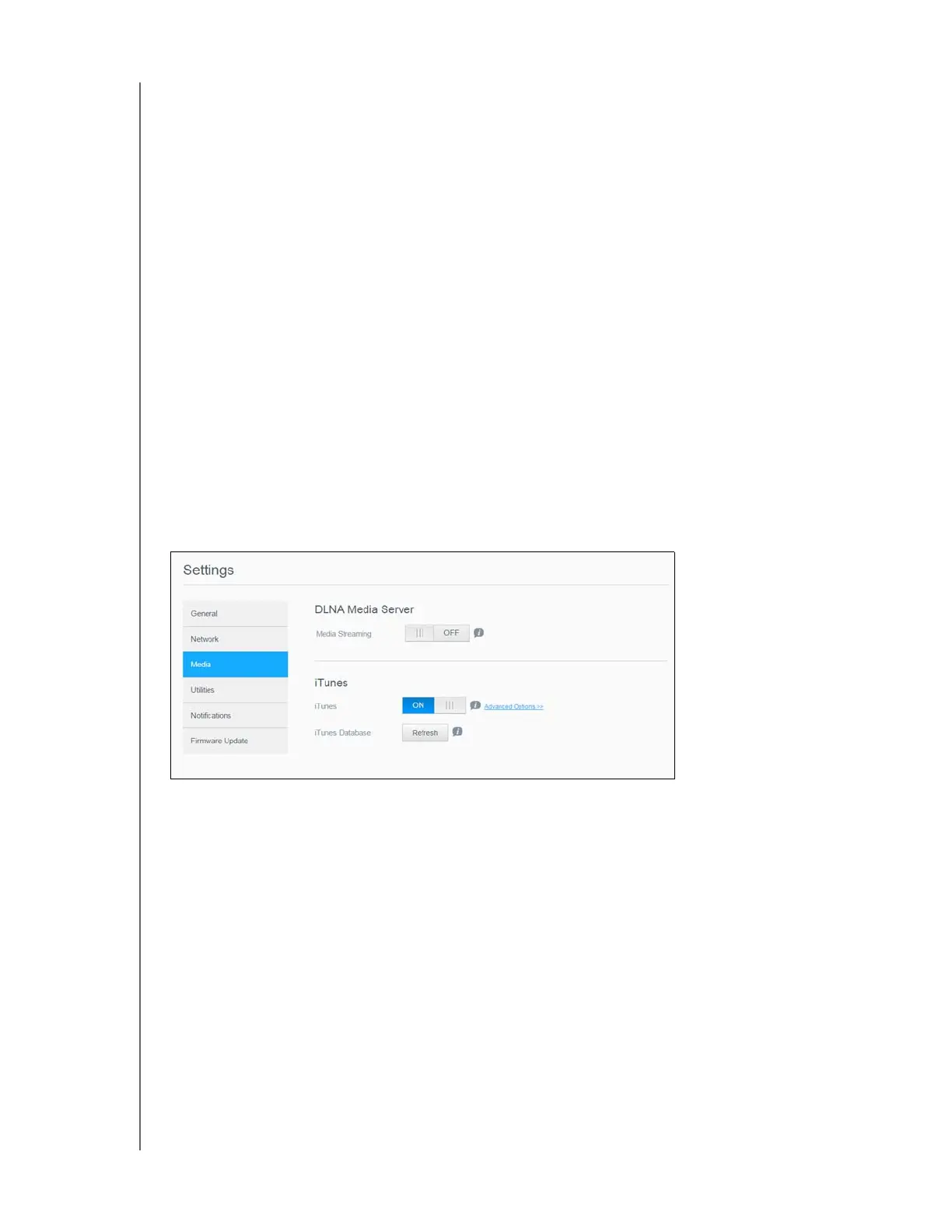
On the Media screen, you can enter DLNA (Digital Living Network Alliance) media server and
iTunes media player settings, so that you can enjoy media in every room in your house.
1. On the Navigation bar, click the Settings icon, then click Media in the left panel.
Note: DLNA and iTunes only work on your local network.
For instructions on entering media settings on this page and then displaying or streaming
media, see “Playing/Streaming Videos, Photos, & Music” on page 54.




 To Next Page