MANAGING USERS AND GROUPS
35
WD CLOUD USER MANUAL
Assigning Share Access to Groups
Once a group account is created, you can assign access to the various shares on your
WD Cloud device using the following steps.
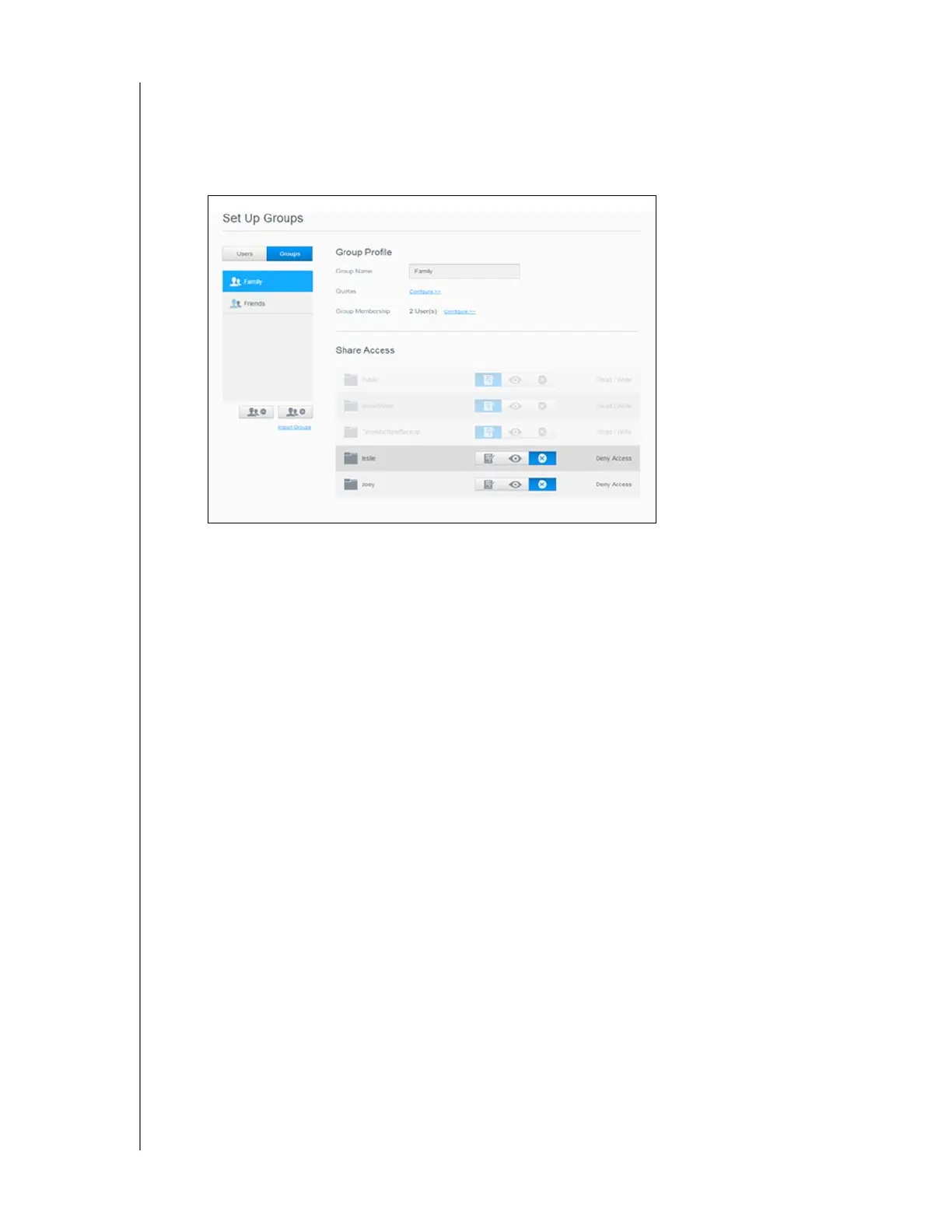
1. On the Set Up Groups screen, select the group for which you’d like to assign a share.
Note: A share must first be made private on the Shares screen. All public shares are
grayed out. See“About Shares” on page 37 for additional information.
2. In the Share Access area, click one of the following option icons to indicate the type of
access to the share:
Read/Write Access: Select this option to provide the group account with read/
write access to the selected share. The group members can view and update the
share.
Read Only Access: Select this option to provide the group account with read only
access to the selected share. The group member can view the share but can't
update it.
Deny Access: The group has no access to this share.
The group is updated with your share access selection.
Assigning Quotas to a Group
Use the following steps to assign a quota to a Group. A quota determines the amount of
space assigned to the user on the WD Cloud device. (See “User Quotas” on page 32 for
information on quotas.)
1. On the Set Up Groups screen, select the group from the left pane.
2. In the Quotas field, click Configure.
3. Enter the amount of space you’d like to assign to the group on the WD Cloud device.
To assign unlimited space, leave the Quota Amount field(s) blank.
4. Click Save.




 To Next Page