BACKING UP AND RETRIEVING FILES
46
WD CLOUD USER MANUAL
Creating a USB Backup
Use the following steps to back up your data on your WD Cloud device to a USB device or
to backup your USB device data to your WD Cloud device.
Note: This information is applicable only for the USB ports on the back of your
WD Cloud device.
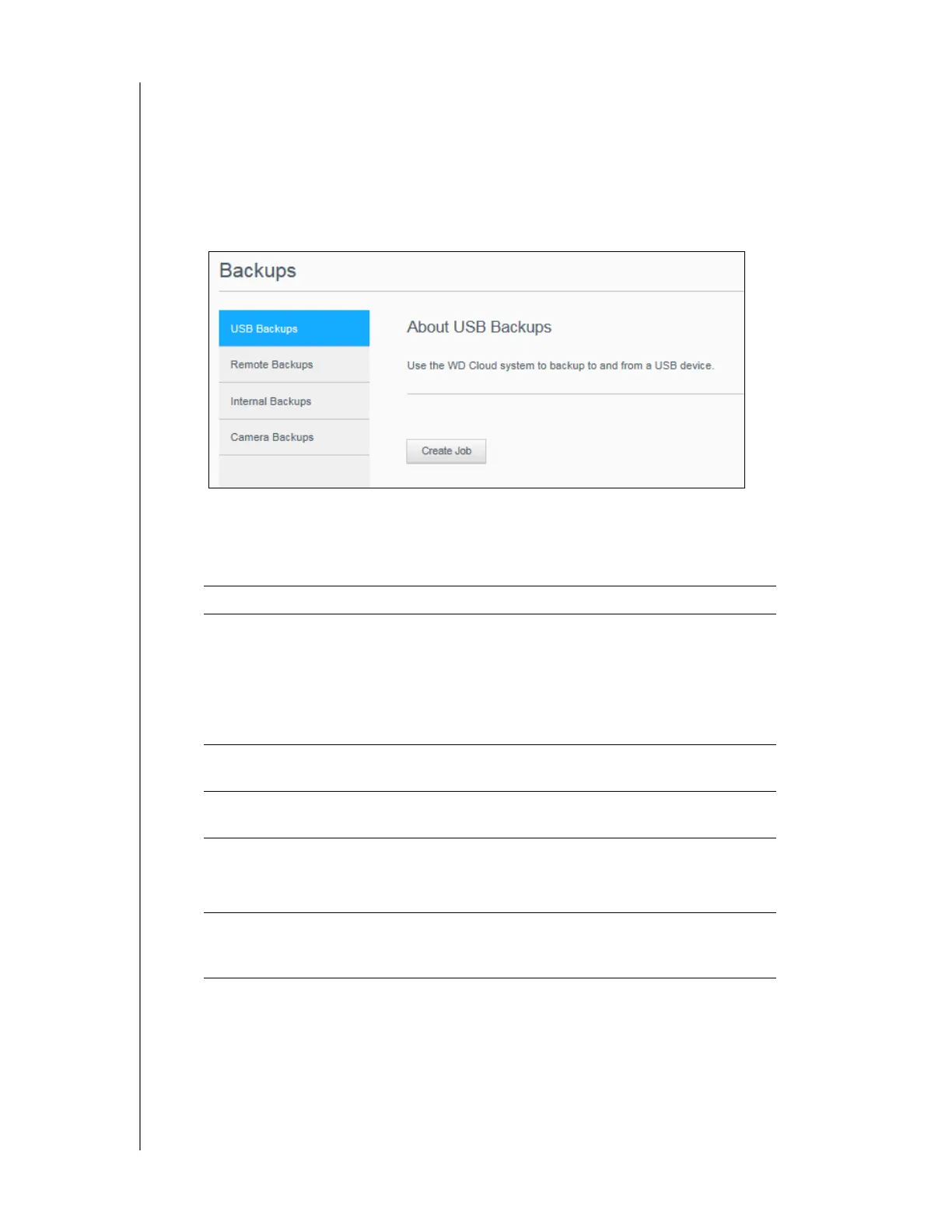
1. On the Navigation bar, click Backups to display the Backups screen.
2. Click USB Backups, if not already selected.
3. Click Create Job.
4. Enter the following information to create a USB backup job:
5. Click Create.
6. In the USB Backup Jobs area, click the Start Backup icon to begin your backup.
The progress of the backup appears in the USB Backup Jobs area.
Job Name Enter a Job Name for your backup.
Direction Indicate the direction of your backup from the drop-down
menu. Options include:
• USB to NAS: Backs up the data on your USB device to
the WD Cloud device.
• NAS to USB: Backs up the data on your WD Cloud
device to a USB device.
Source Folder Click Browse and select the folder you'd like to back
up.
Destination Folder Click Browse and select the destination folder for your
backup.
Backup Type Indicate the type of backup you’d like to perform.
•Copy
• Synchronize
Auto Start When
Connected
This option automatically starts the job when the device is
connected. Click the toggle button to turn the option on or
off.




 To Next Page