BACKING UP AND RETRIEVING FILES
51
WD CLOUD USER MANUAL
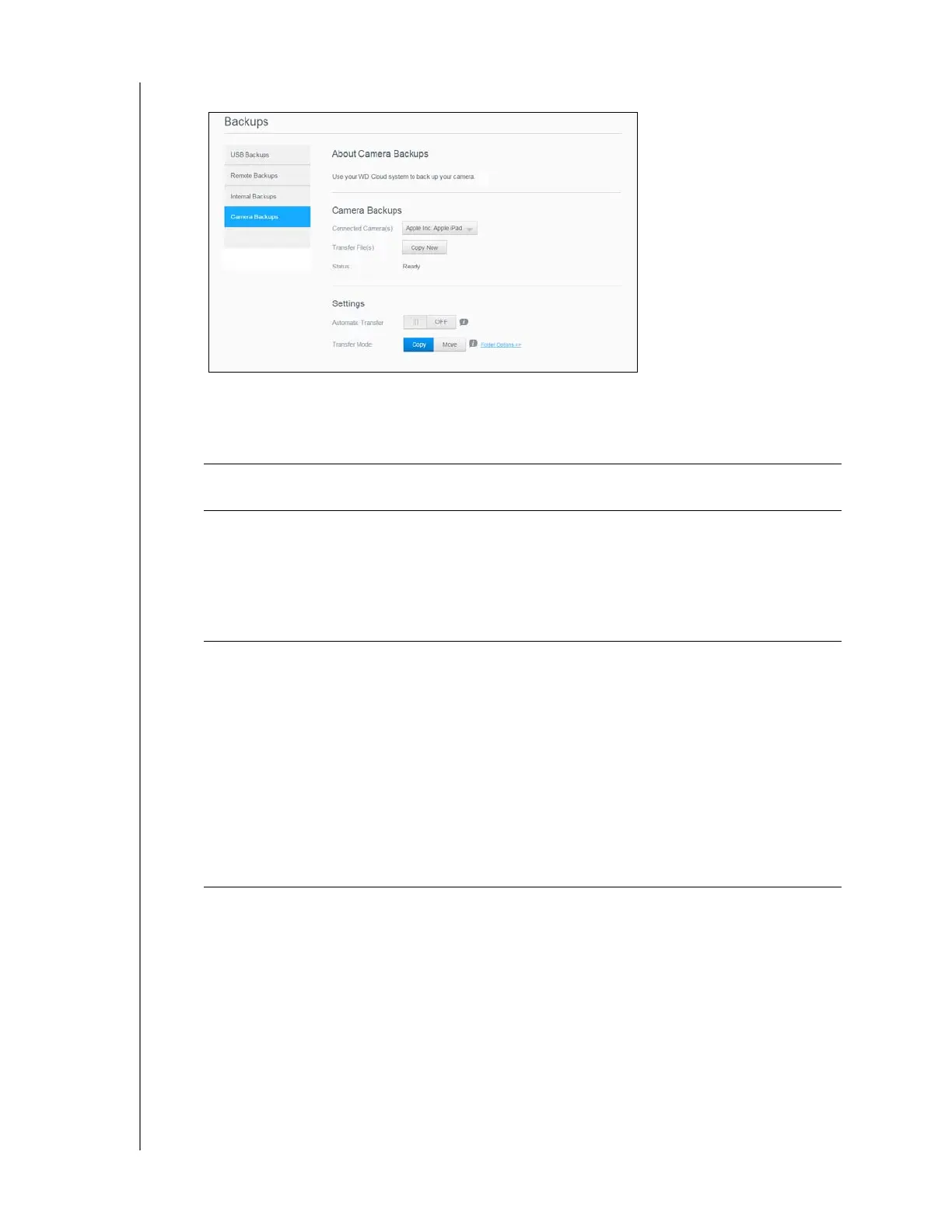
3. Click Camera Backups, if not already selected.
4. Ensure that the Connected Camera(s) area identifies your camera.
5. In the Settings area, enter the following information to backup the data on your
camera:
3. In the Transfer File(s) field, click Copy/Move Now to begin the file transfer, if Automatic
Transfer is off.
4. Once complete, the Status field indicates that the backup is complete for the
connected device and the day, date, and time of the completed download.
Automatic Transfer Click the toggle button to automatically transfer data from your
camera to the WD Cloud device.
Transfer Mode Select how you’d like the camera data to be transferred. Options
are:
• Copy: Copies the information from your camera to the WD
Cloud device. This will leave the original data on your camera.
• Move: Moves the files on your camera to the WD Cloud
device, removing the files from your camera.
Folder Options Select this option to identify a destination for the transferred
camera files.
1. On the Camera Folder Options screen:
- Transfer Folder: Click Browse to enter the location on
your device where you’d like to transfer your data, then
click OK.
- Folder Name: Select a Folder Name type from the pull-
down menu.
- If you select Custom Folder Name, enter a folder
name in the Enter Folder Name field.
2. Click Save.




 To Next Page