CONFIGURING SETTINGS
62
WD CLOUD USER MANUAL
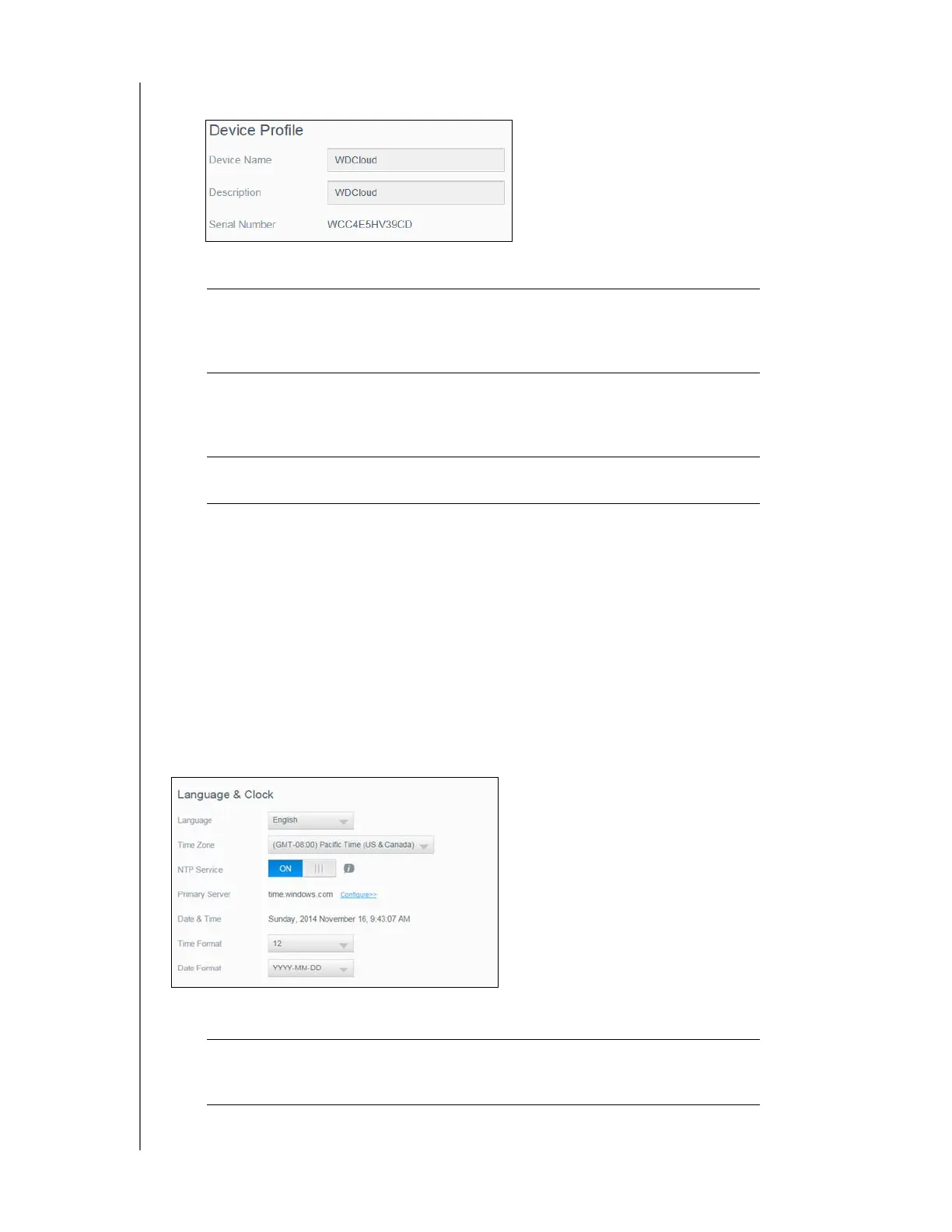
Device Profile
1. In the Device Profile section of the General page, view or modify the following settings:
2. If you made any changes, click Save (appears next to the updated field once a change
is made).
Note: Throughout the WD Cloud dashboard, the Save and Cancel buttons
display only if you make changes.
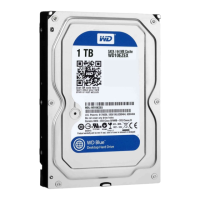
Language and Clock
In this section of the General screen, you can change the language that appears in the
WD Cloud device’s interface and set the date and time. The date and time are synchronized
to the NTP (Network Time Protocol) server by default. You have the option of setting the
date and time manually or allowing the NTP to access the Internet and automatically set the
time. If you are not connected to the Internet, you must enter the date and time manually.
1. In the Language & Clock section, you can view or modify the following settings
:
Device Name Enter a unique name for your device to identify it on the
network. The device name can be up to 15 characters
long and cannot include special characters (e.g., @, #, $
etc.).
Description The default description is WDCloud<model# >. If desired,
enter a different description for your device. The device
description can be up to 32 characters long and cannot
include special characters (e.g., @, #, $ etc.).
Serial Number Displays the WD-assigned number that identifies the
specific unit. This field cannot be updated.
Language From the drop-down list, select the language you’d like to
display on your WD Cloud device web pages. The default
language is English.




 To Next Page