28
Multi-Zone Setup (part 1) Ifyouaresettingupmorethanasinglezone,choosethesettinginthismenu
thatisthesumofallzones.Forexample,ifyouhaveaprimaryzonewitha5.1
theater,andasecondaryzonewitha2.1musicsystem,selecta7.2system.If
youwanttohavethree2.1systems,werecommendchoosing“6.3Phantom”
sinceitkeepsthingsabitsimplerlateron.(Seepp.32–33.)
Thisstepisimportant,sinceSystemCongurationpassesalonginformationto
MultEQProaboutwhichchannelsofhardwarearegoingtobeused.Youwill
nishtheprocessofdeningwhichchannelsareusedforwhichspeaker,and
whichzones,laterwhenyougettoMultEQPro.
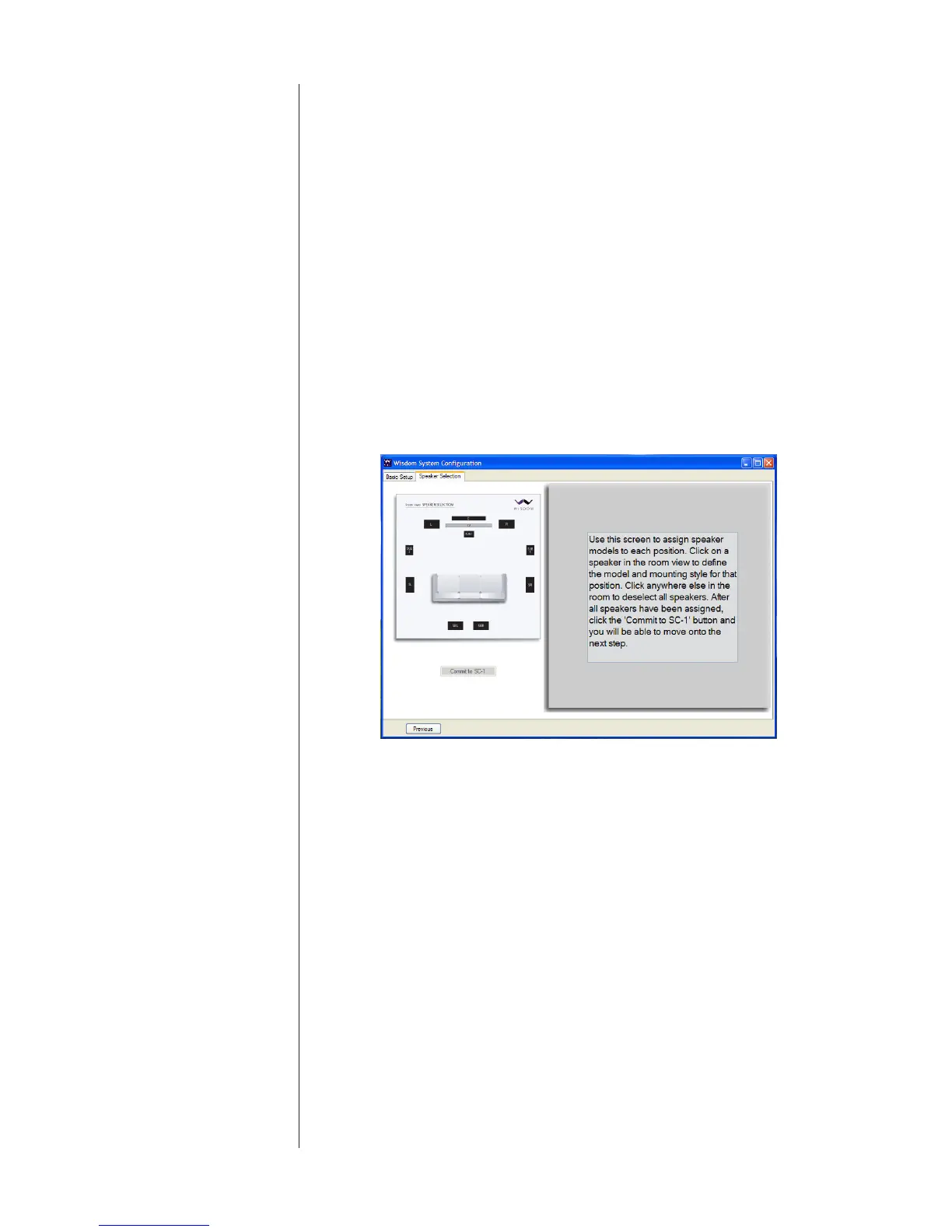
Speaker Selection Thesecondtabprovidesvisualconrmationthatthebasicsystemdescription
youselectedisappropriate,andagraphicwaytotelltheSC-1whichloudspeak-
ersyouareusingoneachchannel.
Followtheon-screeninstructions,asshownbelow.
Speaker Selection screen 1
Whenyouselectaparticularspeakerlocation,thechosenspeakerwillbehigh-
lightedandtheright-handpanelwillchangetoshowyouthevariouspossibili-
tiesavailableforthatspeaker,asseenbelow.



 To Next Page